Ikanos Lifeboard UX

User experience Ikanos Consulting: LifeBoard

LifeBoard

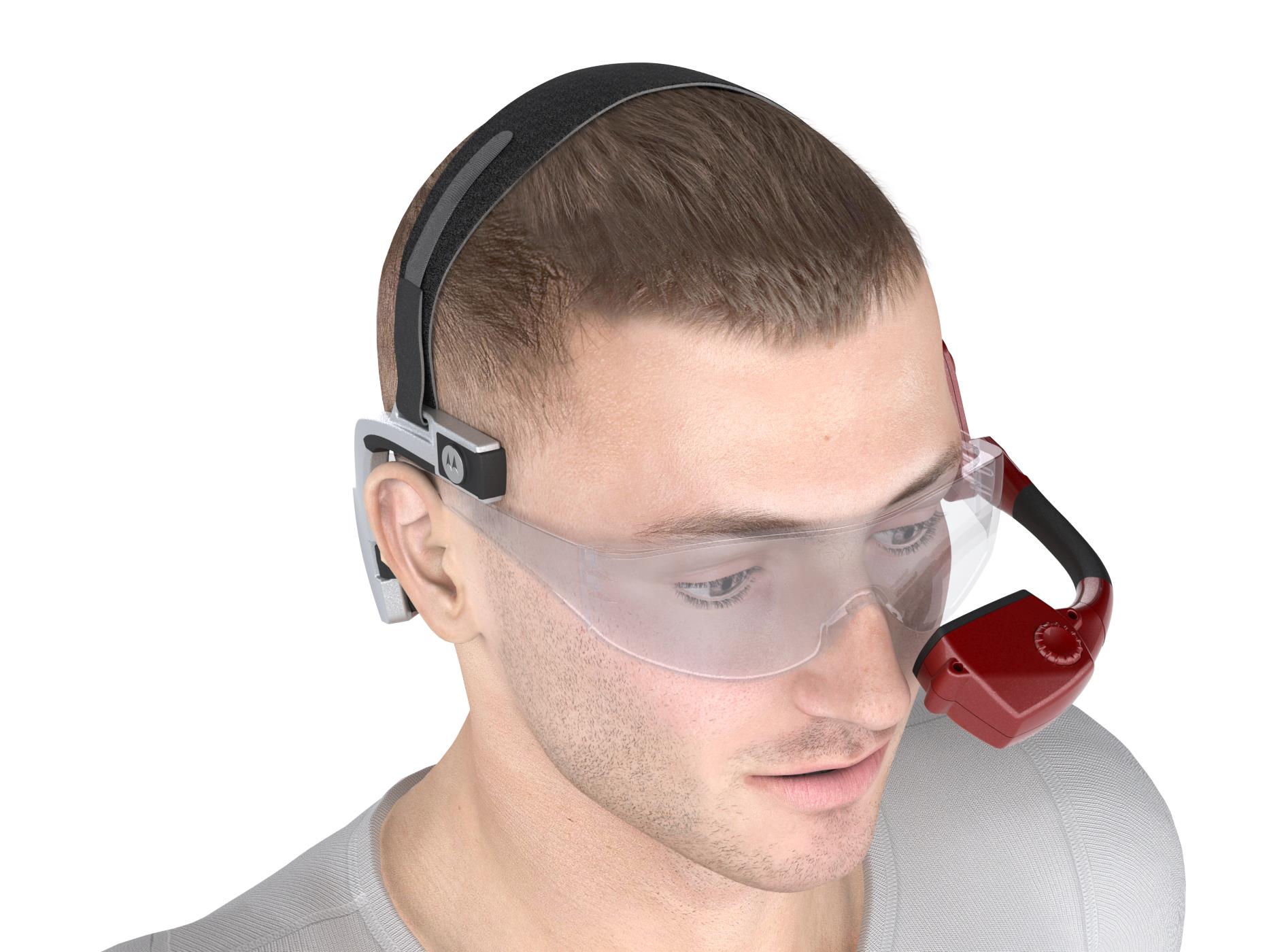
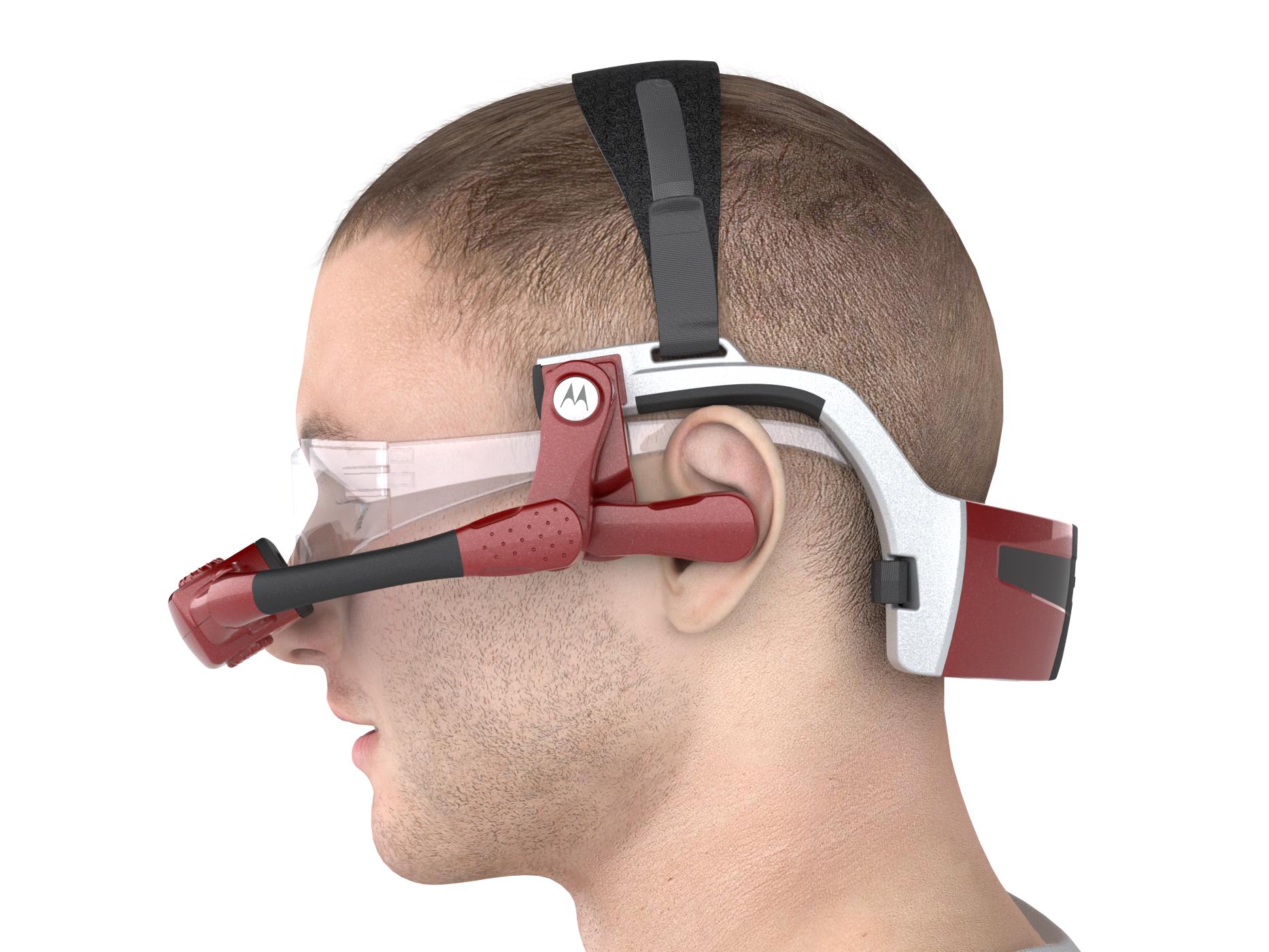
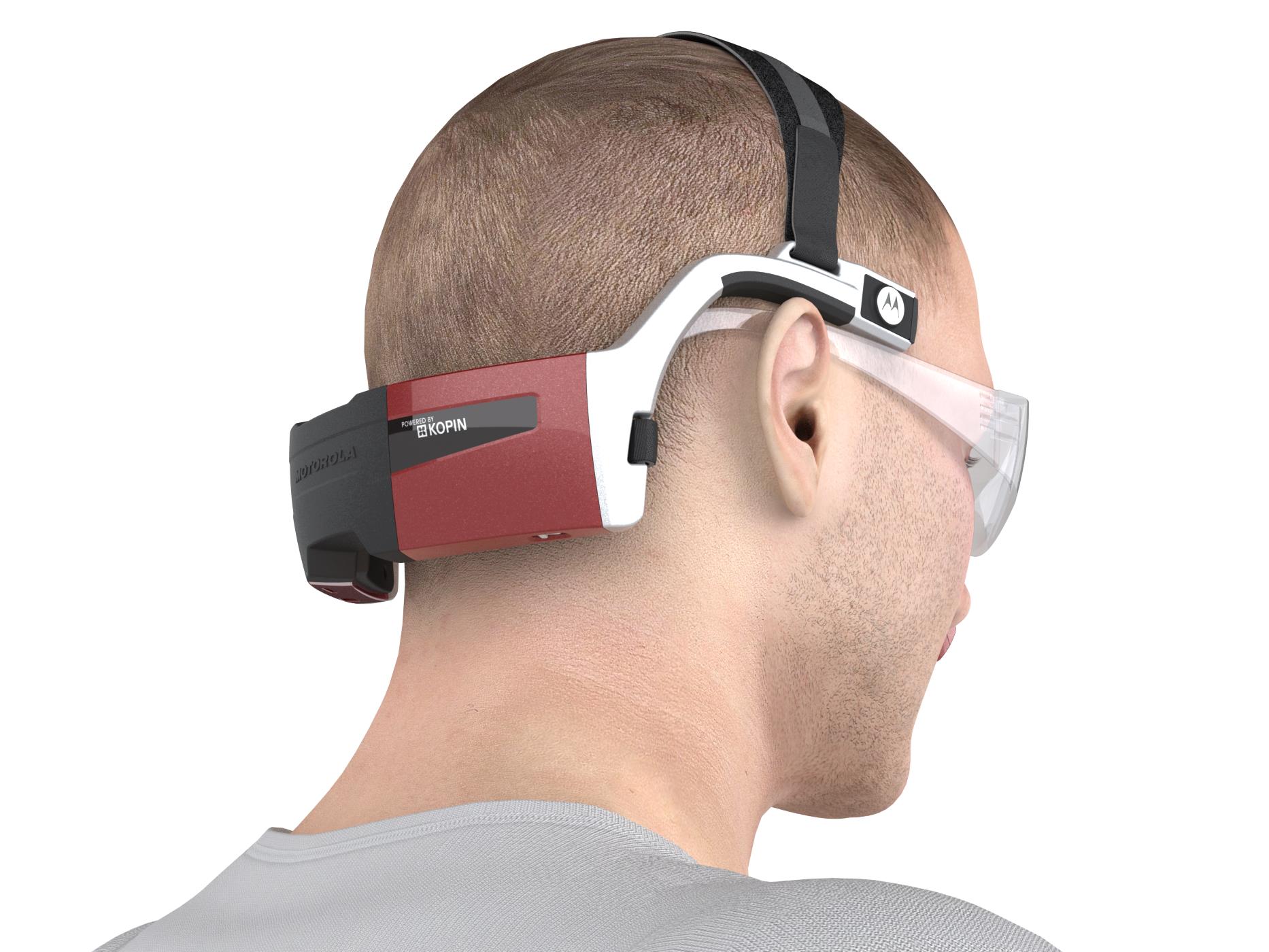
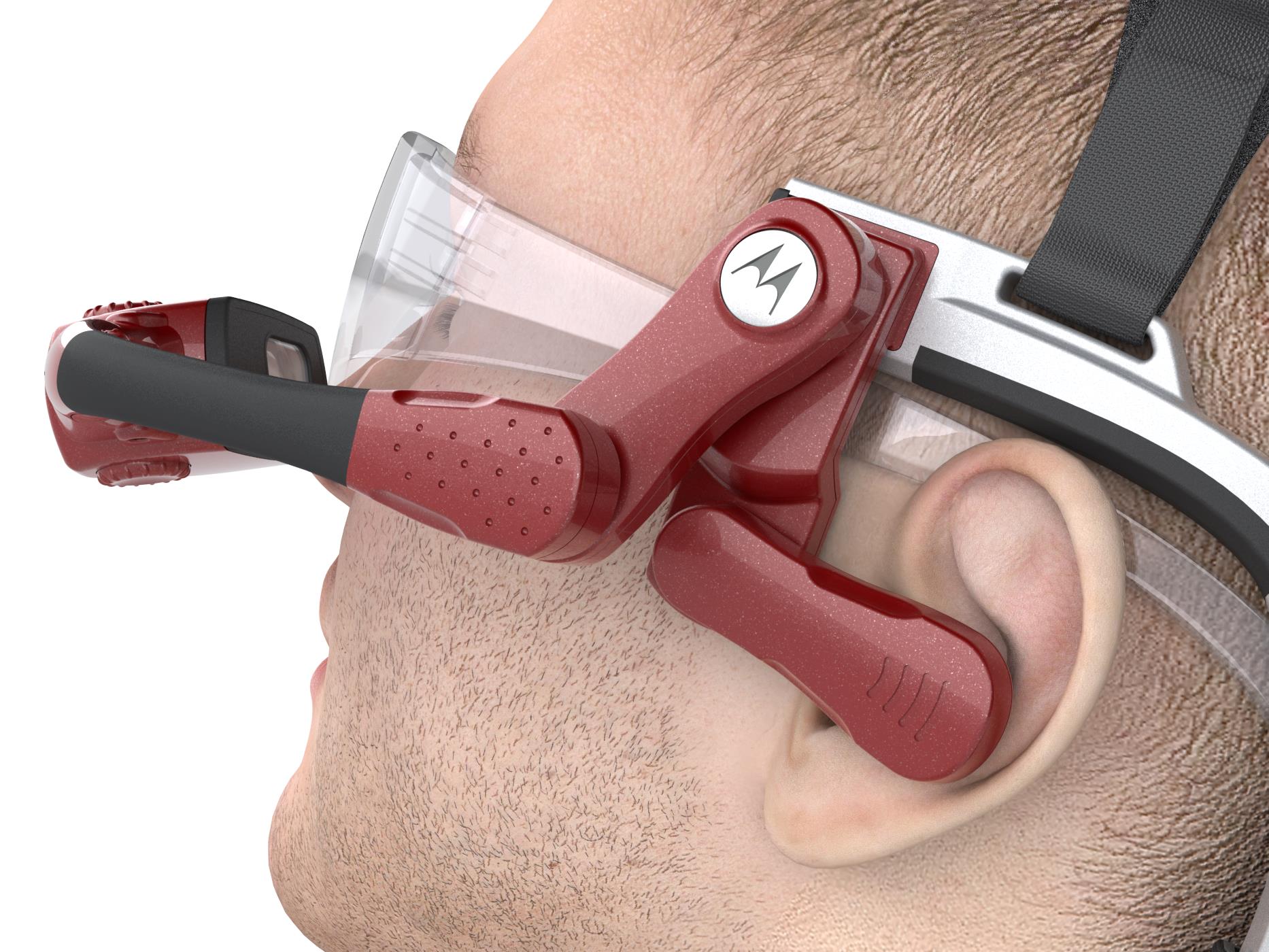
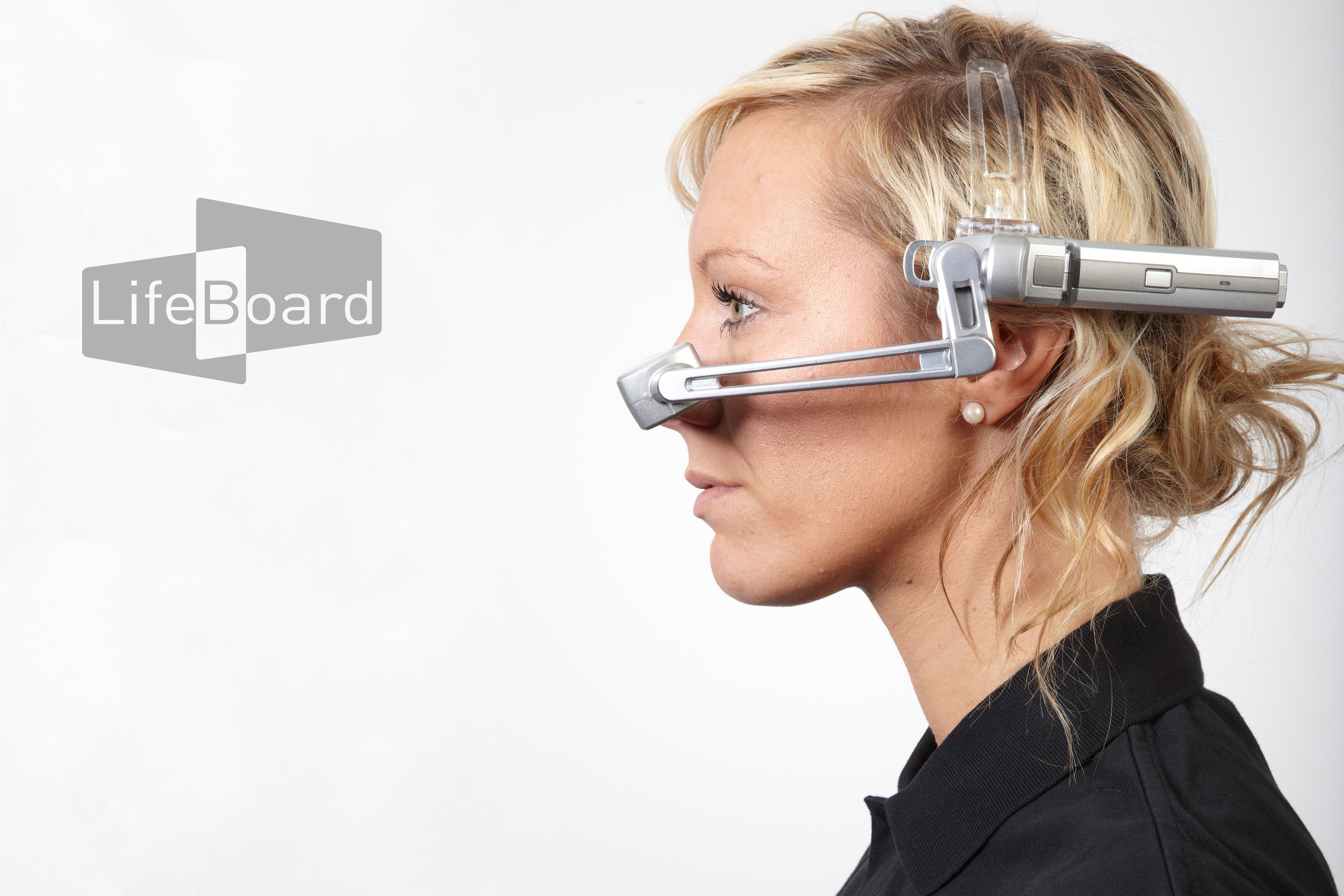
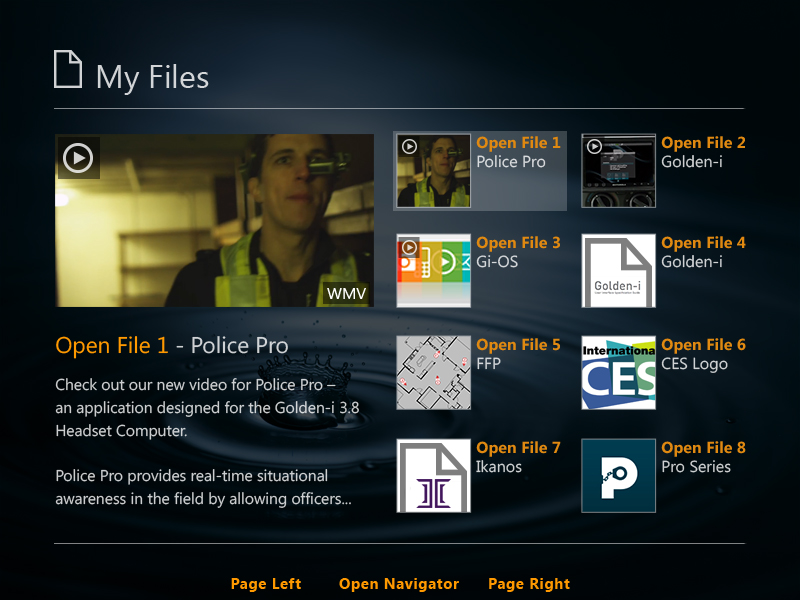
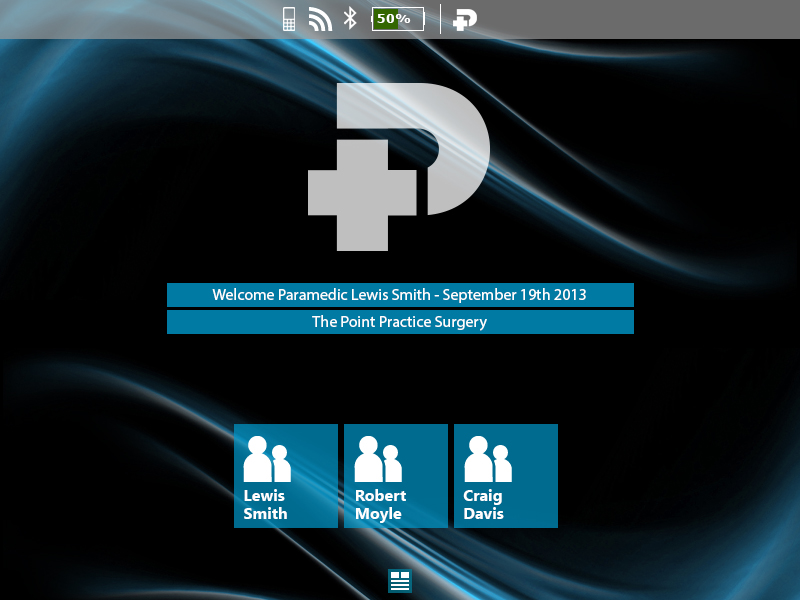
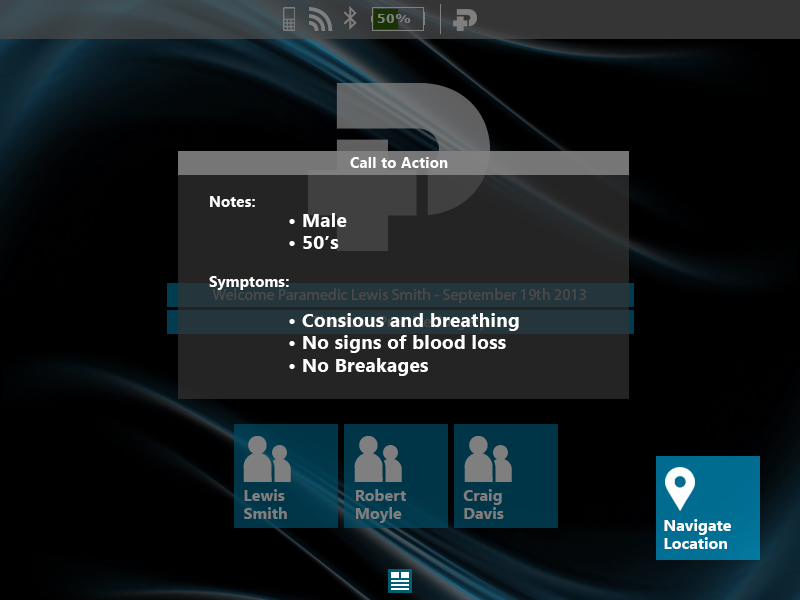
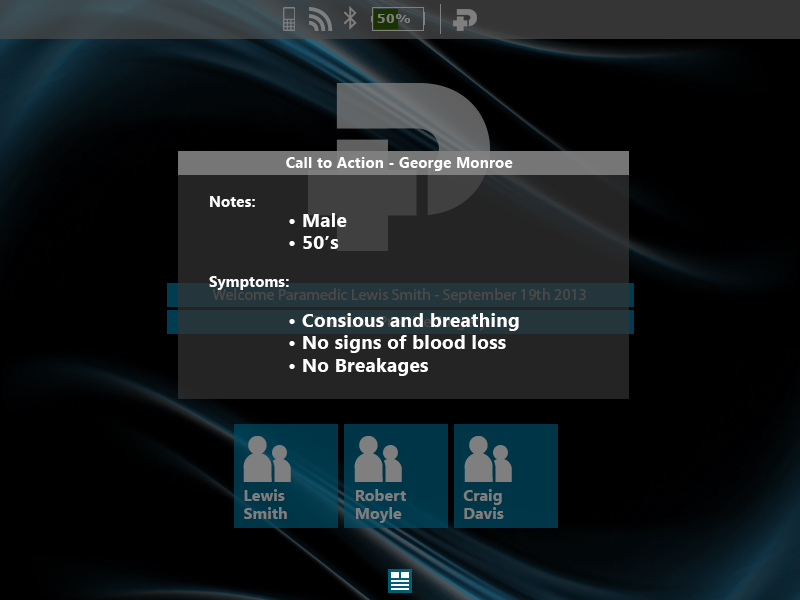
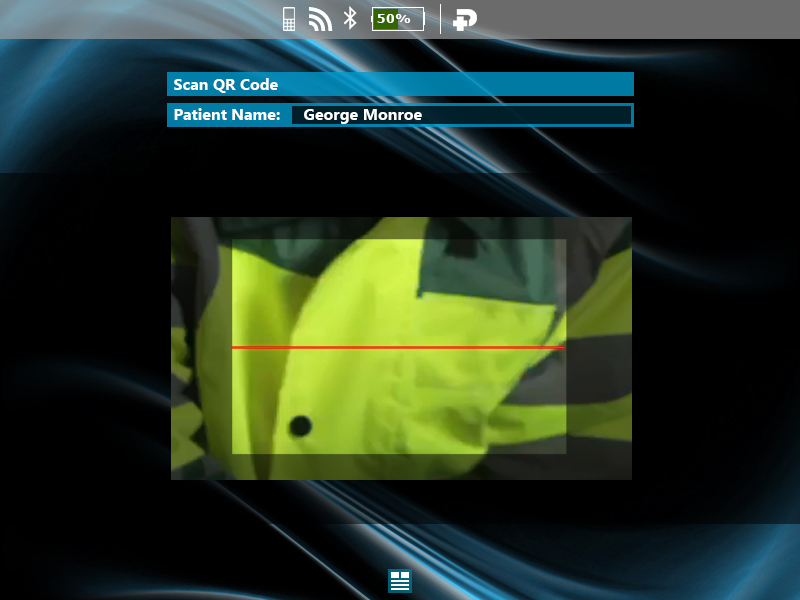
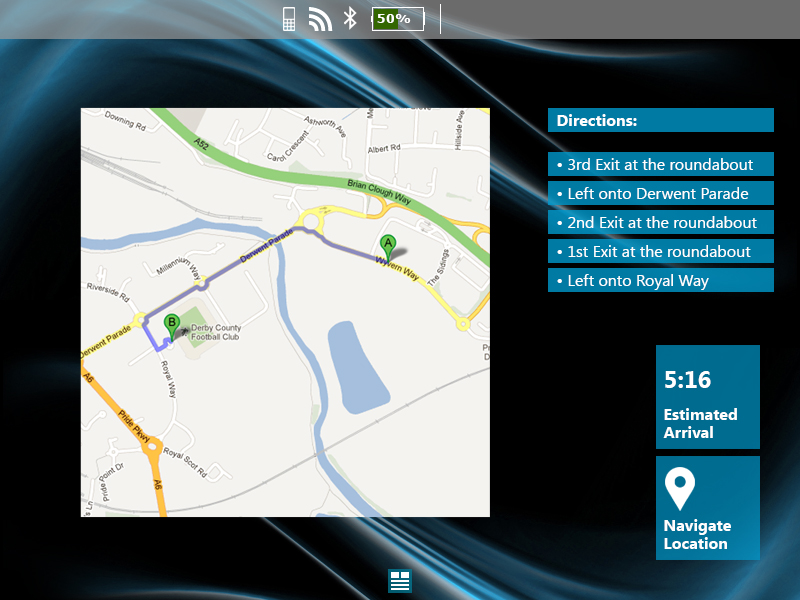
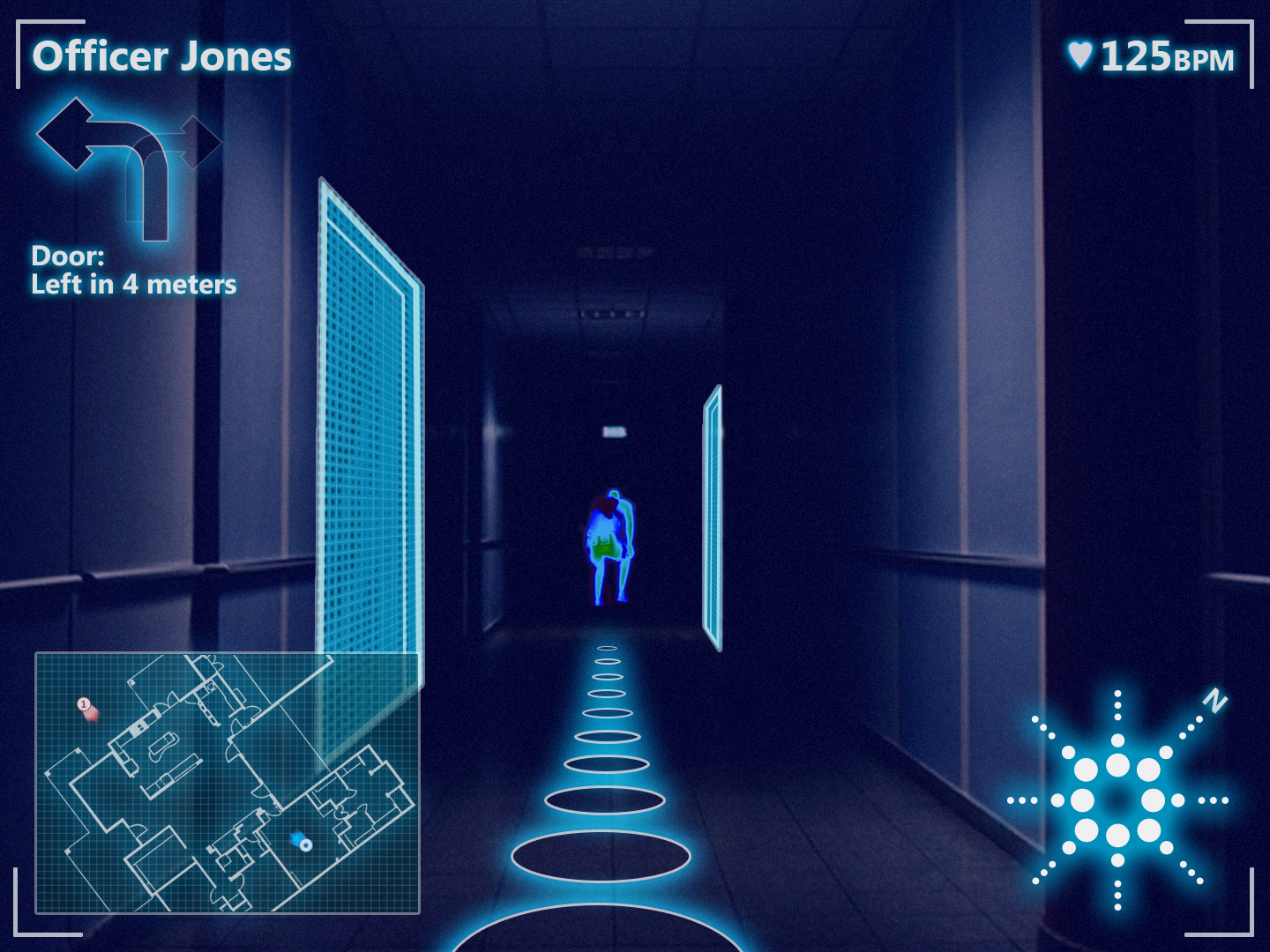
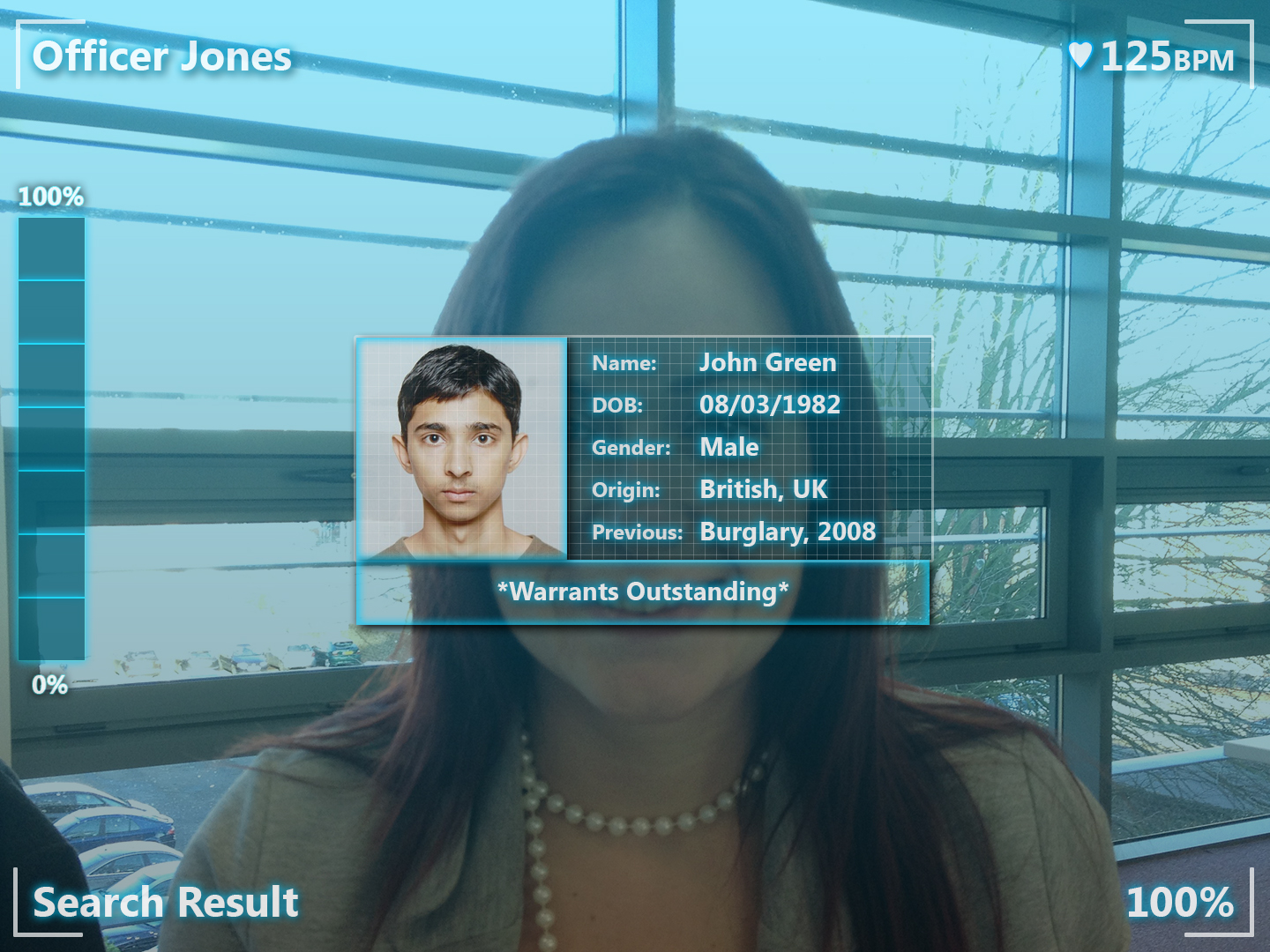
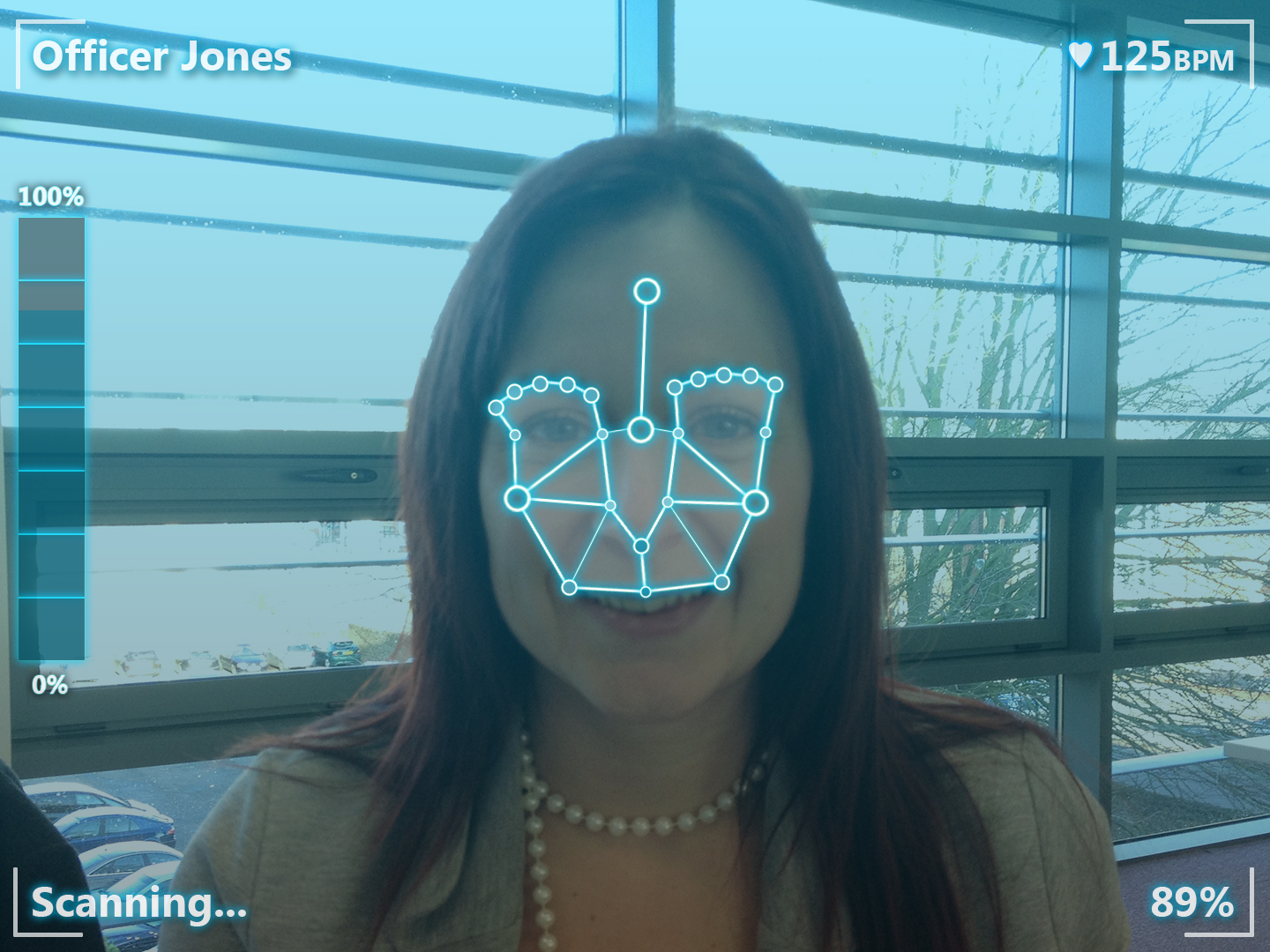
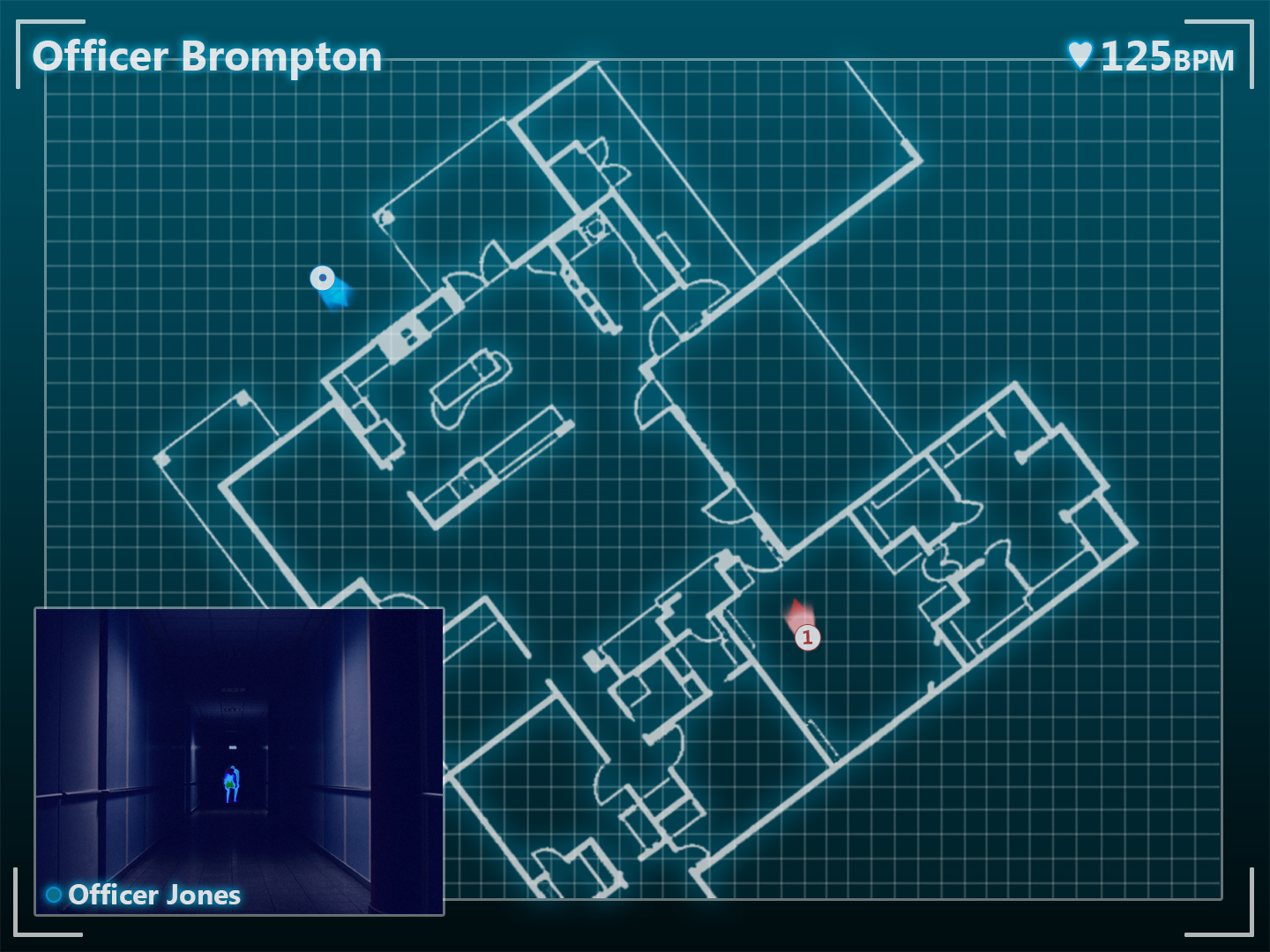
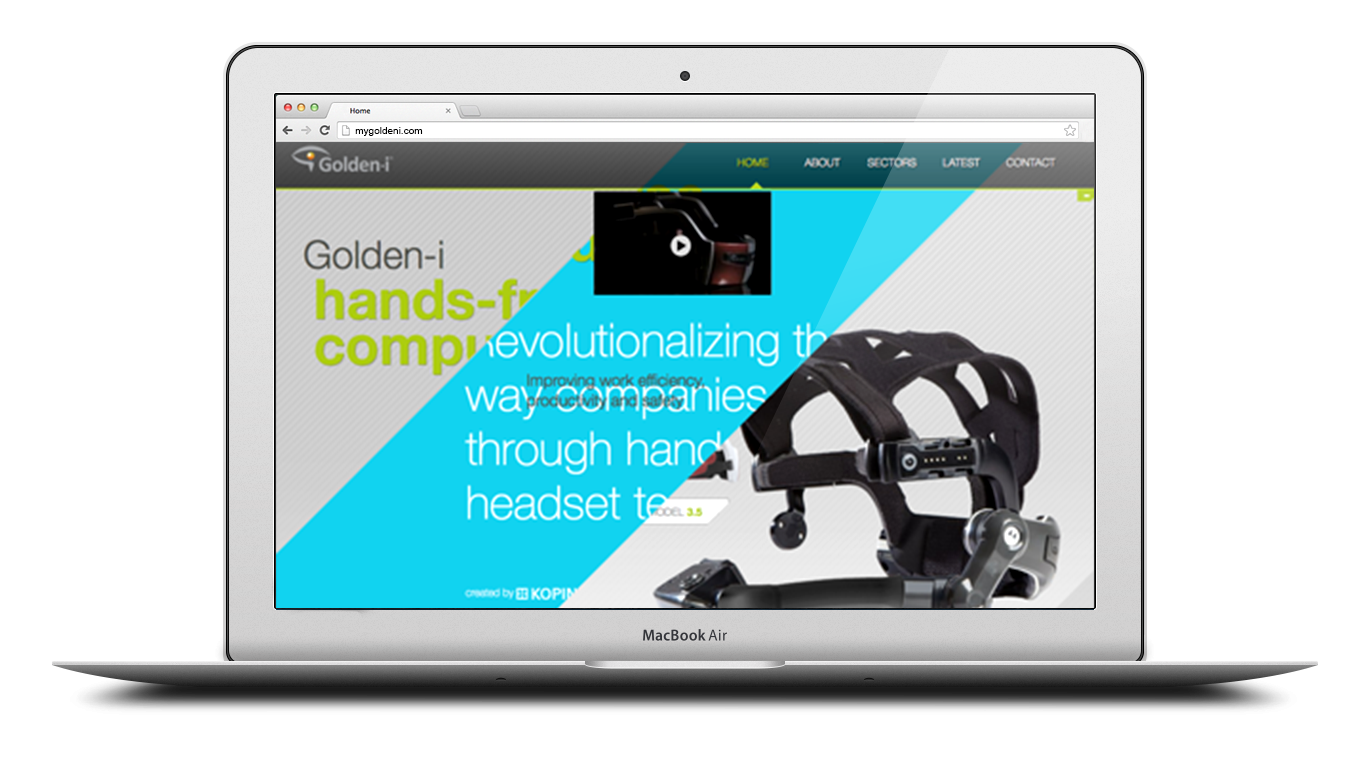
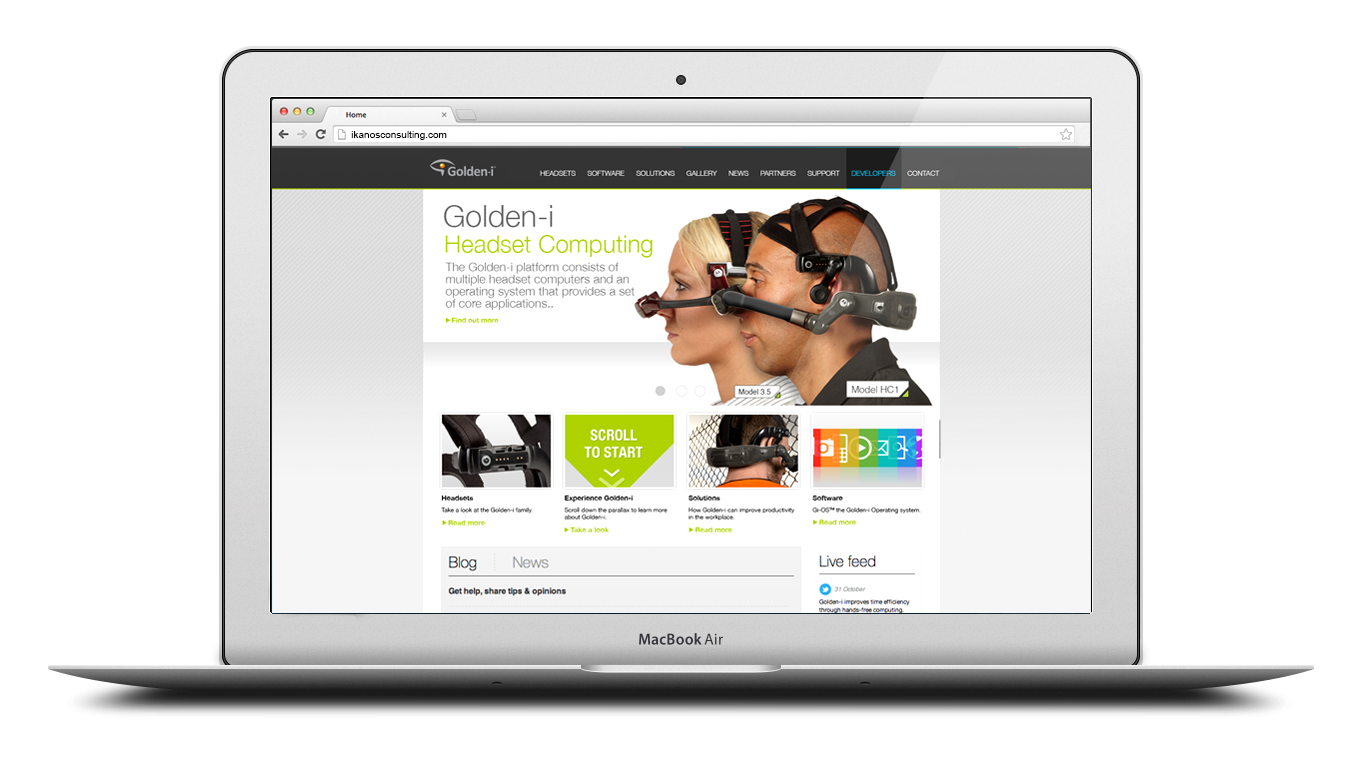
LifeBoard is a consumer application for the Golden-i headset computer. Announced at CES 2013, LifeBoard is a customisable skin for the Gi-OS operating system, allowing users to set up and switch between up to six different screens using voice commands.

My role

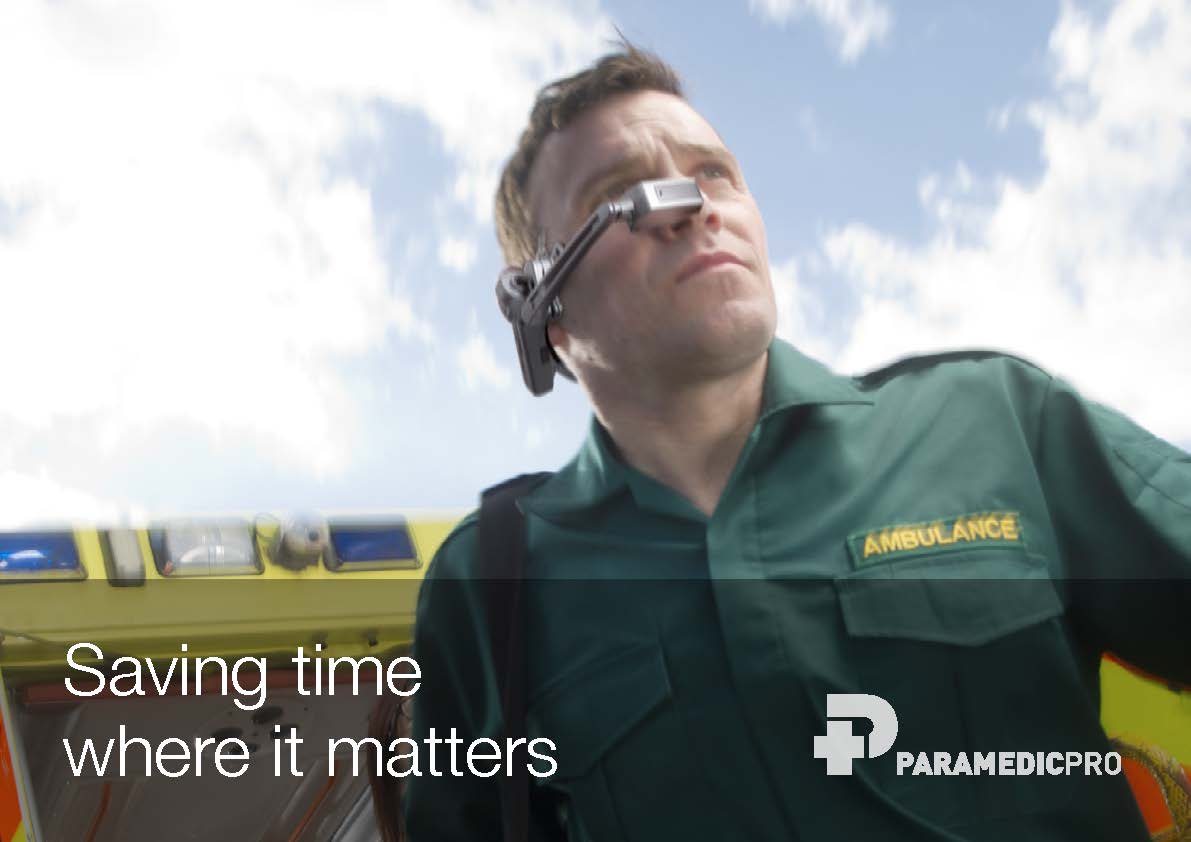
Ikanos Consulting are a software house founded in 2007 in Nottingham. It specialises in creating applications for wearable technology, including the LifeBoard software for Kopin Corporation’s Golden-i headset computer.

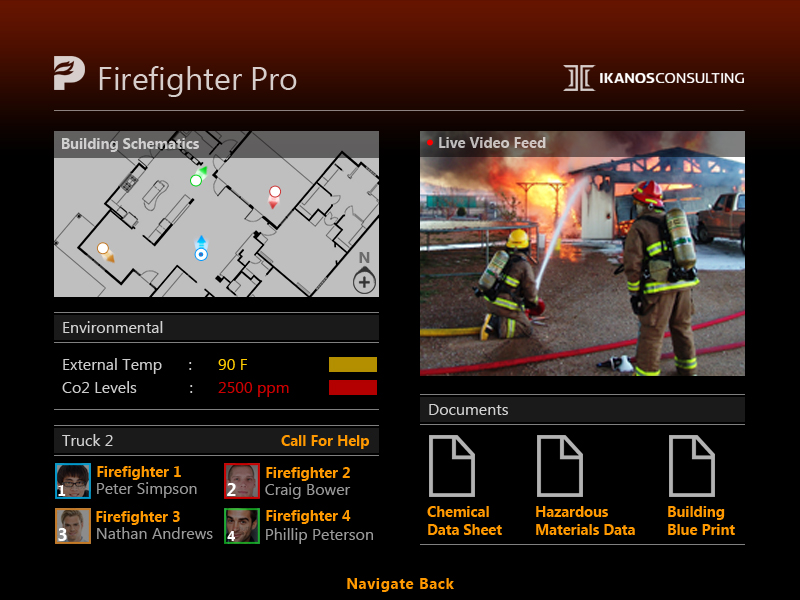
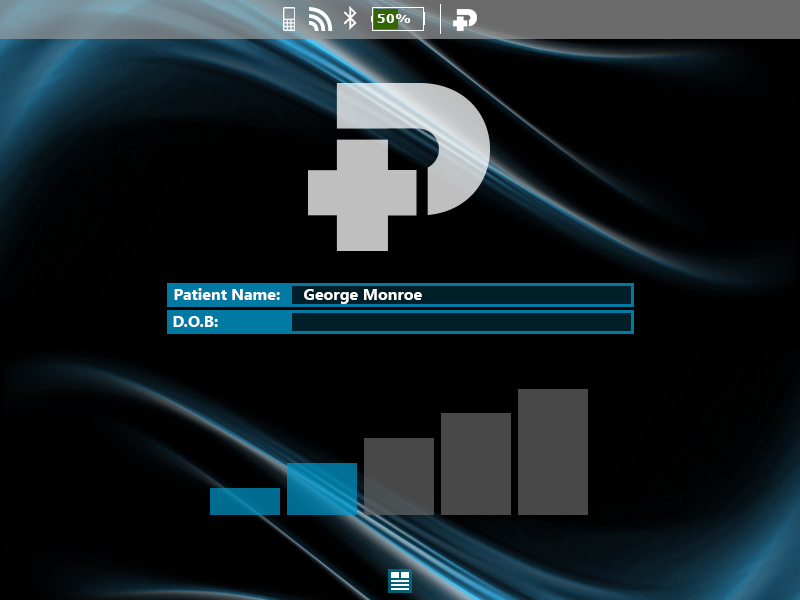
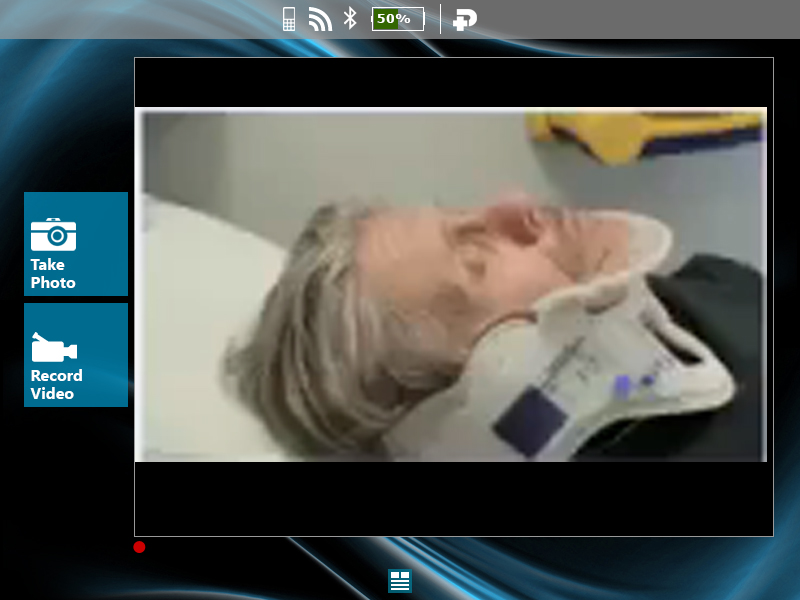
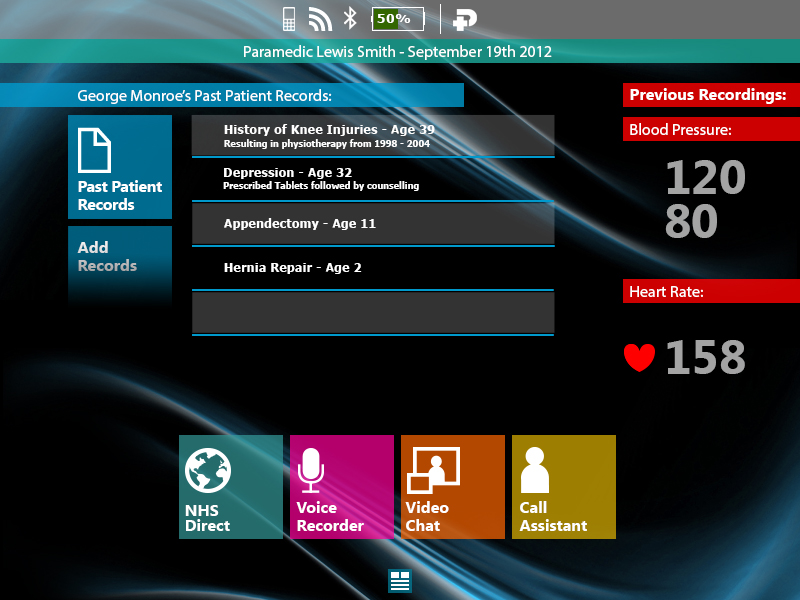
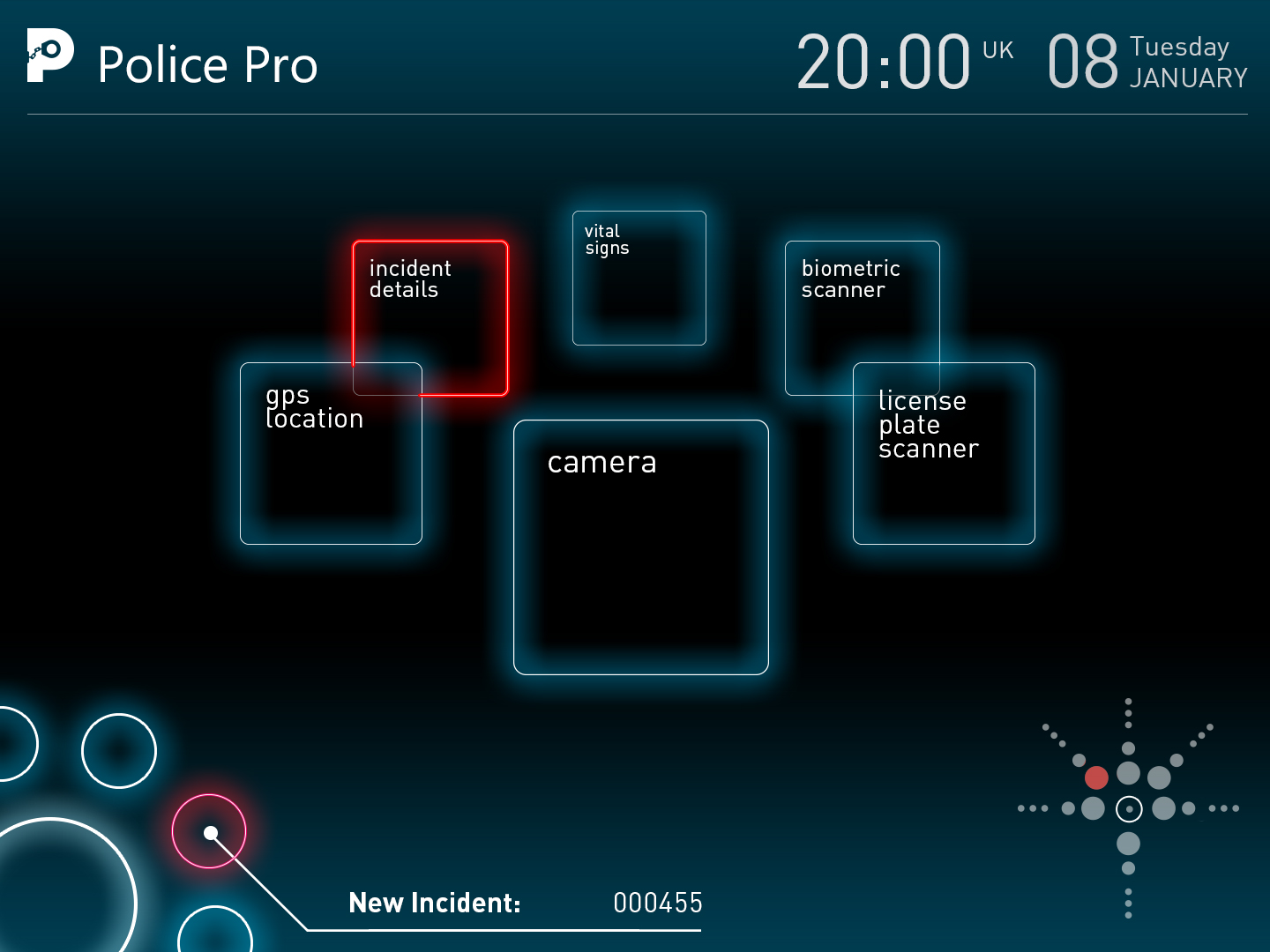
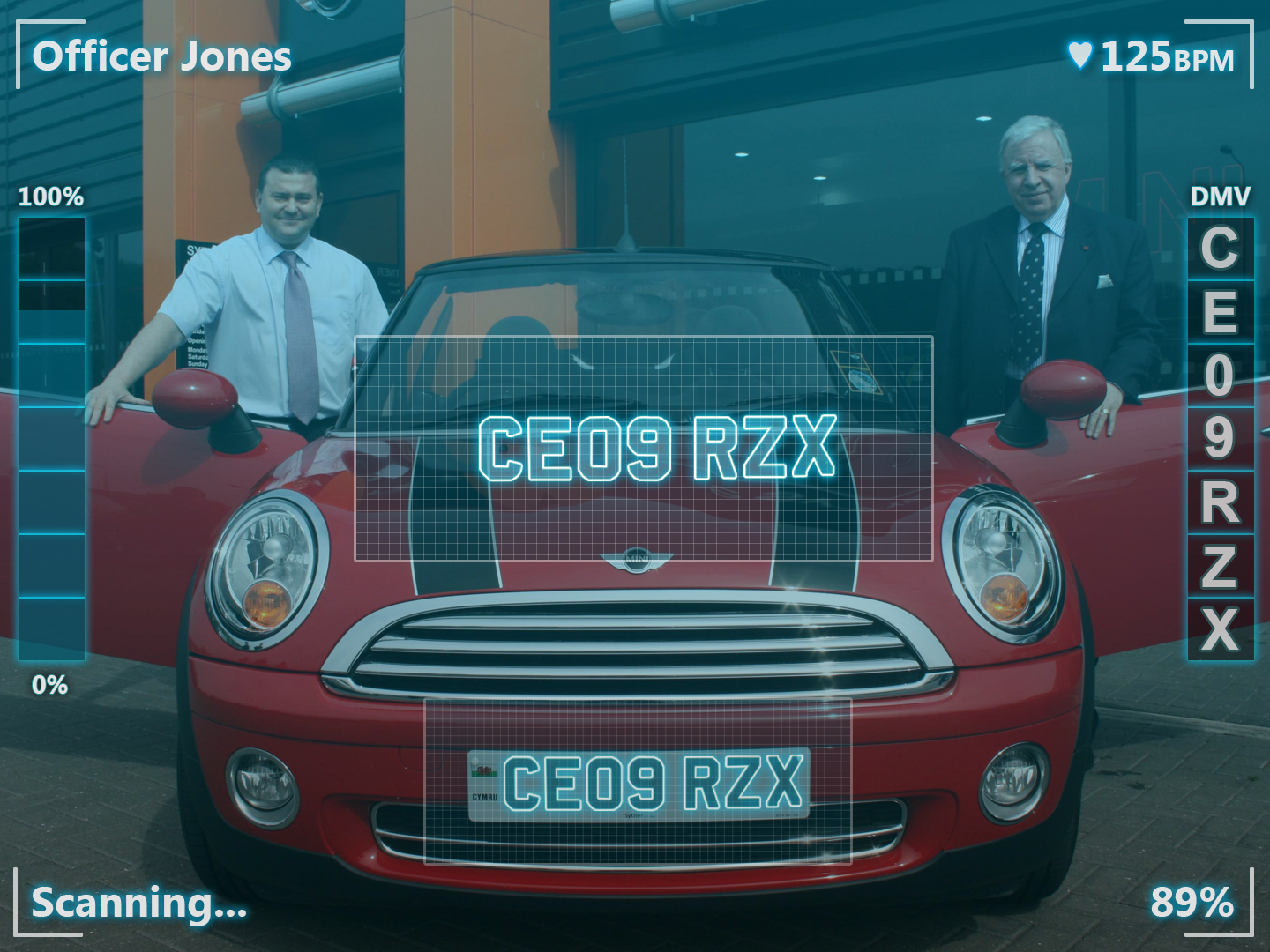
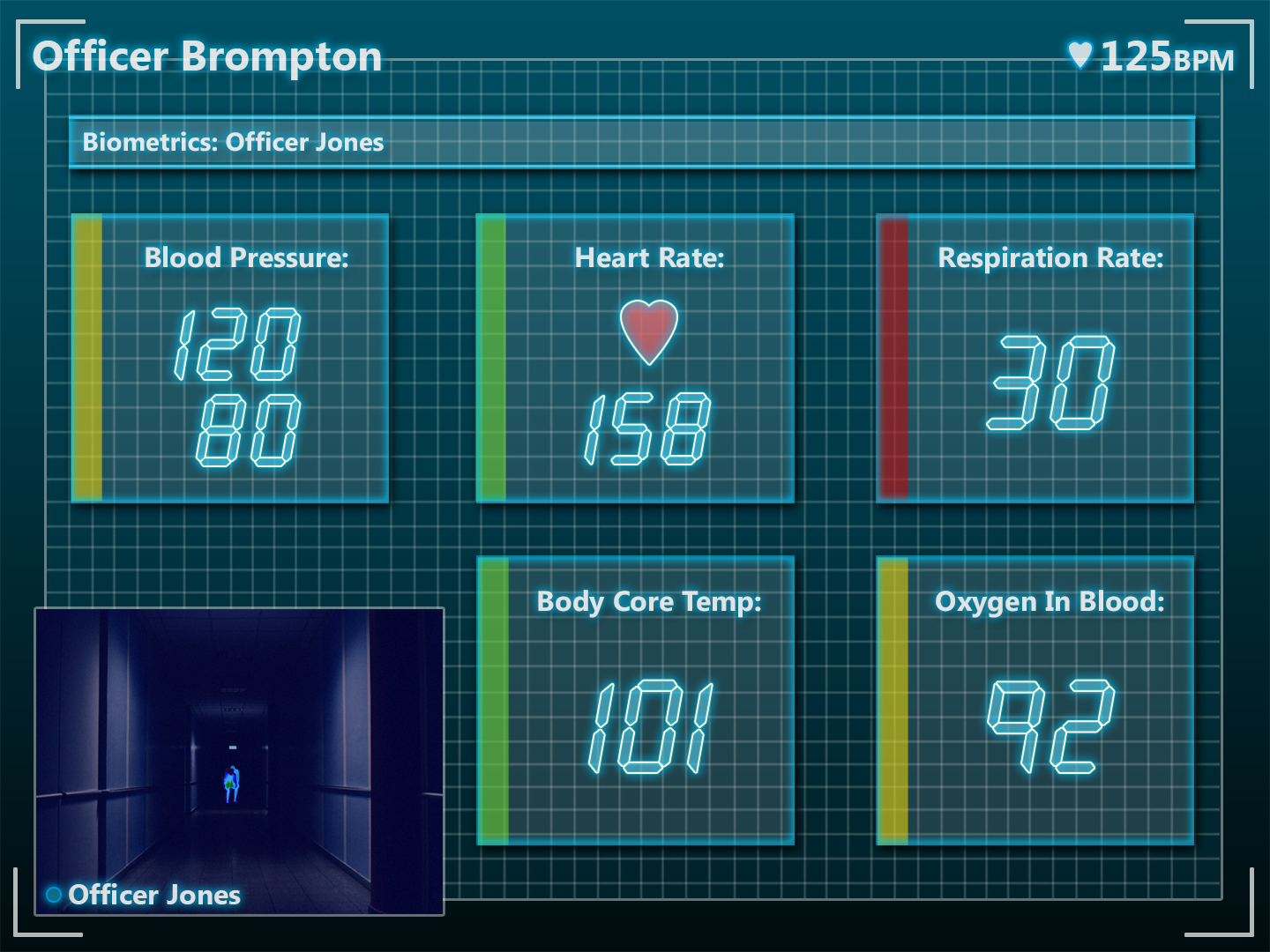
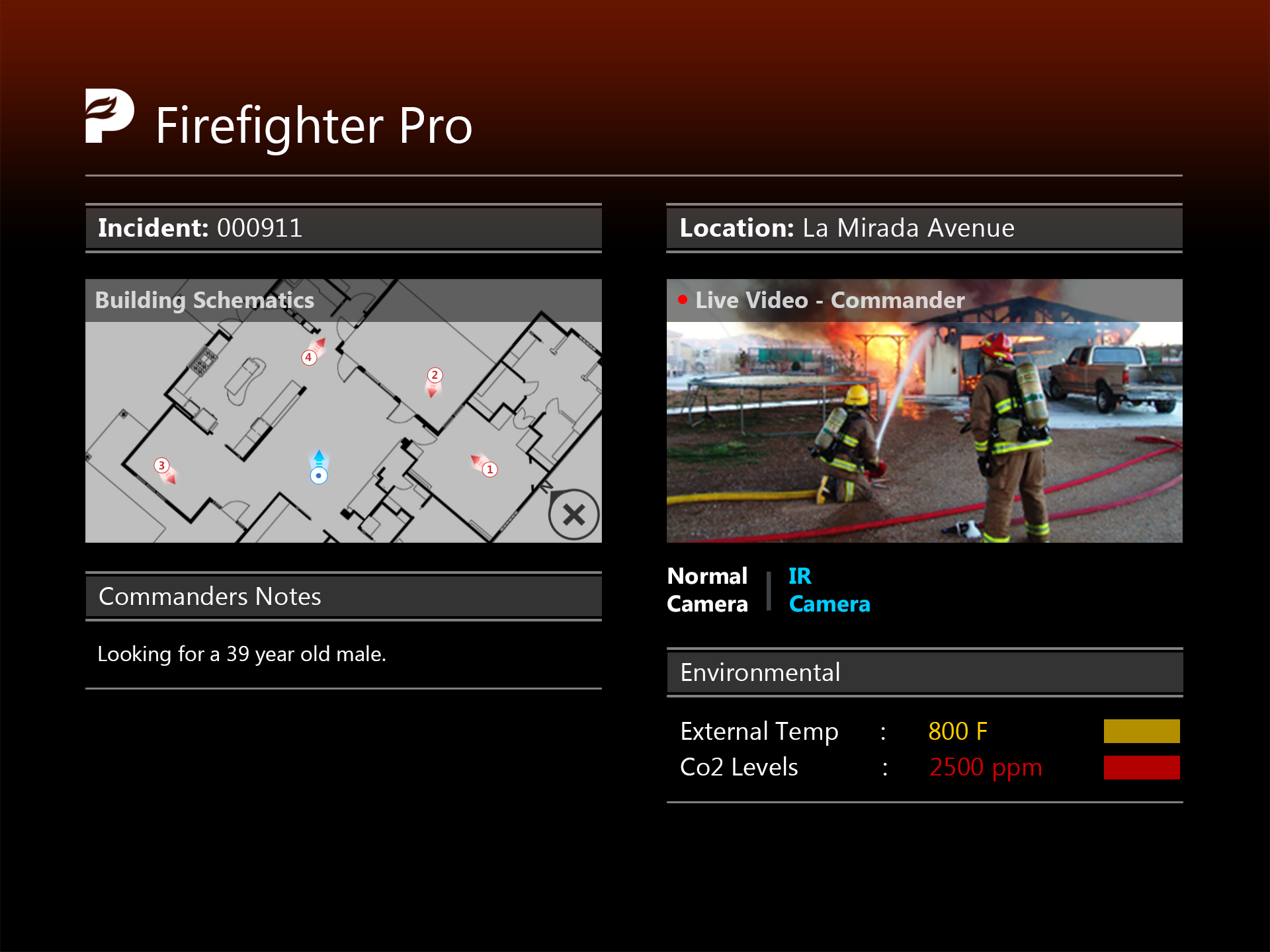
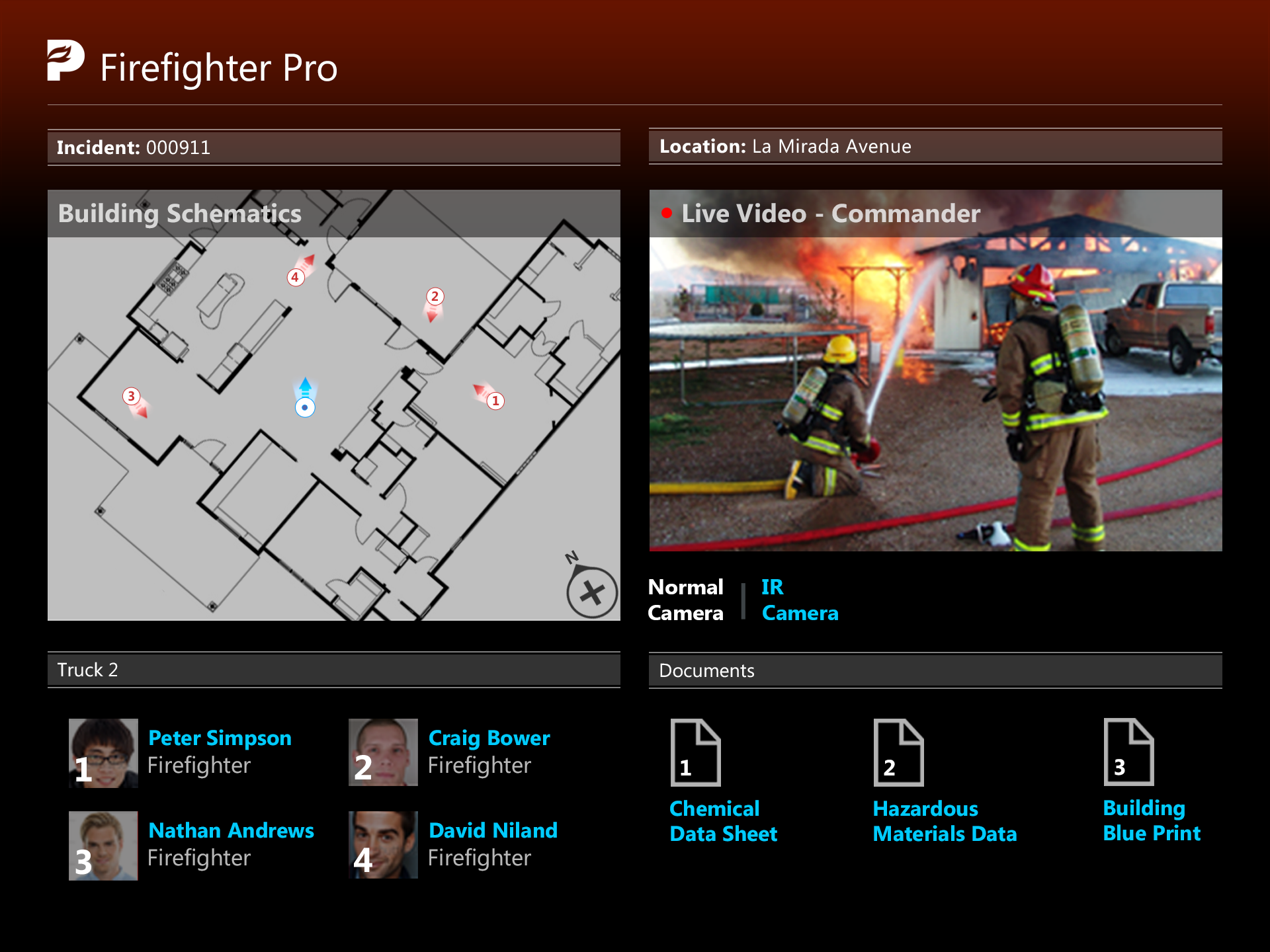
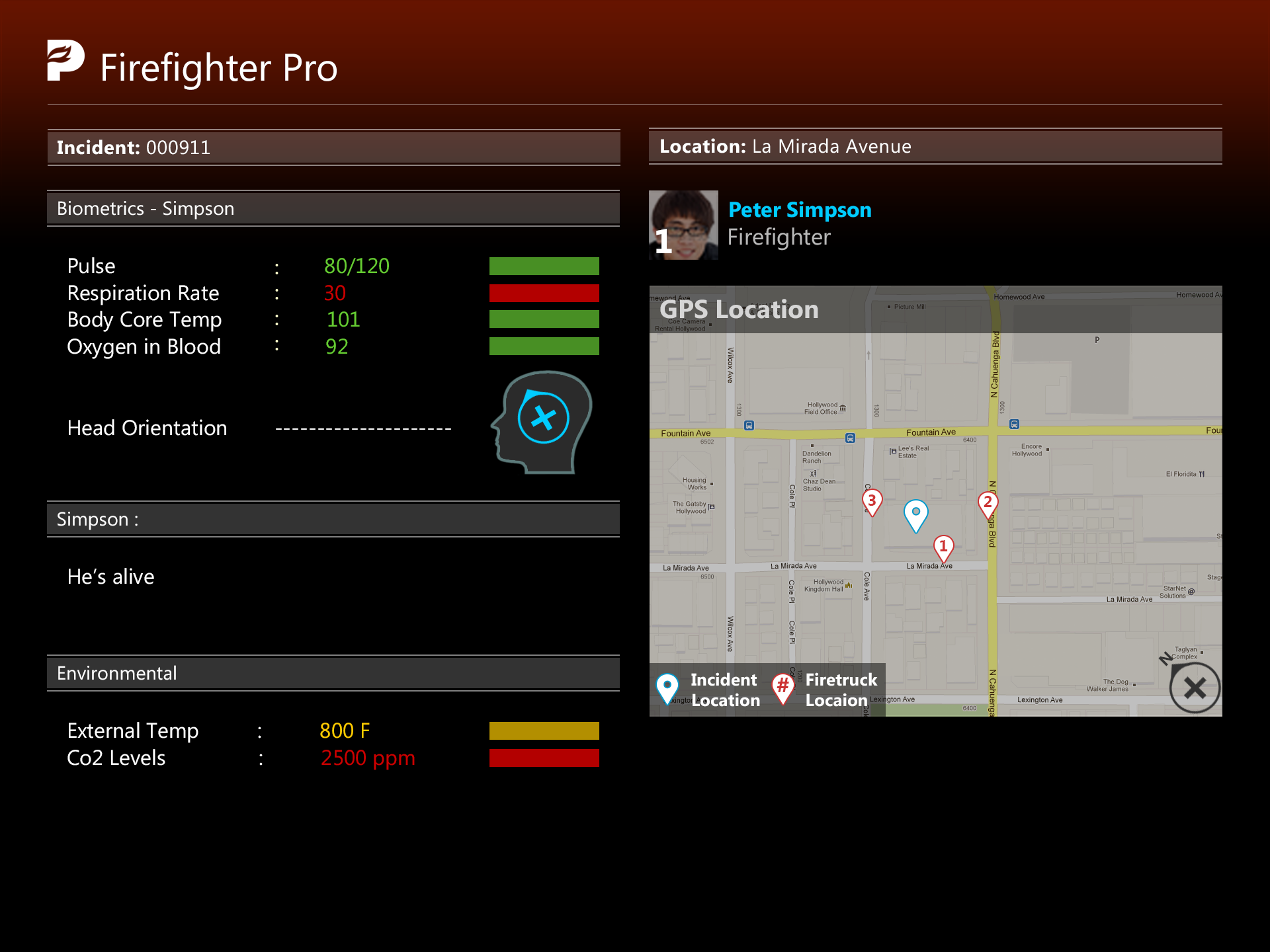
I worked on the creation and designs of multiple services for Ikanos, including Paramedic Pro, Police Pro and Firefighter Pro, as well as LifeBoard.

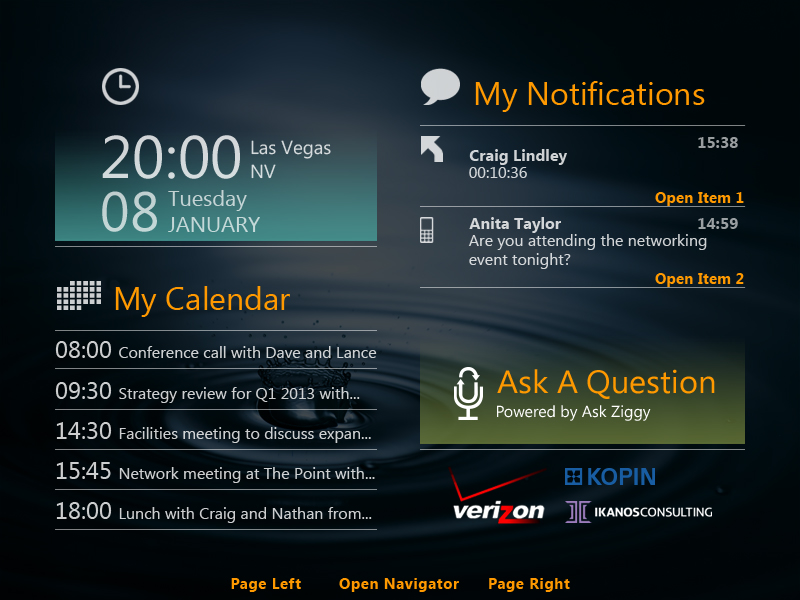
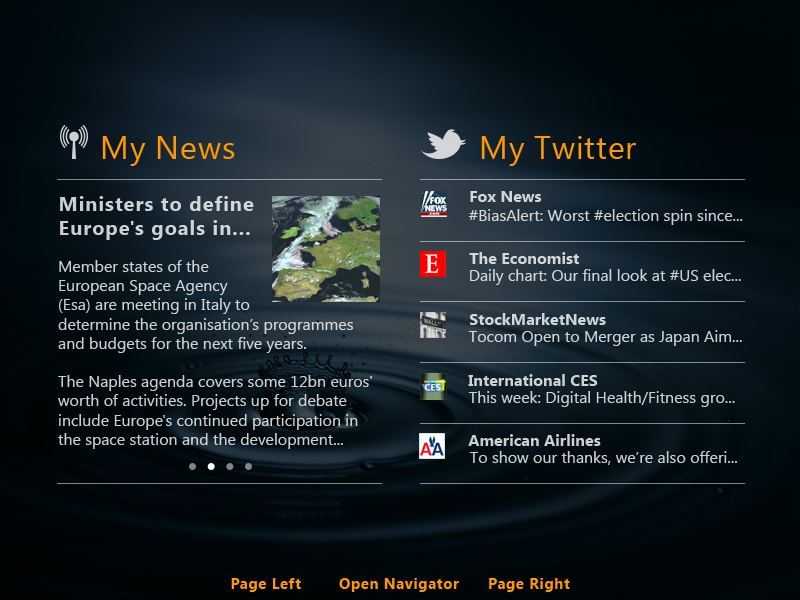
LifeBoard enables users to customise up to 6 different screens to meet their working preferences. Simply by talking to the Golden-i headset allows users to manage their day with ease by showing you your calendar along with the latest news along with the ability to access files, and documents, watch videos and browse the web.

It was designed to help organise everyday life by enabling features like viewing documents, newsfeeds, social media, calendars, and making video calls to other users, all with a focus on delivering a smooth user experience.

User research Brand design Whiteboarding User flows Wireframes User interface Prototyping

Key challenges:

It hasn’t been done before

Challenge

Users needed to be able to open and view documents. View calendars, social media and news feeds, and make video calls to other users.

The main challenge, this hadn’t been done before, so there wasn’t alot we could do, you can’t exactly do much competitor research.

Solution

We did lots of user research sessions to test out the designs and visual flows.

By doing this, we made lots of notes from our learnings of the users experience whilst using the software.
Whiteboarding

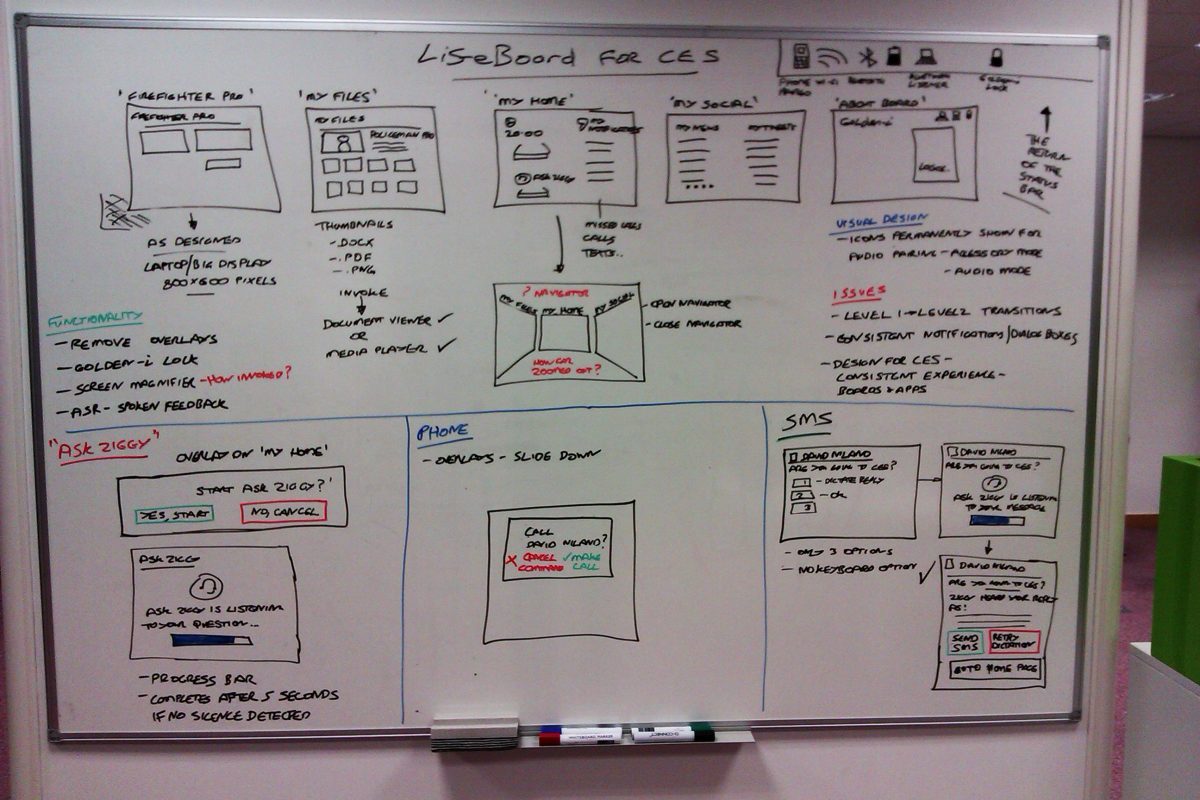
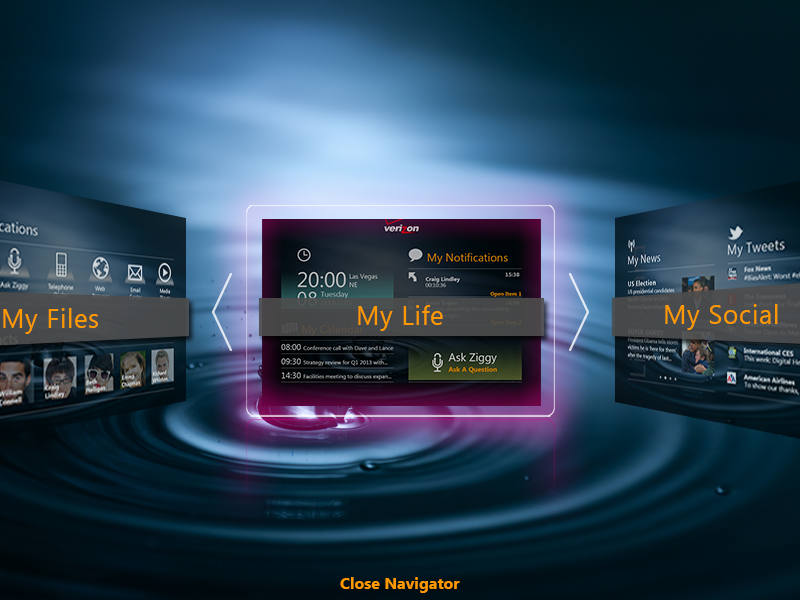
The initial idea was that users were submerged into their LifeBoard dashboard, you could see 3 screens initially on the homepage which then allowed users to navigate to wherever they wished in the software.

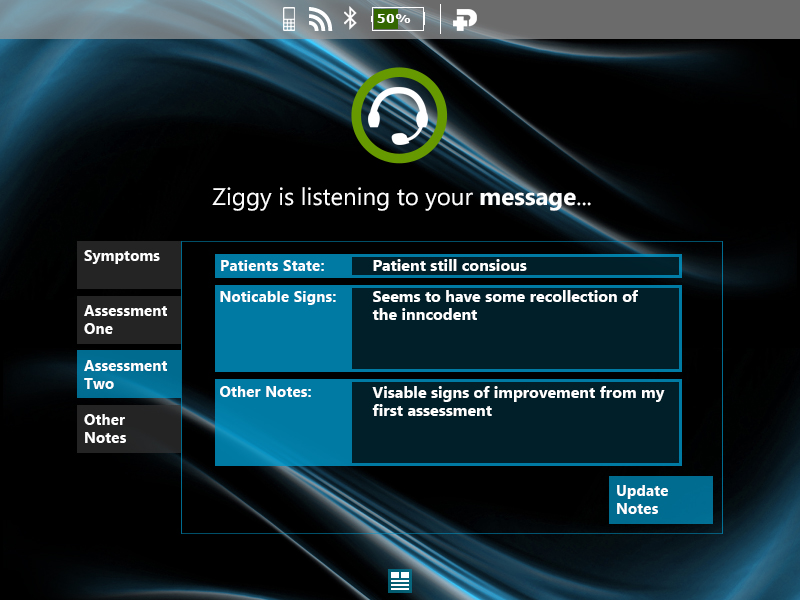
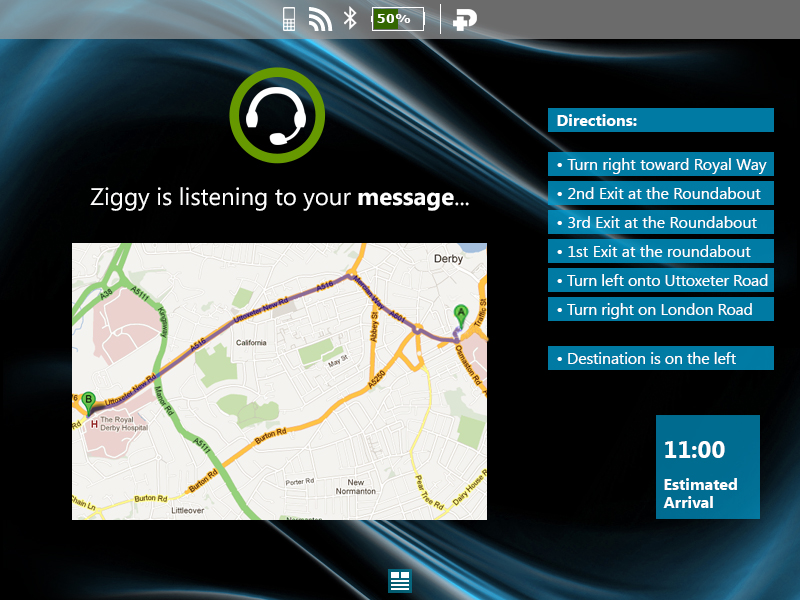
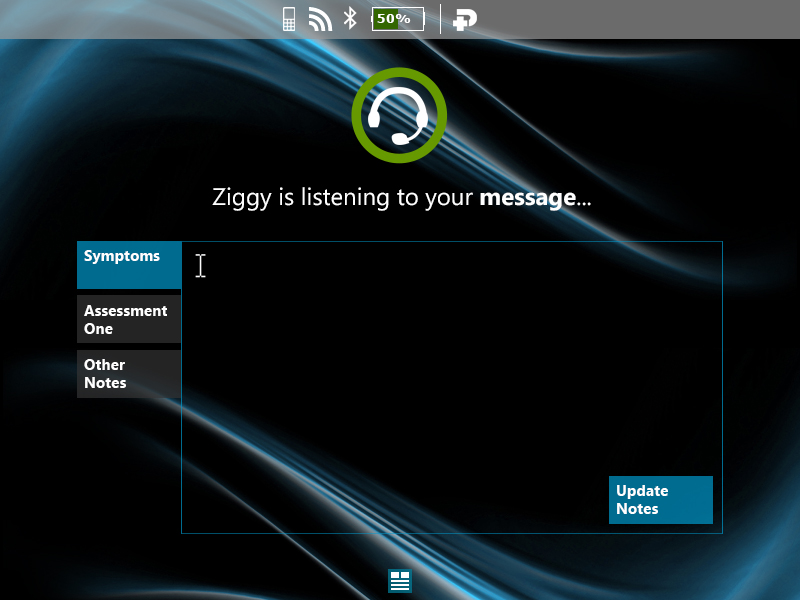
LifeBoard included the innovative Ask Ziggy speech-driven virtual assistant. Ask Ziggy allows users to send messages, make calls, set reminders and browse the web by merely talking to your Golden-i hands-free device.

By using head tracking, users could move their head whilst wearing the headset, look directly at the screen they wanted and say the word linked to the screen to activate and view it.

Wireframing

In progress…

User experience Ikanos Consulting: LifeBoard

LifeBoard

LifeBoard is a consumer application for the Golden-i headset computer. Announced at CES 2013, LifeBoard is a customisable skin for the Gi-OS operating system, allowing users to set up and switch between up to six different screens using voice commands.

My role

Ikanos Consulting are a software house founded in 2007 in Nottingham. It specialises in creating applications for wearable technology, including the LifeBoard software for Kopin Corporation’s Golden-i headset computer.

I worked on the creation and designs of multiple services for Ikanos, including Paramedic Pro, Police Pro and Firefighter Pro, as well as LifeBoard.

LifeBoard enables users to customise up to 6 different screens to meet their working preferences. Simply by talking to the Golden-i headset allows users to manage their day with ease by showing you your calendar along with the latest news along with the ability to access files, and documents, watch videos and browse the web.

It was designed to help organise everyday life by enabling features like viewing documents, newsfeeds, social media, calendars, and making video calls to other users, all with a focus on delivering a smooth user experience.

User research Brand design Whiteboarding User flows Wireframes User interface Prototyping

Key challenges:

It hasn’t been done before

Challenge

Users needed to be able to open and view documents. View calendars, social media and news feeds, and make video calls to other users.

The main challenge, this hadn’t been done before, so there wasn’t alot we could do, you can’t exactly do much competitor research.

Solution

We did lots of user research sessions to test out the designs and visual flows.

By doing this, we made lots of notes from our learnings of the users experience whilst using the software.
Whiteboarding

The initial idea was that users were submerged into their LifeBoard dashboard, you could see 3 screens initially on the homepage which then allowed users to navigate to wherever they wished in the software.

LifeBoard included the innovative Ask Ziggy speech-driven virtual assistant. Ask Ziggy allows users to send messages, make calls, set reminders and browse the web by merely talking to your Golden-i hands-free device.

By using head tracking, users could move their head whilst wearing the headset, look directly at the screen they wanted and say the word linked to the screen to activate and view it.

Wireframing

In progress…

STERIS Collect & Deliver UX

User experience STERIS: Collect & deliver

Collect & deliver

The ‘Collect & Deliver’ app is a mobile application developed by STERIS to streamline the process of collecting and delivering trolleys (such as those used for medical instruments or supplies) between hospital facilities and a central cleaning warehouse.

My role

The plan for this project was to create a lean app-based solution to help porters in their daily job when collecting and delivering trolleys from a hospital facility to a cleaning warehouse, minimising any defects caused by human error in the process (roughly 80 defects per week!)

To do this, I looked at moving their current process of good ol’ pen and paper to a digital format. The porter would scan the clean trolleys they collected from the cleaning warehouse and drop them off at a hospital to be used, scanning their location on arrival, followed by any dirty trolleys they collected in that trip.

User research Shadowing User flows Wireframes User interface Prototyping User testing

Key challenges:

Reduce weekly defects

Challenge

A trolley that is meant for one hospital may turn up at another. It sounds crazy, but these trolleys have poor wheels, cleaning staff tend to group trolleys together based on location ready for the porters to collect. Don’t be surprised if a trolley from one group slowly creeps away from the rest.

You only need a member of staff to notice a random trolley sitting in the corridor somewhere and they will put it back in the group where they thought it came from, but it’s actually the wrong one – et voila! Mixed up.

Solution

While I can’t do much about the dodgey wheels of a trolley unfortunately.

But by introducing methods which inform porters of how many trolleys they are expected to collect during each collection, we notify them if they have scanned less than the expected amount of trolleys – this will hopefully fix this problem.

Key challenges:

Make delivery logs simple

Challenge

The porter will generally turn up to a hospital with a van of roughly 10+ trolleys ready to hand over.

There is only one porter per van – so you would normally take 2 trolleys at a time (unless they’re really heavy). So that is 5+ trips from the van to the ward (which tends to be on the 6th floor somewhere) meaning elevator trips. This process can obviously take a long time after you’ve dropped the clean trolleys off and collected the dirty trolleys.

As well as this, the porters have to remember what they have dropped off, and what they have collected so they can fill in the delivery logs correctly – obviously, there are quite a few things that can go wrong with this, leading to quite a few discrepancies.

Solution

By tweaking the method porters currently use hopefully won’t make these changes too daunting for them. 

If the porter scans their location when first entering the building, then scans each trolley they drop off and collect, it should just become muscle memory after a couple of times using the new process.

Goals

Create a lean experience for users

The app aims to help delivery drivers perform their tasks with ease and efficiency, as well as cutting out any mistakes.

Delivery drivers use a device called a Bluebird. I has a built-in scanner that allows the drivers to scan their location where they are collecting trolleys from, as well as scan any trolleys that are waiting to be collected.

Once scanned, the app notifies the facility that the trolleys have been collected and in the process of being delivered.

As well as notifying the facility, users could also view the location of the delivery van in transit due to the geolocation of the drivers phone device.

Replace pen and paper with a digital format

If there are any mistakes, a financial charge is added to the bill, this is in the hope that it will cut down mistakes going forward, but this is still happening.

By going digital, the porter scans the clean trolleys they’ve collected from the cleaning warehouse and drop them off at a hospital to be used, scanning their location on arrival, followed by any dirty trolleys they collected in that trip.

Offline handling

Some hospitals have awful phone service, and the Bluebird is a mobile device at the end of the day. 

I needed to really consider handling offline situations for the device to make it obvious to the porter what is happening, and not prevent them from doing their jobs because of poor signal – if this can’t be integrated seamlessly, then it could ruin the whole project.

Research:

Shadowing

Whilst shadowing a driver for the day, I learnt about the current processes in more detail, which highlighted a few issues that the drivers have on a daily basis.

The current process involved drivers filling out sheets of paper with collection and delivery times, as well as writing down the number of trolleys they collected and where they had been collected or delivered from.

Research:

High level user journey

I created a high level user journey to help highlight the path that a porter will generally take during their shift.

This excludes any Fast-track journeys.

If the driver gets a call to come and collect a ‘Fast-tracked trolley’, they have to drop everything that they are currently doing to go collect that trolley ready for its emergency procedure. As a result of this, this is another way in that trolleys can easily get mixed up.

Design process:

User flows

I created user flows – one happy path, and one that covered service drop out, the signal can be pretty poor in some hospitals so this needed to be carefully considered.

Happy path

After the user logs into their account, they land on the Tasks screen – this shows a personalised page relevant to the user and what tasks that they would perform on a day to day basis.

The ‘Collect’ feature, requires the user to scan the location they are collecting the trolleys from, then scan the trolleys waiting to be collected.

When scanned, the barcodes of the trolleys are checked against the database to see if it is recognised. If recognised, the trolley name and its ID gets logged to the collected list, and details are updated on the database accordingly.

If the barcode isn’t recognised, the user is then notified to take action to solve the problem. Users will be able to tell if the barcode isn’t recognised by the error noise the system makes (it’s loud!), as well as the Bluebird device vibrating in the user’s hand until the error has been acknowledged.

This process repeats until there are no more trolleys left to scan.

Unhappy path

The unhappy path covered how the app handled offline functionality.

The app talked to the database to make checks when scanning locations and trolleys, so it is vital to keep a signal.

Signal strength tends to be quite low in older facilities, so if the signal drops, the handling of this needed to be seamless, considering the importance of the trolley’s contents.

So when the user scans a trolley while the device is offline, the trolley details are stored in an ‘offline list’, and the current functionality handles the way it would normally. – making a ‘success’ noise to notify the user that a trolley has scanned.

When the signal returns – the database checks the ‘offline list’ for any trolley errors and duplications. If there are any, the app notifies the user to take action.

Design process:

Wireframes

After taking all my research and findings into account, I started creating the wireframes in Balsamiq to work towards addressing the pain points the drivers currently have, including:

Making the process as lean and intuitive as possible
Reduce completion time doing paperwork

Wireframes:

Login and password expiry

When the user opens the app, the first thing that they have to do is login with their credentials.

The app login had a 10minute inactivity period before it logged the user out of the app. If the user works for a longer time, the user can tap ‘Remember me’, and it will keep them signed in until they decide to log themselves out.

After logging in, the user is taken to their Task page, where they can set up, or do their daily jobs. – Phase 1, started with Collect and Deliver.

Wireframes:

Collect

When the user arrives at a location, the first thing they need to do is scan where they are collecting and delivering trolleys from.

Once they have done that, the user then starts scanning the trolleys that have been left to be collected.

The device makes a ‘ping success’ sound after every successful scan.

When a wrong trolley gets scanned, it was decided that the scanner device would give an ‘aggressive’ vibrating feel for the user and a different sounding noise to the ‘ping success’ scan.

The user also gets blocked by a notification on screen that they have to ‘Confirm and ackowledge’ before they can continue scanning trolleys again.

Wireframes:

Hospital contacts

When the driver logs into a device, it populates the contacts page with the relevant staff that are on shift at that facility, as well as the relevant delivery points.

If something goes wrong during a journey, e.g. stuck in traffic, the driver can call the manager, or use the maps to navigate around and get to the location quickly.

Most drivers have roughly 3 or 4 delivery points that they drive to throughout their shift. Sometimes there can be ad-hoc requests for Fast Track deliveries that are needed urgently. These requests notify the user and take them directly to that location straight away.

Wireframes:

Favourite tasks

The user can edit their favourites depending on what jobs they are doing throughout their shift. This updates the Task page when the user toggles each job on or off.

Wireframes:

Notifications

The notifications page shows a timestamp of the driver’s journey throughout their shift.

So when a Driver arrives at a location, they need to scan their location barcode, as well as scan trolleys that are getting delivered and trolleys that they are collecting.

Design process:

Flow chart

Creating a flow chart for the app gave me a high-level view of the whole process. Doing this helped me refine any little niggles with the expected behaviour and what pages users should navigate to when coming from specific pages.

Design process:

User testing

I conducted a user test session with the drivers to see how they got on with the new design and whether they thought it improved the issues they were having previously during their shift.

I wrote a script including a scenario asking the user to login with their account details, select a task (in this case we were just focusing on ‘Collect’), scan their location, and a couple of trolleys.

I also managed to add the prototype onto the device so it gave the drivers the impression that it was the real thing.

During the session, I watched how they interacted with the device and started scanning the barcodes. Initially they were a little wary, but soon got the hang of it.

After they completed the scenario I asked what they thought of the process. Like all loved the simplicity of it but they all felt like they needed to go back to the van to fill the delivery logs in, but obviously the process cut out the need to do anything like that so they were really pleased with how much time it saved them.

The numbers

%

Delivery defects before

%

Delivery improvement after

%

Productivity increase with app

With roughly 382 trolleys being processesd each week, and roughly 80 of them being defects. The aim was to reduce delivery defects by the drivers when collecting and delivering trolleys.

The defect rate was quite high before the project kick off, and the issue was that it wasn’t obviously where trolleys were getting delivered and what the trolley content was. So facilities received trolleys they weren’t expecting.

Developing the app allowed drivers to scan the trolleys and their location; this reduced the defects significantly and increased overall productivity because hospitals were aware of when there delivery was expected.

If there was an issue, the user would get notified by the app of the problem so they could fix the issue at the time, instead of waiting till it was being delivered at the next hospital.


User experience STERIS: Collect & deliver

Collect & deliver

The ‘Collect & Deliver’ app is a mobile application developed by STERIS to streamline the process of collecting and delivering trolleys (such as those used for medical instruments or supplies) between hospital facilities and a central cleaning warehouse.

My role

The plan for this project was to create a lean app-based solution to help porters in their daily job when collecting and delivering trolleys from a hospital facility to a cleaning warehouse, minimising any defects caused by human error in the process (roughly 80 defects per week!)

To do this, I looked at moving their current process of good ol’ pen and paper to a digital format. The porter would scan the clean trolleys they collected from the cleaning warehouse and drop them off at a hospital to be used, scanning their location on arrival, followed by any dirty trolleys they collected in that trip.

User research Shadowing User flows Wireframes User interface Prototyping User testing

Key challenges:

Reduce weekly defects

Challenge

A trolley that is meant for one hospital may turn up at another. It sounds crazy, but these trolleys have poor wheels, cleaning staff tend to group trolleys together based on location ready for the porters to collect. Don’t be surprised if a trolley from one group slowly creeps away from the rest.

You only need a member of staff to notice a random trolley sitting in the corridor somewhere and they will put it back in the group where they thought it came from, but it’s actually the wrong one – et voila! Mixed up.

Solution

While I can’t do much about the dodgey wheels of a trolley unfortunately.

But by introducing methods which inform porters of how many trolleys they are expected to collect during each collection, we notify them if they have scanned less than the expected amount of trolleys – this will hopefully fix this problem.

Key challenges:

Make delivery logs simple

Challenge

The porter will generally turn up to a hospital with a van of roughly 10+ trolleys ready to hand over.

There is only one porter per van – so you would normally take 2 trolleys at a time (unless they’re really heavy). So that is 5+ trips from the van to the ward (which tends to be on the 6th floor somewhere) meaning elevator trips. This process can obviously take a long time after you’ve dropped the clean trolleys off and collected the dirty trolleys.

As well as this, the porters have to remember what they have dropped off, and what they have collected so they can fill in the delivery logs correctly – obviously, there are quite a few things that can go wrong with this, leading to quite a few discrepancies.

Solution

By tweaking the method porters currently use hopefully won’t make these changes too daunting for them.

If the porter scans their location when first entering the building, then scans each trolley they drop off and collect, it should just become muscle memory after a couple of times using the new process.

Goals

Create a lean experience for users

The app aims to help delivery drivers perform their tasks with ease and efficiency, as well as cutting out any mistakes.

Delivery drivers use a device called a Bluebird. I has a built-in scanner that allows the drivers to scan their location where they are collecting trolleys from, as well as scan any trolleys that are waiting to be collected.

Once scanned, the app notifies the facility that the trolleys have been collected and in the process of being delivered.

As well as notifying the facility, users could also view the location of the delivery van in transit due to the geolocation of the drivers phone device.

Replace pen and paper with a digital format

If there are any mistakes, a financial charge is added to the bill, this is in the hope that it will cut down mistakes going forward, but this is still happening.

By going digital, the porter scans the clean trolleys they’ve collected from the cleaning warehouse and drop them off at a hospital to be used, scanning their location on arrival, followed by any dirty trolleys they collected in that trip.

Offline handling

Some hospitals have awful phone service, and the Bluebird is a mobile device at the end of the day.

I needed to really consider handling offline situations for the device to make it obvious to the porter what is happening, and not prevent them from doing their jobs because of poor signal – if this can’t be integrated seamlessly, then it could ruin the whole project.

Research:

Shadowing

Whilst shadowing a driver for the day, I learnt about the current processes in more detail, which highlighted a few issues that the drivers have on a daily basis.

The current process involved drivers filling out sheets of paper with collection and delivery times, as well as writing down the number of trolleys they collected and where they had been collected or delivered from.

Research:

High level user journey

I created a high level user journey to help highlight the path that a porter will generally take during their shift.

This excludes any Fast-track journeys.

If the driver gets a call to come and collect a ‘Fast-tracked trolley’, they have to drop everything that they are currently doing to go collect that trolley ready for its emergency procedure. As a result of this, this is another way in that trolleys can easily get mixed up.

Design process:

User flows

I created user flows – one happy path, and one that covered service drop out, the signal can be pretty poor in some hospitals so this needed to be carefully considered.

Happy path

After the user logs into their account, they land on the Tasks screen – this shows a personalised page relevant to the user and what tasks that they would perform on a day to day basis.

The ‘Collect’ feature, requires the user to scan the location they are collecting the trolleys from, then scan the trolleys waiting to be collected.

When scanned, the barcodes of the trolleys are checked against the database to see if it is recognised. If recognised, the trolley name and its ID gets logged to the collected list, and details are updated on the database accordingly.

If the barcode isn’t recognised, the user is then notified to take action to solve the problem. Users will be able to tell if the barcode isn’t recognised by the error noise the system makes (it’s loud!), as well as the Bluebird device vibrating in the user’s hand until the error has been acknowledged.

This process repeats until there are no more trolleys left to scan.

Unhappy path

The unhappy path covered how the app handled offline functionality.

The app talked to the database to make checks when scanning locations and trolleys, so it is vital to keep a signal.

Signal strength tends to be quite low in older facilities, so if the signal drops, the handling of this needed to be seamless, considering the importance of the trolley’s contents.

So when the user scans a trolley while the device is offline, the trolley details are stored in an ‘offline list’, and the current functionality handles the way it would normally. – making a ‘success’ noise to notify the user that a trolley has scanned.

When the signal returns – the database checks the ‘offline list’ for any trolley errors and duplications. If there are any, the app notifies the user to take action.

Design process:

Wireframes

After taking all my research and findings into account, I started creating the wireframes in Balsamiq to work towards addressing the pain points the drivers currently have, including:

Making the process as lean and intuitive as possible
Reduce completion time doing paperwork

Wireframes:

Login and password expiry

When the user opens the app, the first thing that they have to do is login with their credentials.

The app login had a 10minute inactivity period before it logged the user out of the app. If the user works for a longer time, the user can tap ‘Remember me’, and it will keep them signed in until they decide to log themselves out.

After logging in, the user is taken to their Task page, where they can set up, or do their daily jobs. – Phase 1, started with Collect and Deliver.

Wireframes:

Collect

When the user arrives at a location, the first thing they need to do is scan where they are collecting and delivering trolleys from.

Once they have done that, the user then starts scanning the trolleys that have been left to be collected.

The device makes a ‘ping success’ sound after every successful scan.

When a wrong trolley gets scanned, it was decided that the scanner device would give an ‘aggressive’ vibrating feel for the user and a different sounding noise to the ‘ping success’ scan.

The user also gets blocked by a notification on screen that they have to ‘Confirm and ackowledge’ before they can continue scanning trolleys again.

Wireframes:

Hospital contacts

When the driver logs into a device, it populates the contacts page with the relevant staff that are on shift at that facility, as well as the relevant delivery points.

If something goes wrong during a journey, e.g. stuck in traffic, the driver can call the manager, or use the maps to navigate around and get to the location quickly.

Most drivers have roughly 3 or 4 delivery points that they drive to throughout their shift. Sometimes there can be ad-hoc requests for Fast Track deliveries that are needed urgently. These requests notify the user and take them directly to that location straight away.

Wireframes:

Favourite tasks

The user can edit their favourites depending on what jobs they are doing throughout their shift. This updates the Task page when the user toggles each job on or off.

Wireframes:

Notifications

The notifications page shows a timestamp of the driver’s journey throughout their shift.

So when a Driver arrives at a location, they need to scan their location barcode, as well as scan trolleys that are getting delivered and trolleys that they are collecting.

Design process:

Flow chart

Creating a flow chart for the app gave me a high-level view of the whole process. Doing this helped me refine any little niggles with the expected behaviour and what pages users should navigate to when coming from specific pages.

Design process:

User testing

I conducted a user test session with the drivers to see how they got on with the new design and whether they thought it improved the issues they were having previously during their shift.

I wrote a script including a scenario asking the user to login with their account details, select a task (in this case we were just focusing on ‘Collect’), scan their location, and a couple of trolleys.

I also managed to add the prototype onto the device so it gave the drivers the impression that it was the real thing.

During the session, I watched how they interacted with the device and started scanning the barcodes. Initially they were a little wary, but soon got the hang of it.

After they completed the scenario I asked what they thought of the process. Like all loved the simplicity of it but they all felt like they needed to go back to the van to fill the delivery logs in, but obviously the process cut out the need to do anything like that so they were really pleased with how much time it saved them.

The numbers

%

Delivery defects before

%

Delivery improvement after

%

Productivity increase with app

With roughly 382 trolleys being processesd each week, and roughly 80 of them being defects. The aim was to reduce delivery defects by the drivers when collecting and delivering trolleys.

The defect rate was quite high before the project kick off, and the issue was that it wasn’t obviously where trolleys were getting delivered and what the trolley content was. So facilities received trolleys they weren’t expecting.

Developing the app allowed drivers to scan the trolleys and their location; this reduced the defects significantly and increased overall productivity because hospitals were aware of when there delivery was expected.

If there was an issue, the user would get notified by the app of the problem so they could fix the issue at the time, instead of waiting till it was being delivered at the next hospital.

See Tickets Mobile Site UX

User experience See Tickets: Mobile site revamp

Mobile site revamp

See Tickets, a major ticketing platform for events, concerts, and festivals, has undergone several updates to its mobile site and related apps, focusing on improving user experience, scalability, and functionality.

My role

At See Tickets, a major ticketing platform. I was the UX / UI designer of the project in redesigning their old site so it was fully dynamic and usable for mobile with a much better user experience to purchase tickets through.

The old version of the mobile site was literally their desktop site that rendered on a mobile.

Google Analytics User flows Wireframes Prototyping Web design

Key challenges:

Making ticket purchases simple for mobile devices

Challenge

The previous ‘mobile’ site was just a webpage that had been reduced in size to fit on a mobile device.

This meant that users had to ‘pinch’ and zoom into detailed areas of the website as the touch target area of links were far too hard to tap with your fingers.

We wanted users to be able to easily place orders whilst on their communte, the current site did not work at all.

Solution

By giving the mobile site some serious UX love, it allowed me to consider all elements of every page.

Taking the whole journey into consideration, it allowed me to focus on simplifiying areas and linking different sections of the journey together, as well as removing any unessessary features.

Goal

Create a personalised experience using mobile phone geolocation

Users could view concerts around the world by using the search bar. I was tasked to personalise results based on the geolocation of a users mobile phone. This notified them and made them aware of any concerts going on within a set radius specified in the user’s profile settings.

By letting users create an account, I could streamline the user flow and reduce the click count to four clicks for the entire buying tickets and checkout process.

Improve UX of mobile site

The current mobile site had zero user experience. It literally loaded up the desktop site on your mobile when you landed on the page. This obviously had it’s own issues that needed solving, but in terms of improving the UX, I started making the ‘searchability’ of the site better and personalised for the user.

I worked on allowing the users to navigate and complete actions as simply as possible. 

Research

I researched into user behaviour and current processing times. I timed it as soon as the user searched for events, and ended once the transaction completed. This gave me an average timescale for each sale made.

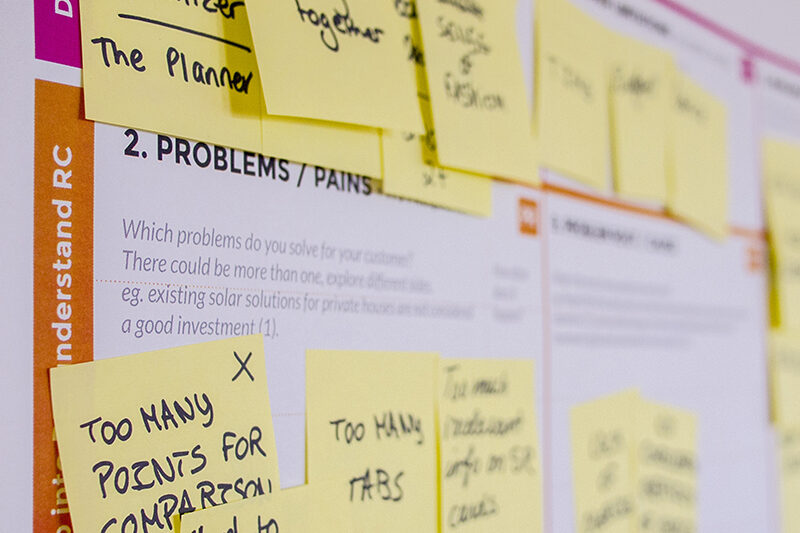
I studied Google Analytics to look for any pain points where users dropped off regularly in the user flow and worked on those areas specifically to improve the overall flow.

I produced wireframes for the mobile site, along with process flows to share with stakeholders and users within the customer service team to gather valuable feedback. This helped me collect crucial feedback at the development stages to help improve the user interface of the final design.

Wireframes:

Location screen

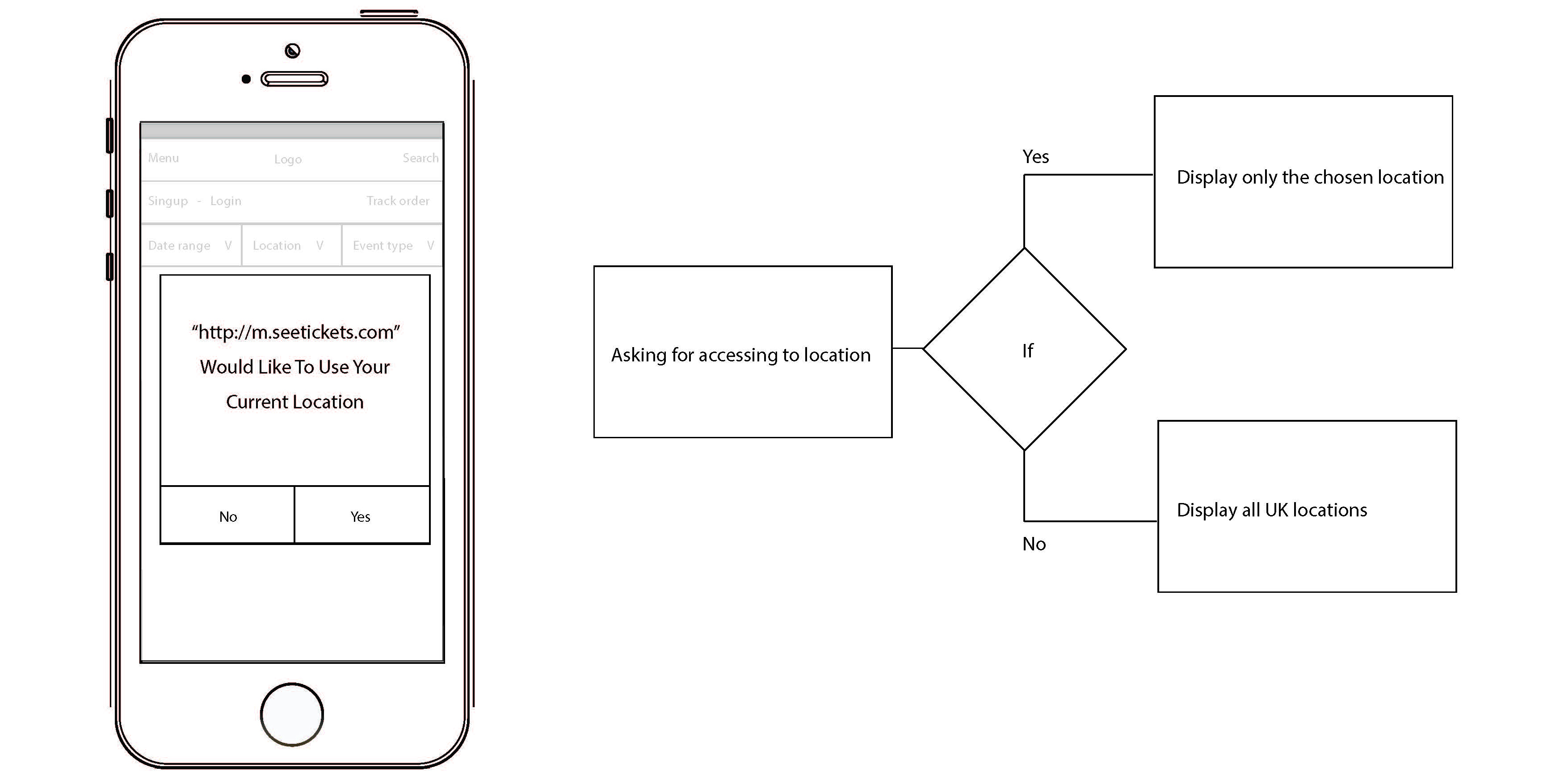
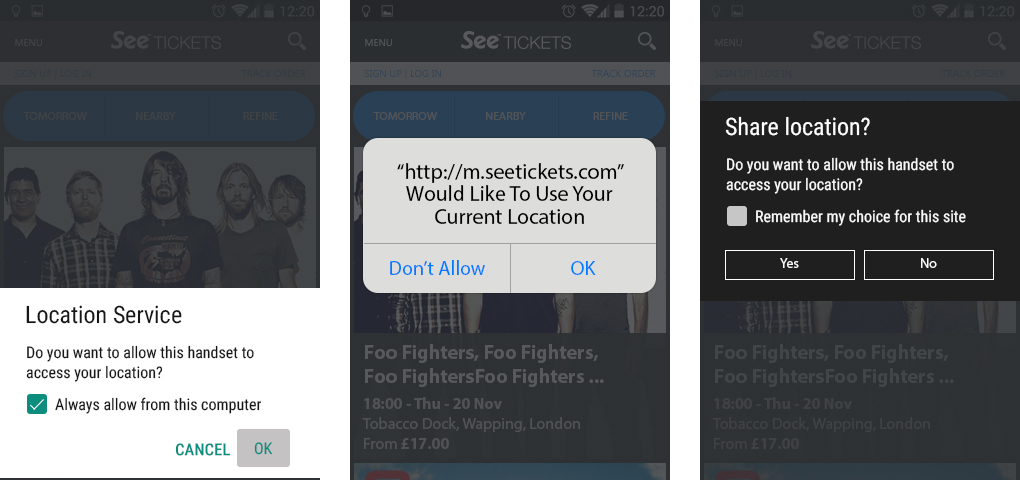
To start with, when a user enters the site, they are asked if the website could use their current location. This is to help keep events relevant to the user depending on where they are in the world.

You could also use the search bar to search for events within a specific city or area.

Wireframes:

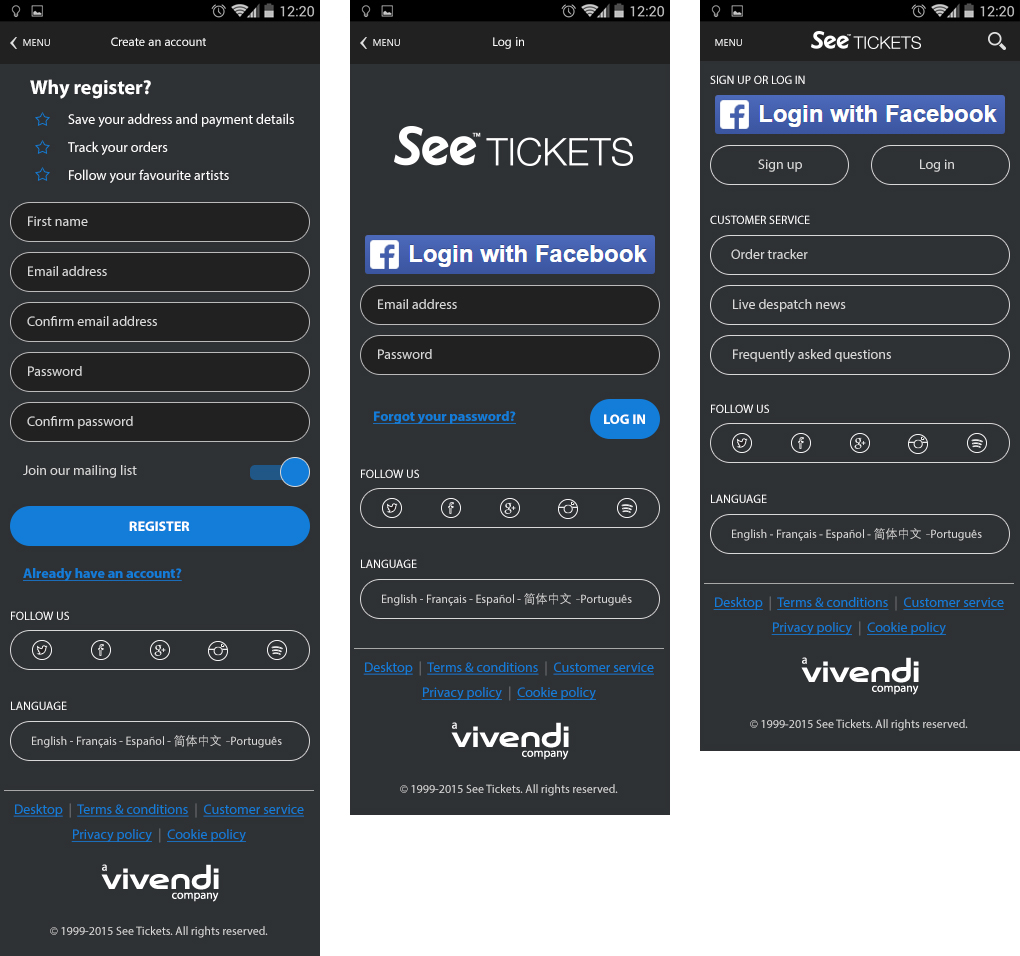
Sign up and login

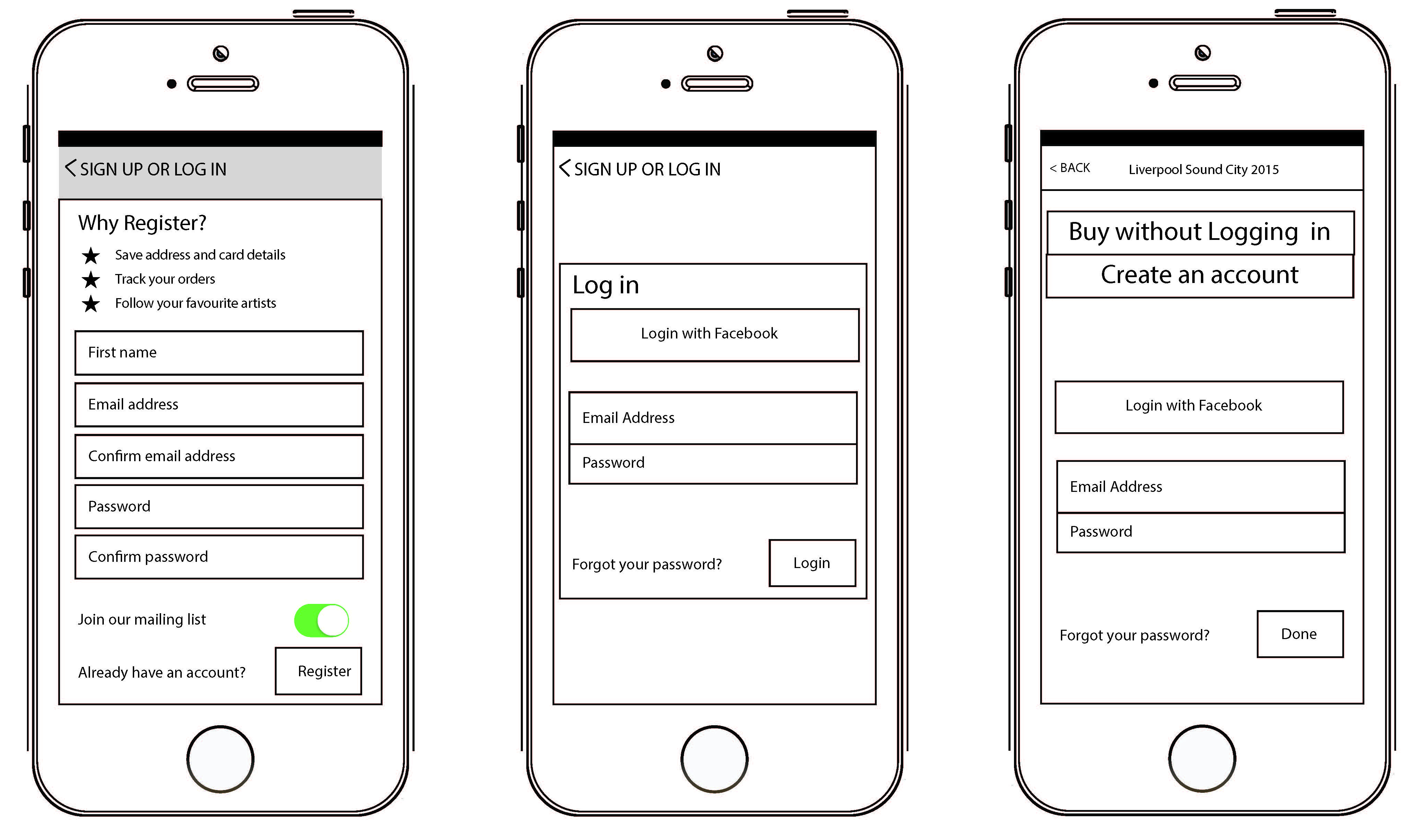
We gave users the ability to browse the website regardless of creating an account or not. However, when the time came to buy tickets, users would be required to Login or Sign Up.

Creating an account allowed users to ‘like’ and ‘follow’ events of their choice. Users could also save their details to speed up the checkout process when ordering tickets. As this is time-sensitive, the whole process a lot simpler and easier to complete.

Wireframes:

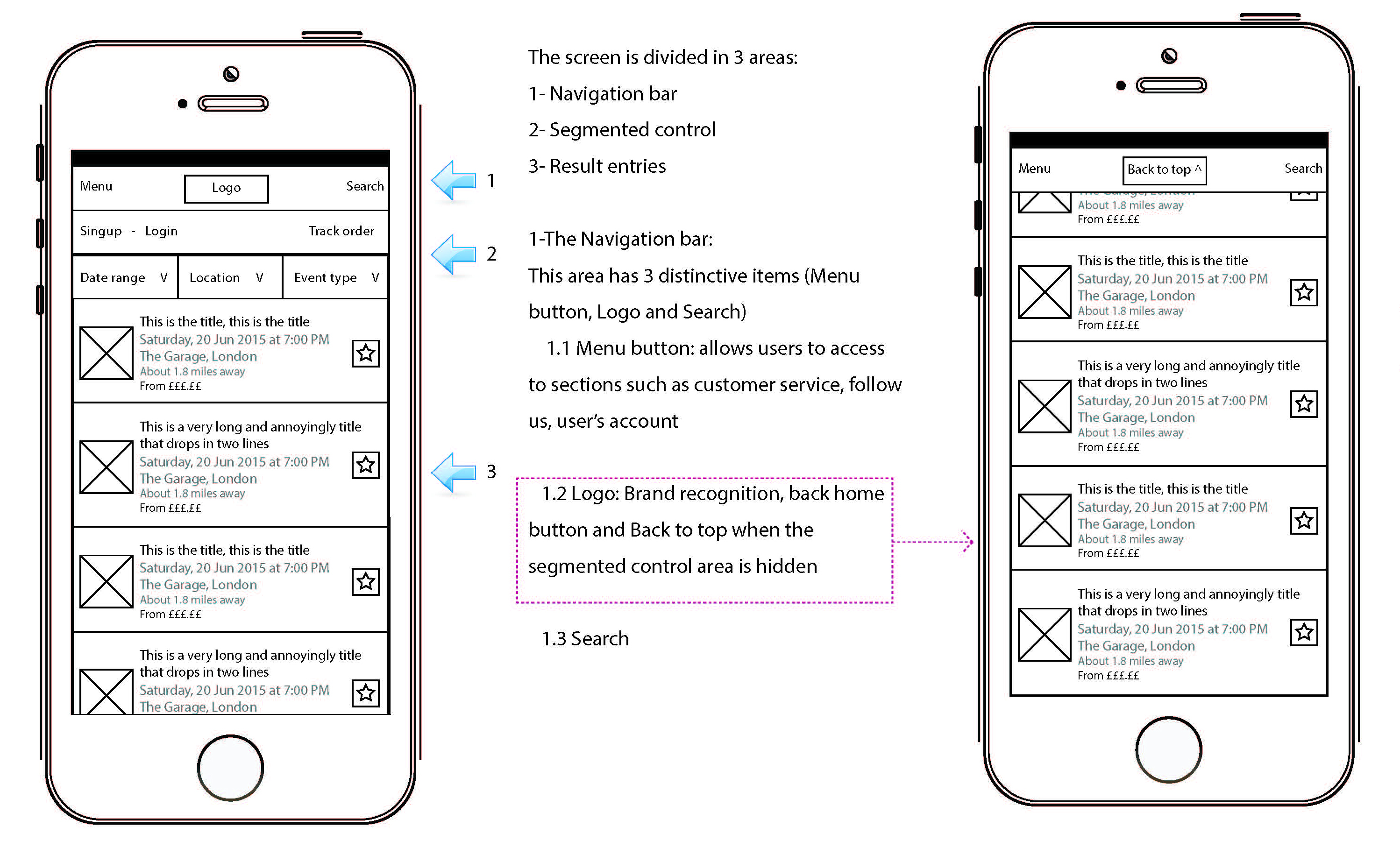
Homescreen

The home screen was designed into different sections to allow users to filter and easily search. You could search for a Date range, Location or Event type. Changing these filters updated the results on the homepage accordingly.

The home screen showed an infinite amount of events, with the ability to add individual events as your favourite. Adding a favourite event allowed users to navigate back quickly to that event at a later date.

When a user adds an event to their favourites, it gives the user the option to receive notifications announcing when tickets went on sale or if ticket allocation was running low. We didn’t want people missing out!

Wireframes:

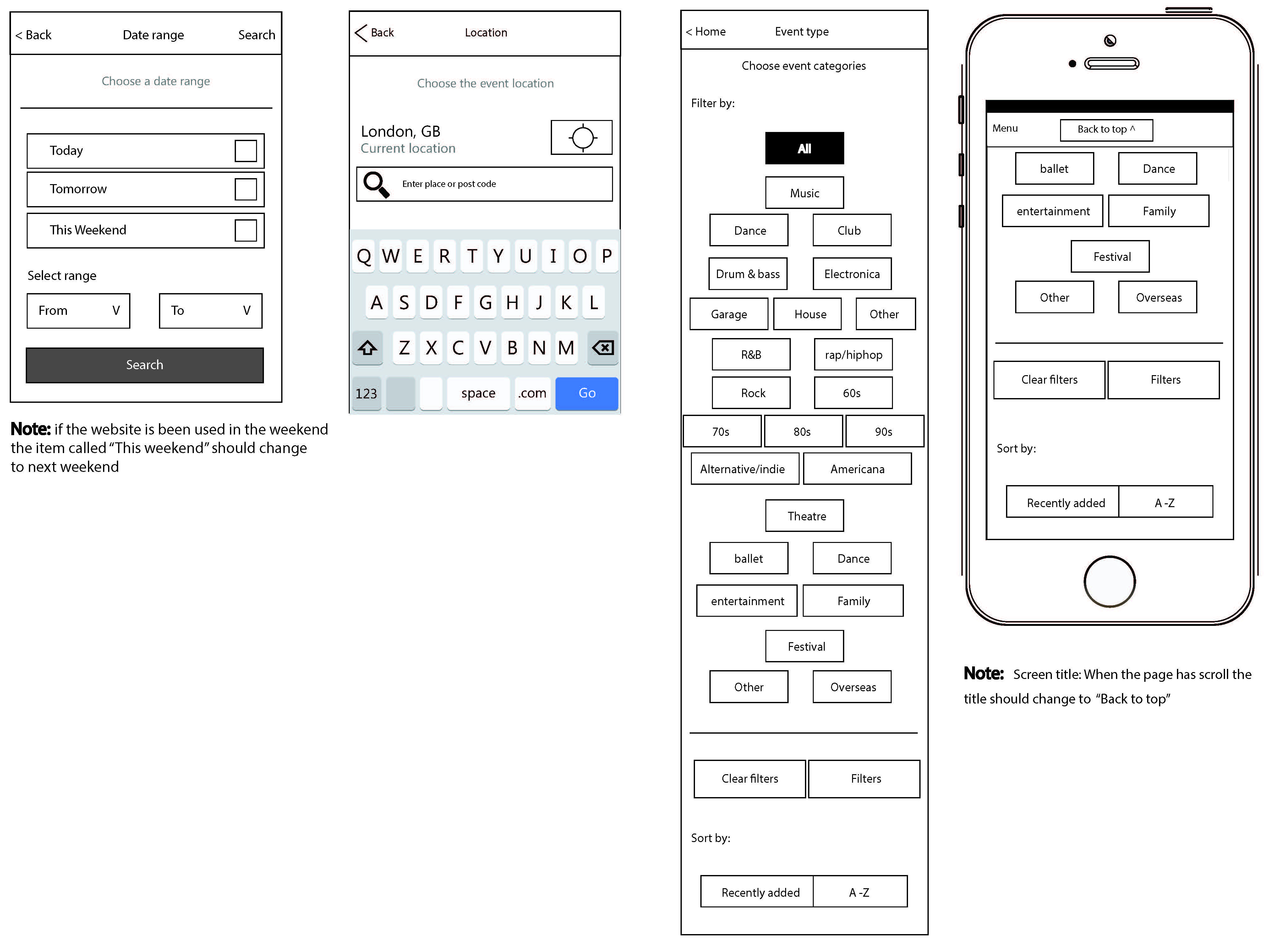
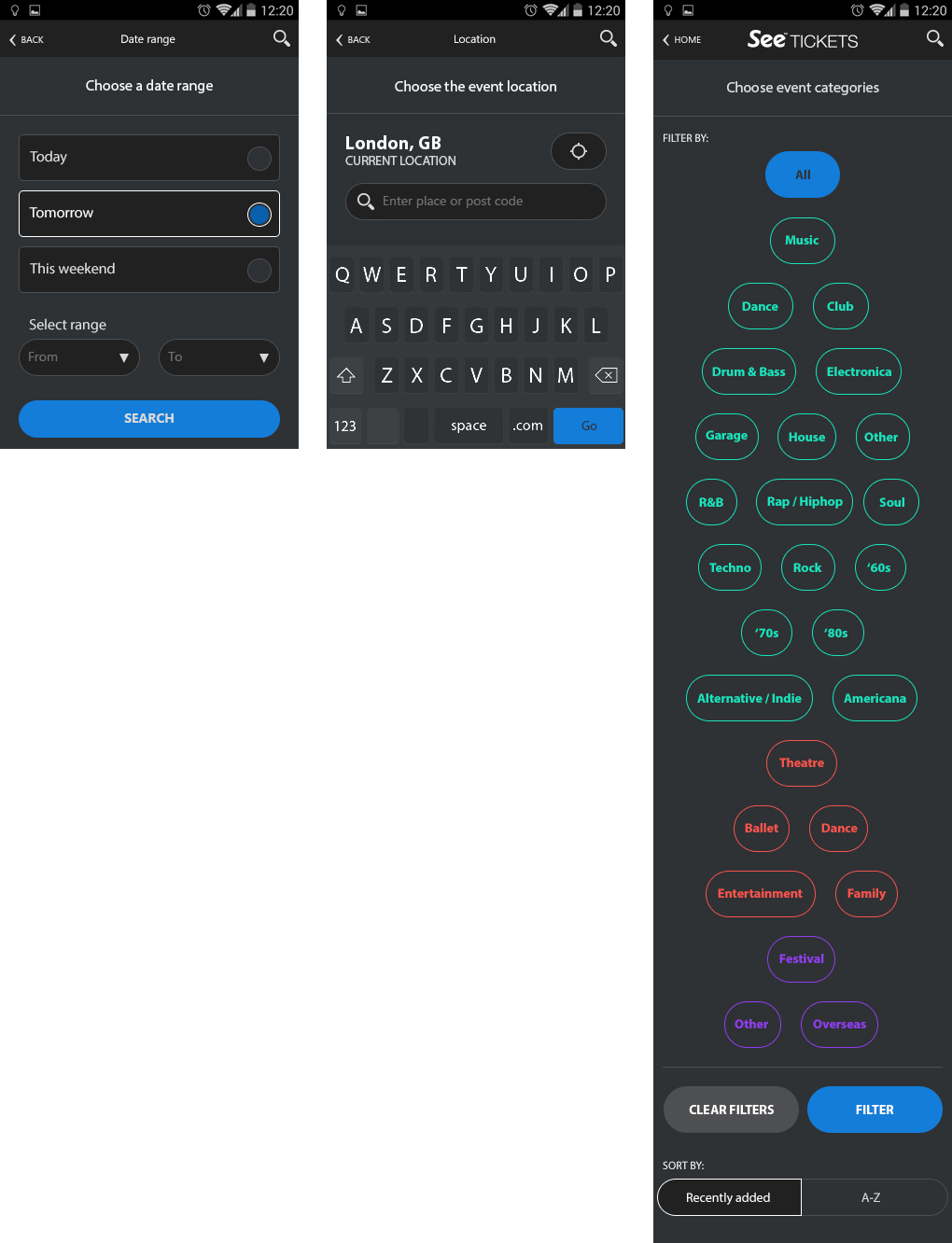
Filtering and search results

To help users narrow down their search results, we added the ability to search a specific date range, events happening on that day, the following day, or coming up at the weekend.

As well as this, we used geo-location to bring in all the events happening within a set radius of the phone’s location.

Finally, if the user had a favourite genre of music or festival, then they could favourite multiple artists – these would be remembered and filtered for the user on the homepage.

Wireframes:

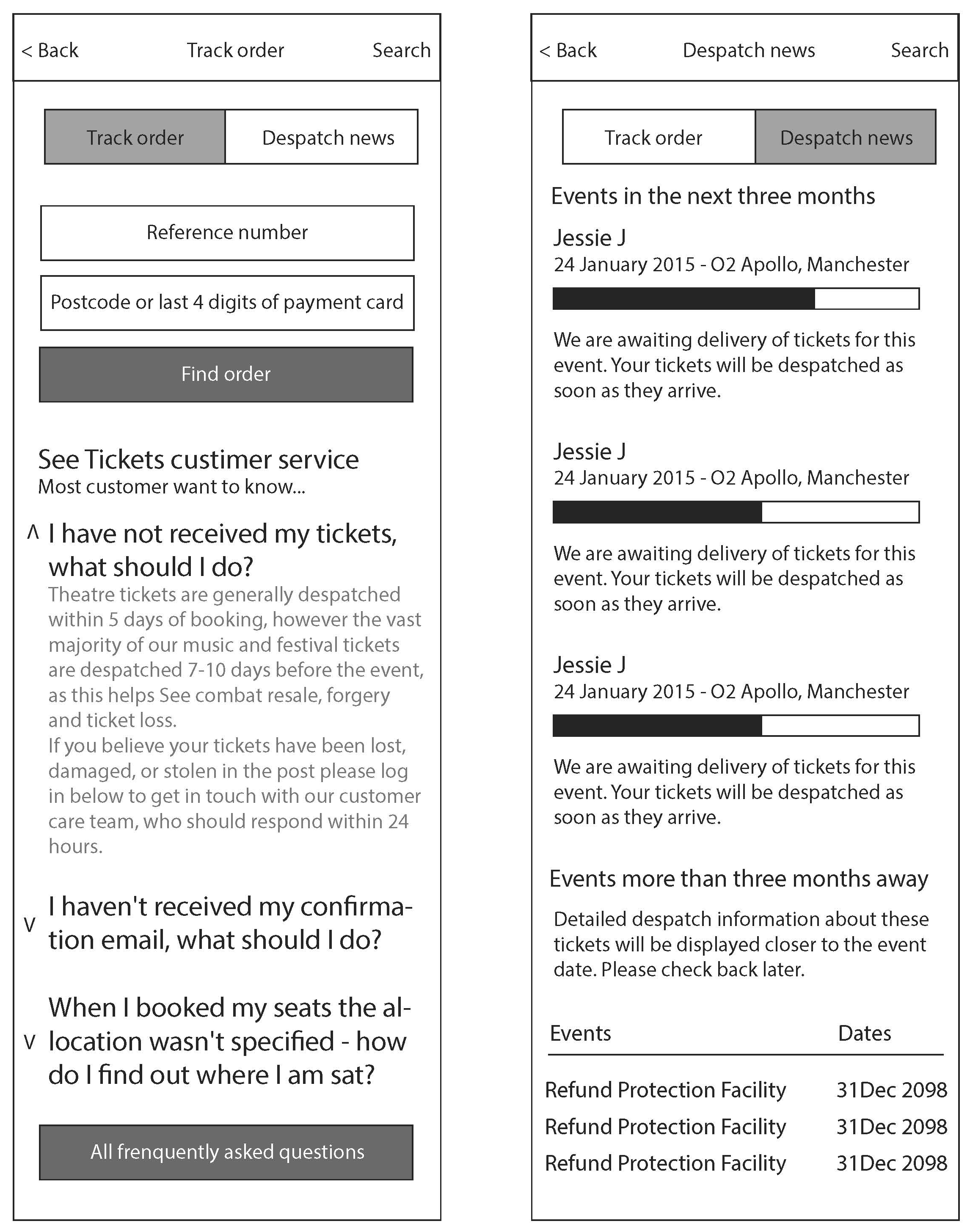
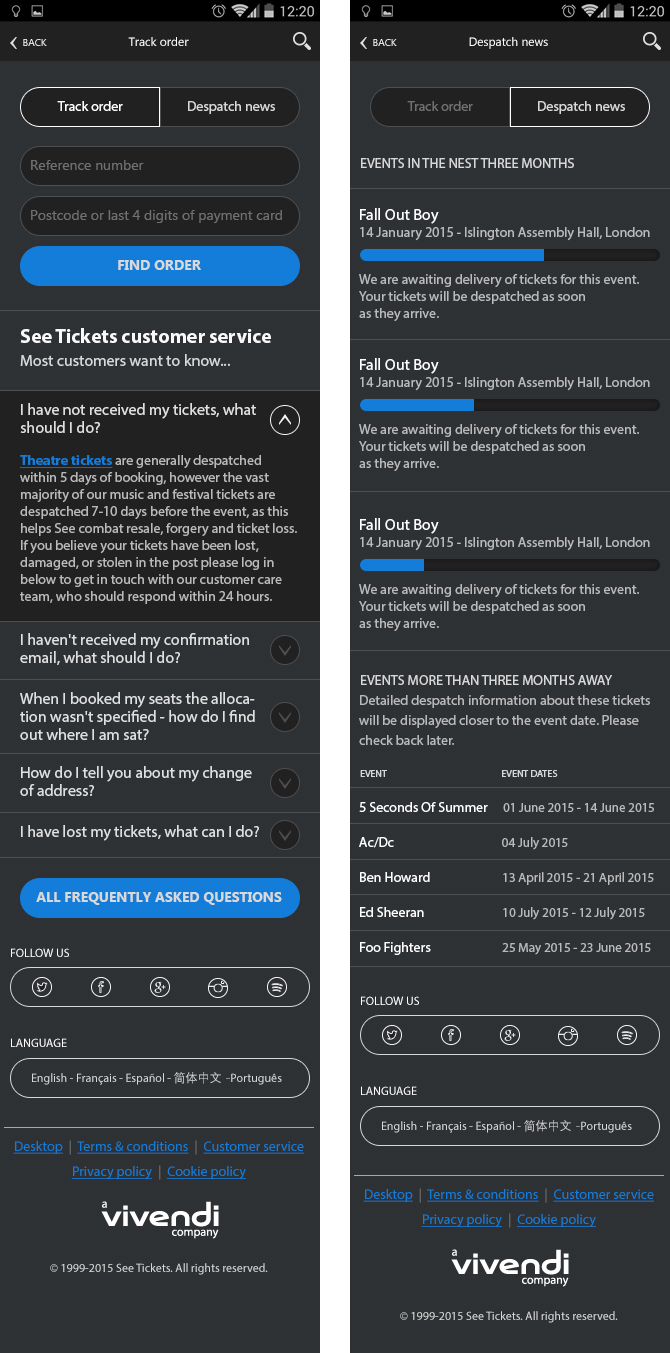
Tracking and despatch

Sometimes tickets took longer to arrive than expected; users could check the state of their order. We created a Tracking and Despatch area, where we added various FAQ’s and outcomes to help the user out.

A progress bar showed users the state tickets were at, and when the tickets will get delivered.

Wireframes:

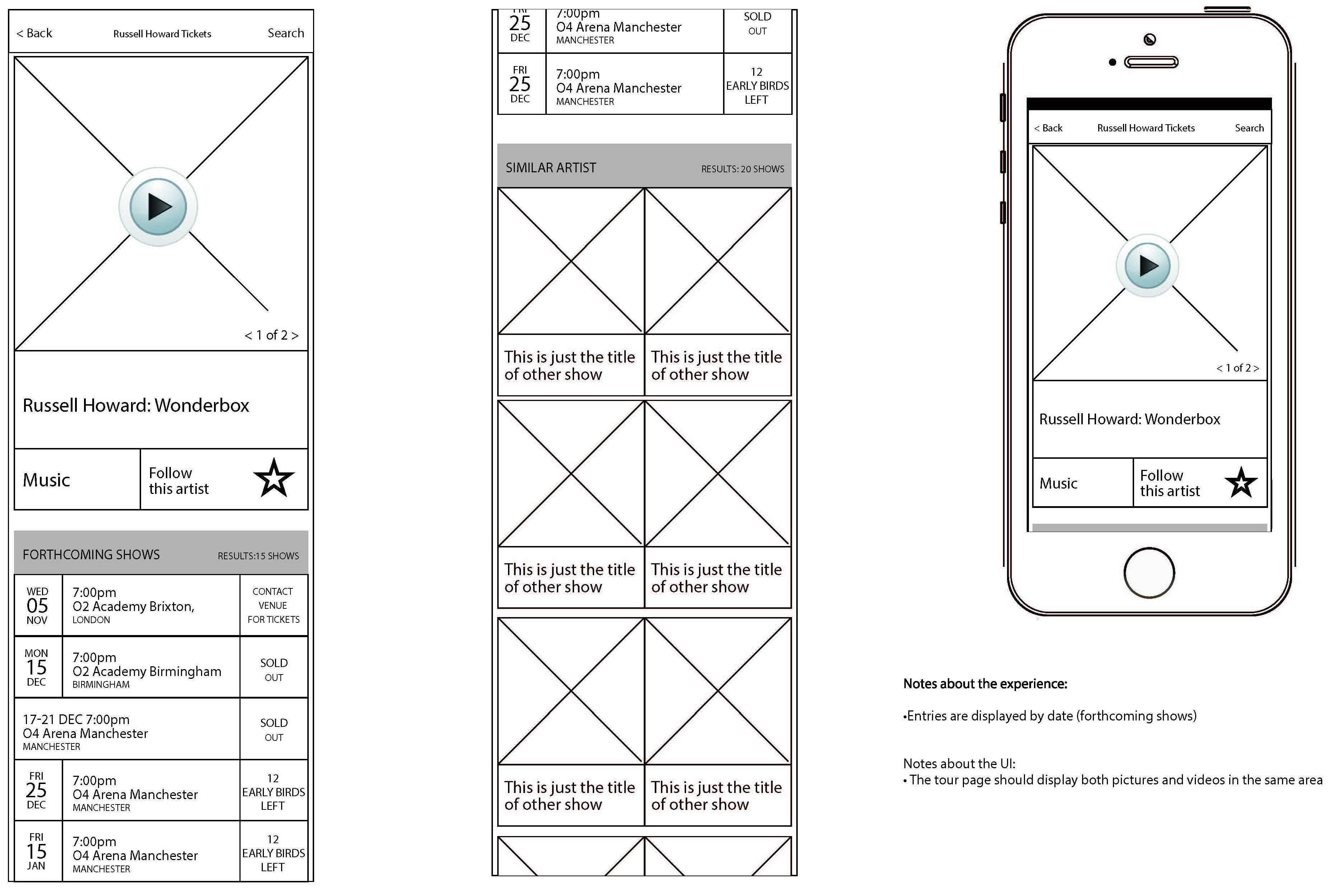
Tour page

The tour page is where users select the date / location that they would like to see an event.

Certain events had promotional videos and pictures you could view by swiping through on the thumbnails. I also added a ‘Similar Artists’ area at the bottom of the page so the user could view other areas and events.

Wireframes:

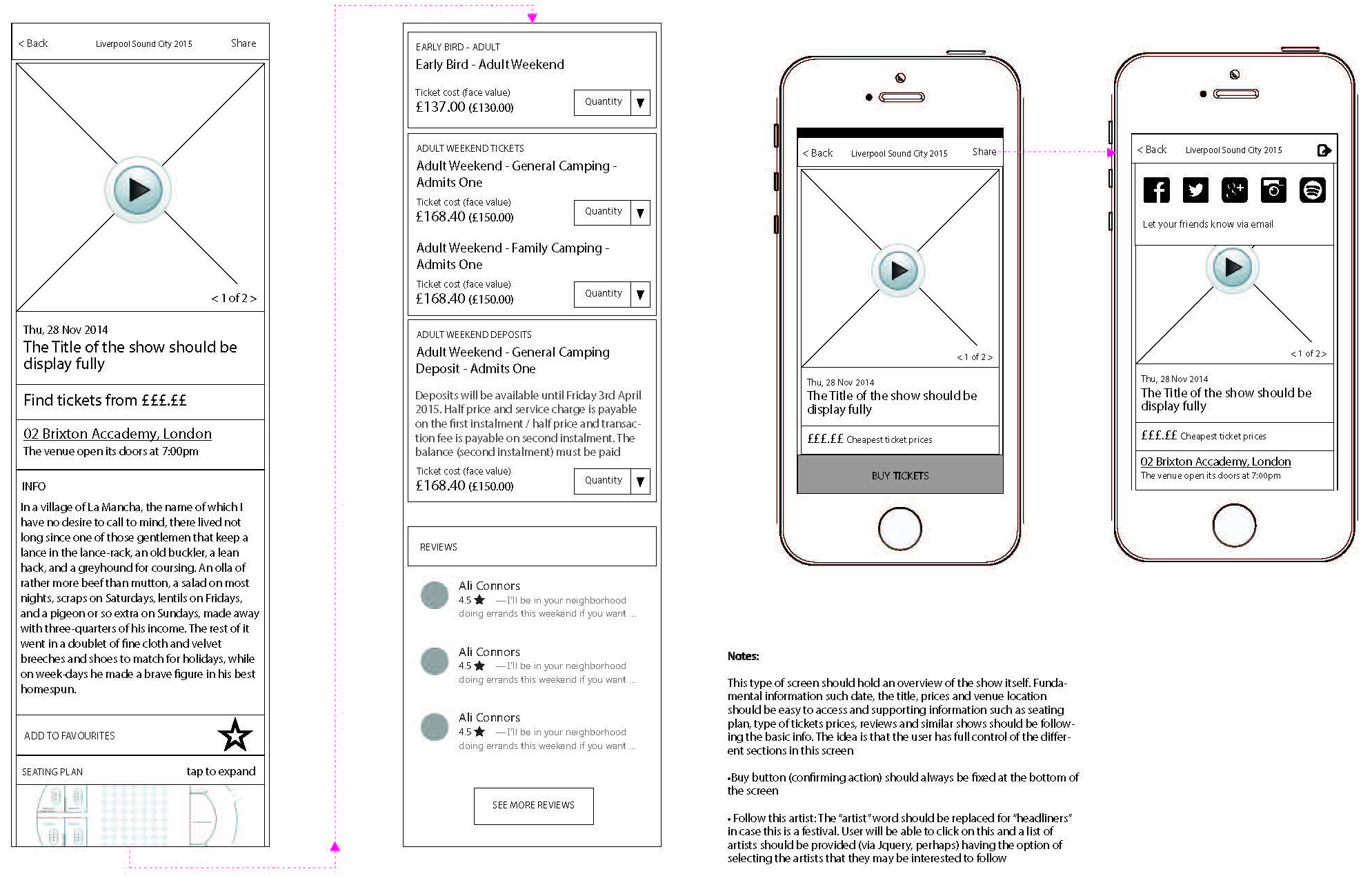
Event page

The event page lets users select the number of tickets they require to add to their basket.

It also has additional information like the Seating Plan, Venue location and the directions.

Wireframes:

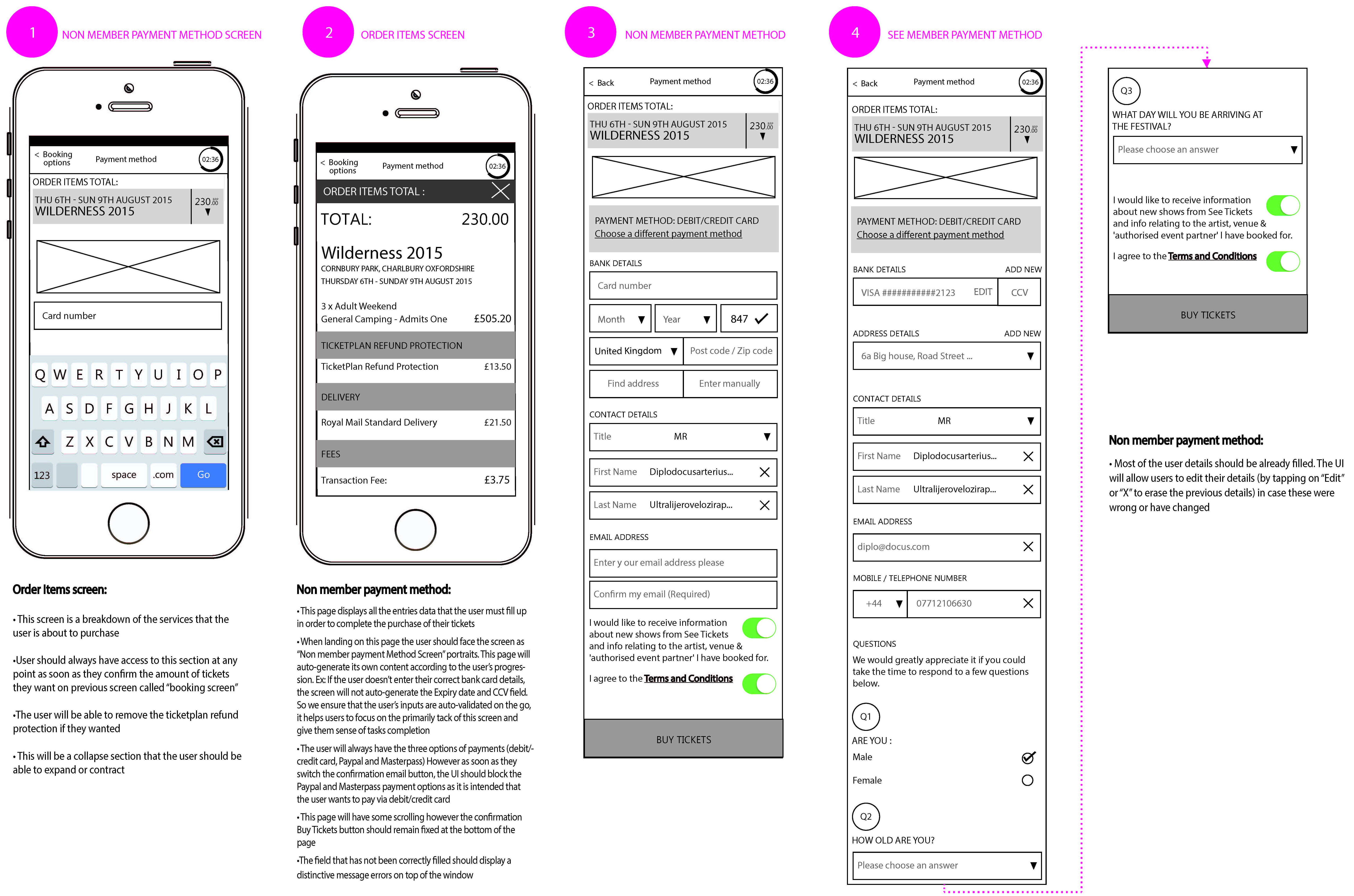
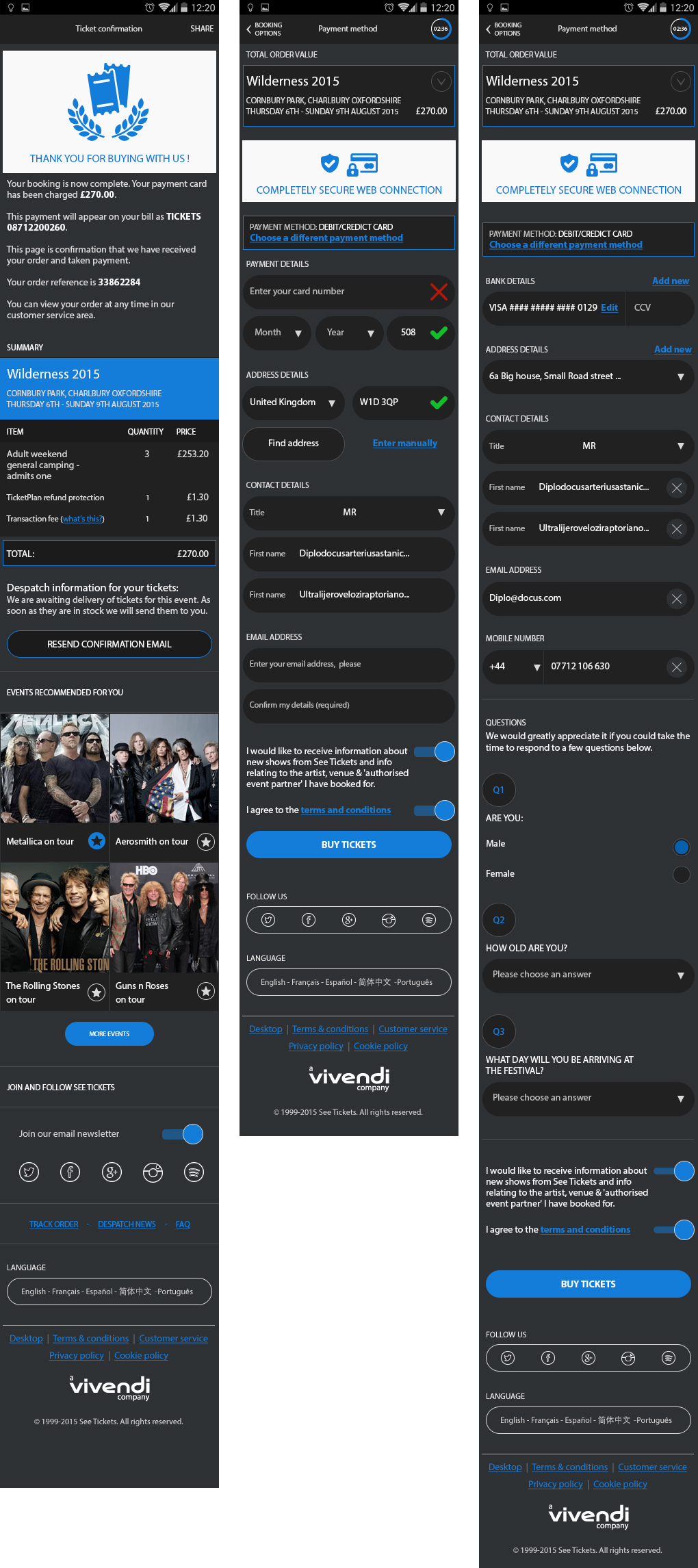
Checkout

The checkout area needed to be straightforward and easy to use as it was time-sensitive.

If the user hadn’t purchased tickets after 5minutes, the tickets then get released, and the user would have to go back to repurchase the tickets. This prevented robots bulk buying tickets, or people adding tickets to their basket and forgetting to purchase them.

Within the Profile area, if a user allocates their bank card, they would only have to click the ‘Buy Tickets’ button – this helped save a lot of time at the Checkout stage.

If the user doesn’t fill these text fields, then they need to do so before being able to complete the purchase.

The numbers

%

In comparison to the previous processing times, it took users on average 10minutes to search for an event, purchase the tickets, and receive their confirmation correspondence.

After streamlining the user journey, and working on the areas where the most amount of drop-offs occurred, we managed to reduce the average processing time by over 7minutes. A whopping 76% improvement in processing time.

User experience See Tickets: Mobile site revamp

Mobile site revamp

See Tickets, a major ticketing platform for events, concerts, and festivals, has undergone several updates to its mobile site and related apps, focusing on improving user experience, scalability, and functionality.

My role

At See Tickets, a major ticketing platform. I was the UX / UI designer of the project in redesigning their old site so it was fully dynamic and usable for mobile with a much better user experience to purchase tickets through.

The old version of the mobile site was literally their desktop site that rendered on a mobile.

Google Analytics User flows Wireframes Prototyping Web design

Key challenges:

Making ticket purchases simple for mobile devices

Challenge

The previous ‘mobile’ site was just a webpage that had been reduced in size to fit on a mobile device.

This meant that users had to ‘pinch’ and zoom into detailed areas of the website as the touch target area of links were far too hard to tap with your fingers.

We wanted users to be able to easily place orders whilst on their communte, the current site did not work at all.

Solution

By giving the mobile site some serious UX love, it allowed me to consider all elements of every page.

Taking the whole journey into consideration, it allowed me to focus on simplifiying areas and linking different sections of the journey together, as well as removing any unessessary features.

Goal

Create a personalised experience using mobile phone geolocation

Users could view concerts around the world by using the search bar. I was tasked to personalise results based on the geolocation of a users mobile phone. This notified them and made them aware of any concerts going on within a set radius specified in the user’s profile settings.

By letting users create an account, I could streamline the user flow and reduce the click count to four clicks for the entire buying tickets and checkout process.

Improve UX of mobile site

The current mobile site had zero user experience. It literally loaded up the desktop site on your mobile when you landed on the page. This obviously had it’s own issues that needed solving, but in terms of improving the UX, I started making the ‘searchability’ of the site better and personalised for the user.

I worked on allowing the users to navigate and complete actions as simply as possible. 

Research

I researched into user behaviour and current processing times. I timed it as soon as the user searched for events, and ended once the transaction completed. This gave me an average timescale for each sale made.

I studied Google Analytics to look for any pain points where users dropped off regularly in the user flow and worked on those areas specifically to improve the overall flow.

I produced wireframes for the mobile site, along with process flows to share with stakeholders and users within the customer service team to gather valuable feedback. This helped me collect crucial feedback at the development stages to help improve the user interface of the final design.

Wireframes:

Location screen

To start with, when a user enters the site, they are asked if the website could use their current location. This is to help keep events relevant to the user depending on where they are in the world.

You could also use the search bar to search for events within a specific city or area.

Wireframes:

Sign up and login

We gave users the ability to browse the website regardless of creating an account or not. However, when the time came to buy tickets, users would be required to Login or Sign Up.

Creating an account allowed users to ‘like’ and ‘follow’ events of their choice. Users could also save their details to speed up the checkout process when ordering tickets. As this is time-sensitive, the whole process a lot simpler and easier to complete.

Wireframes:

Homescreen

The home screen was designed into different sections to allow users to filter and easily search. You could search for a Date range, Location or Event type. Changing these filters updated the results on the homepage accordingly.

The home screen showed an infinite amount of events, with the ability to add individual events as your favourite. Adding a favourite event allowed users to navigate back quickly to that event at a later date.

When a user adds an event to their favourites, it gives the user the option to receive notifications announcing when tickets went on sale or if ticket allocation was running low. We didn’t want people missing out!

Wireframes:

Filtering and search results

To help users narrow down their search results, we added the ability to search a specific date range, events happening on that day, the following day, or coming up at the weekend.

As well as this, we used geo-location to bring in all the events happening within a set radius of the phone’s location.

Finally, if the user had a favourite genre of music or festival, then they could favourite multiple artists – these would be remembered and filtered for the user on the homepage.

Wireframes:

Tracking and despatch

Sometimes tickets took longer to arrive than expected; users could check the state of their order. We created a Tracking and Despatch area, where we added various FAQ’s and outcomes to help the user out.

A progress bar showed users the state tickets were at, and when the tickets will get delivered.

Wireframes:

Tour page

The tour page is where users select the date / location that they would like to see an event.

Certain events had promotional videos and pictures you could view by swiping through on the thumbnails. I also added a ‘Similar Artists’ area at the bottom of the page so the user could view other areas and events.

Wireframes:

Event page

The event page lets users select the number of tickets they require to add to their basket.

It also has additional information like the Seating Plan, Venue location and the directions.

Wireframes:

Checkout

The checkout area needed to be straightforward and easy to use as it was time-sensitive.

If the user hadn’t purchased tickets after 5minutes, the tickets then get released, and the user would have to go back to repurchase the tickets. This prevented robots bulk buying tickets, or people adding tickets to their basket and forgetting to purchase them.

Within the Profile area, if a user allocates their bank card, they would only have to click the ‘Buy Tickets’ button – this helped save a lot of time at the Checkout stage.

If the user doesn’t fill these text fields, then they need to do so before being able to complete the purchase.

The numbers

%

In comparison to the previous processing times, it took users on average 10minutes to search for an event, purchase the tickets, and receive their confirmation correspondence.

After streamlining the user journey, and working on the areas where the most amount of drop-offs occurred, we managed to reduce the average processing time by over 7minutes. A whopping 76% improvement in processing time.

UNiDAYS Native App UX

User experience UNiDAYS: Native app designs

iOS and Android apps

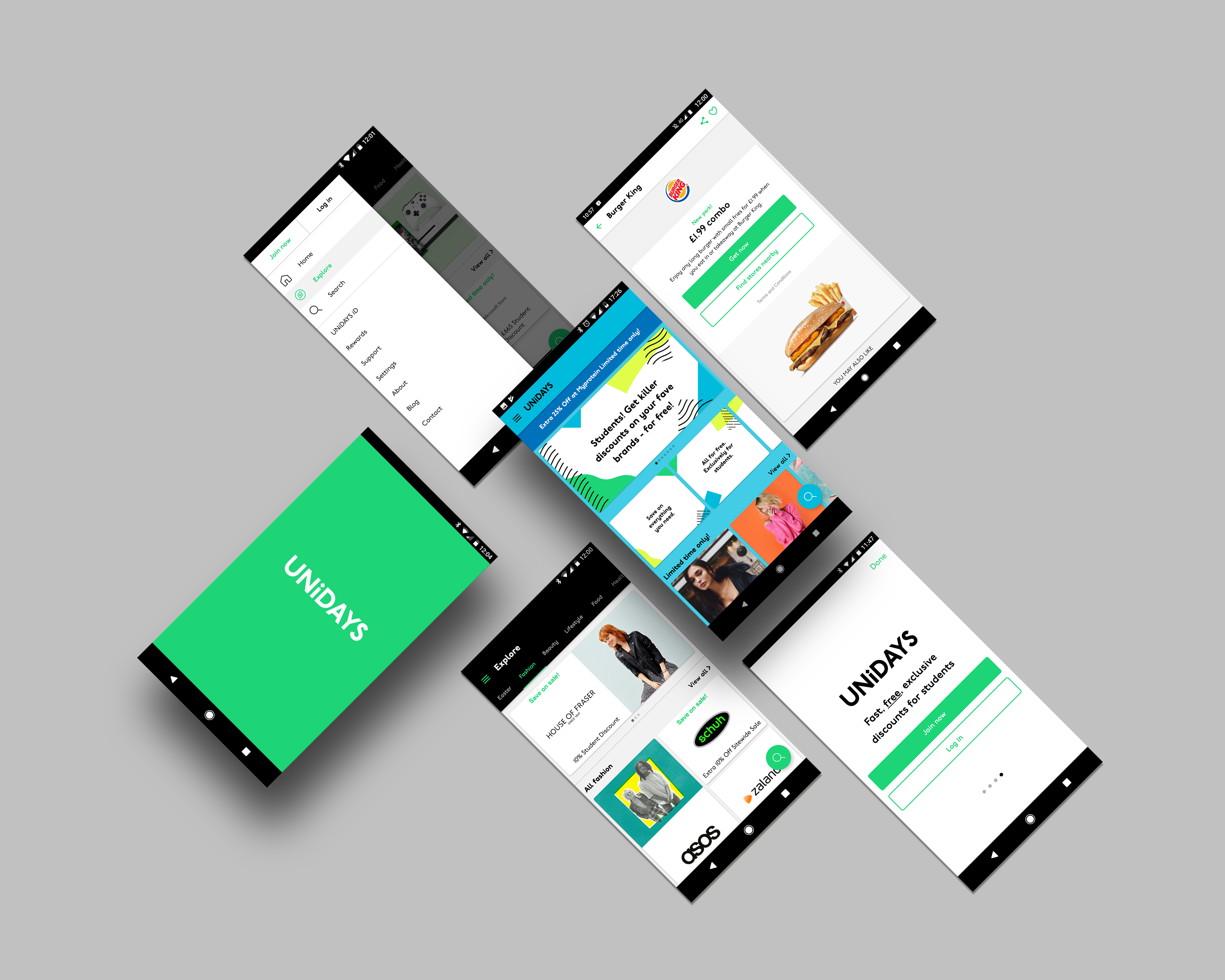
UNiDAYS is a popular student discount platform with a native mobile app available on iOS and Android. The app’s design emphasises simplicity, speed, and accessibility, targeting Gen-Z and millennial students who need quick access to deals from brands like Apple, ASOS, and Levi’s.

My role

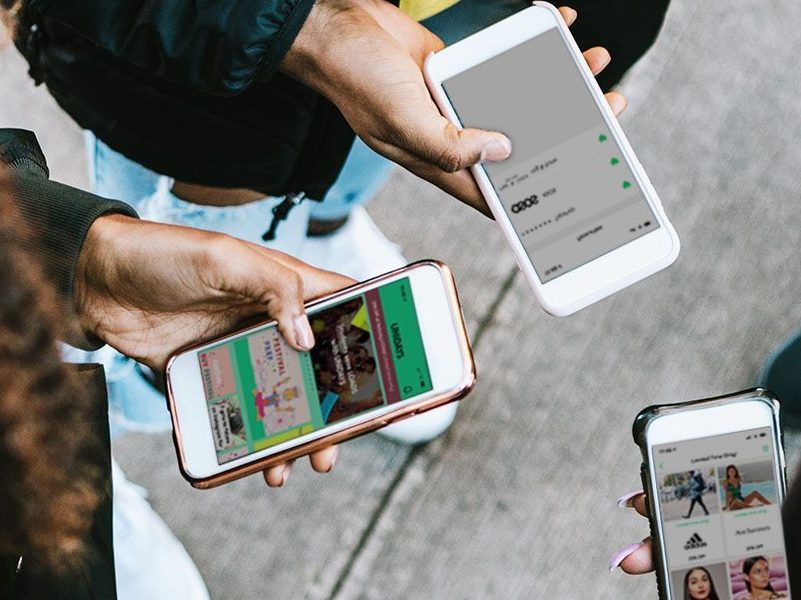
The challenge was to create a native iOS and Android application to replace the current dynamic website that was being used.

The outcome had to use the latest native UX best practices and expected user behavioural patterns as to not alienate users. As well as this, the app needed to be as lean as possible.

Focus groups Native patterns User flows Wireframes Prototyping A/B testing Site maps

Key challenges:

Slick functionality without compromising premium screen estate

Challenge

The way the UNiDAYS website worked was that businesses would pay a premium fee to have their card placed higher up the website than the other businesses. 

This new app, needed to feel familiar yet not compromise the current ecosystem that had been set up previously.

Solution

I researched fully into each opperating systems ‘style’ of how UNiDAYS could integrate the ecosystem that we have created.

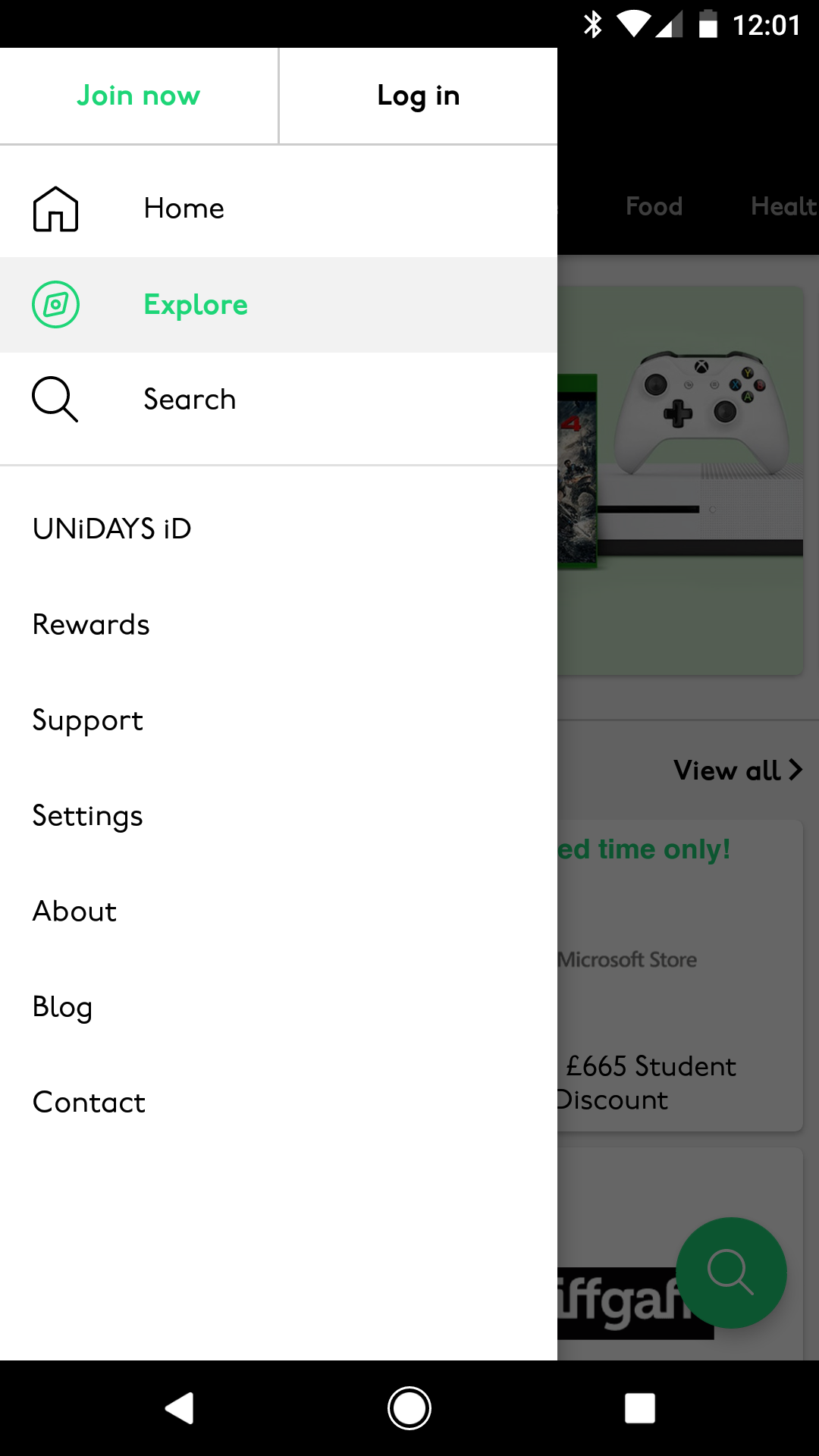
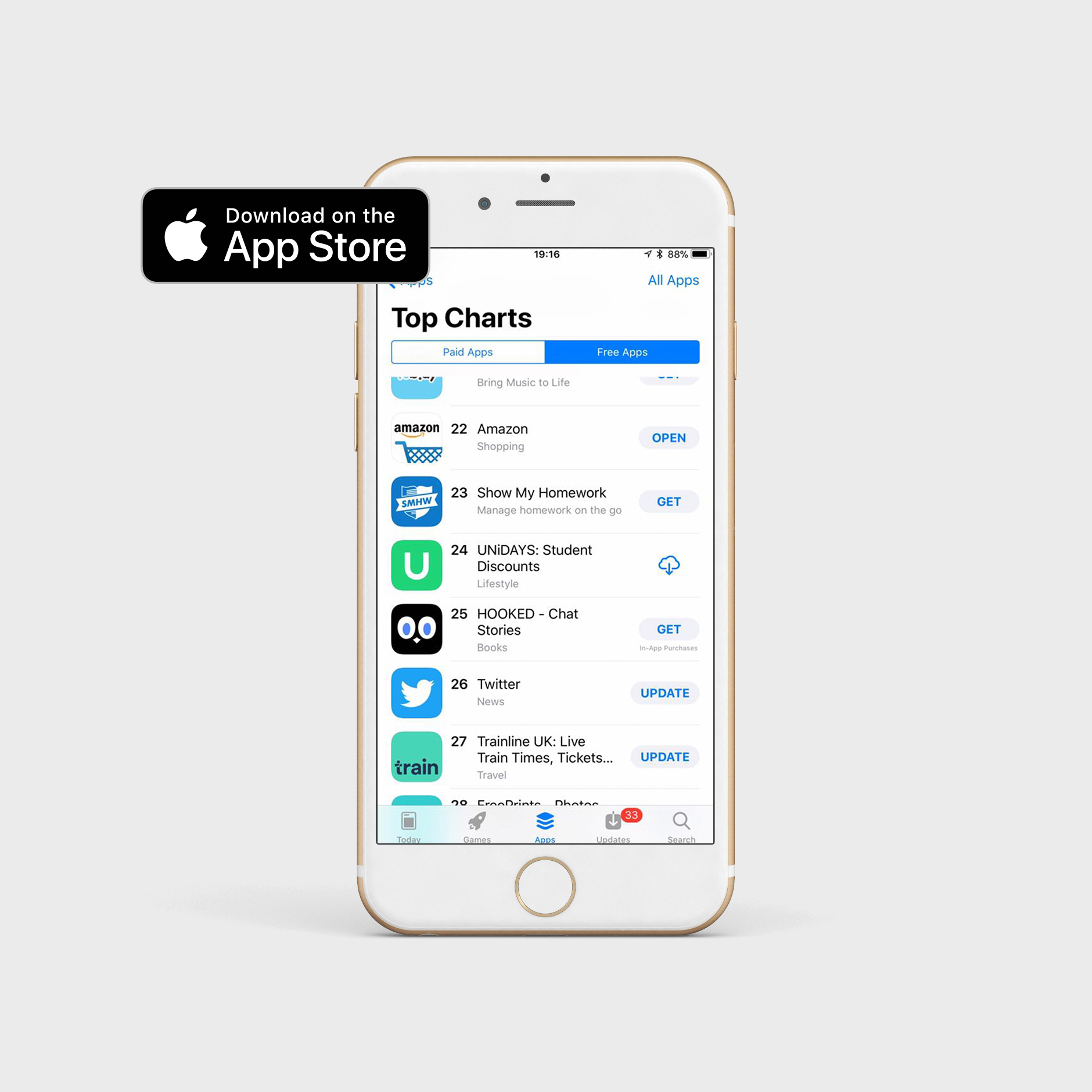
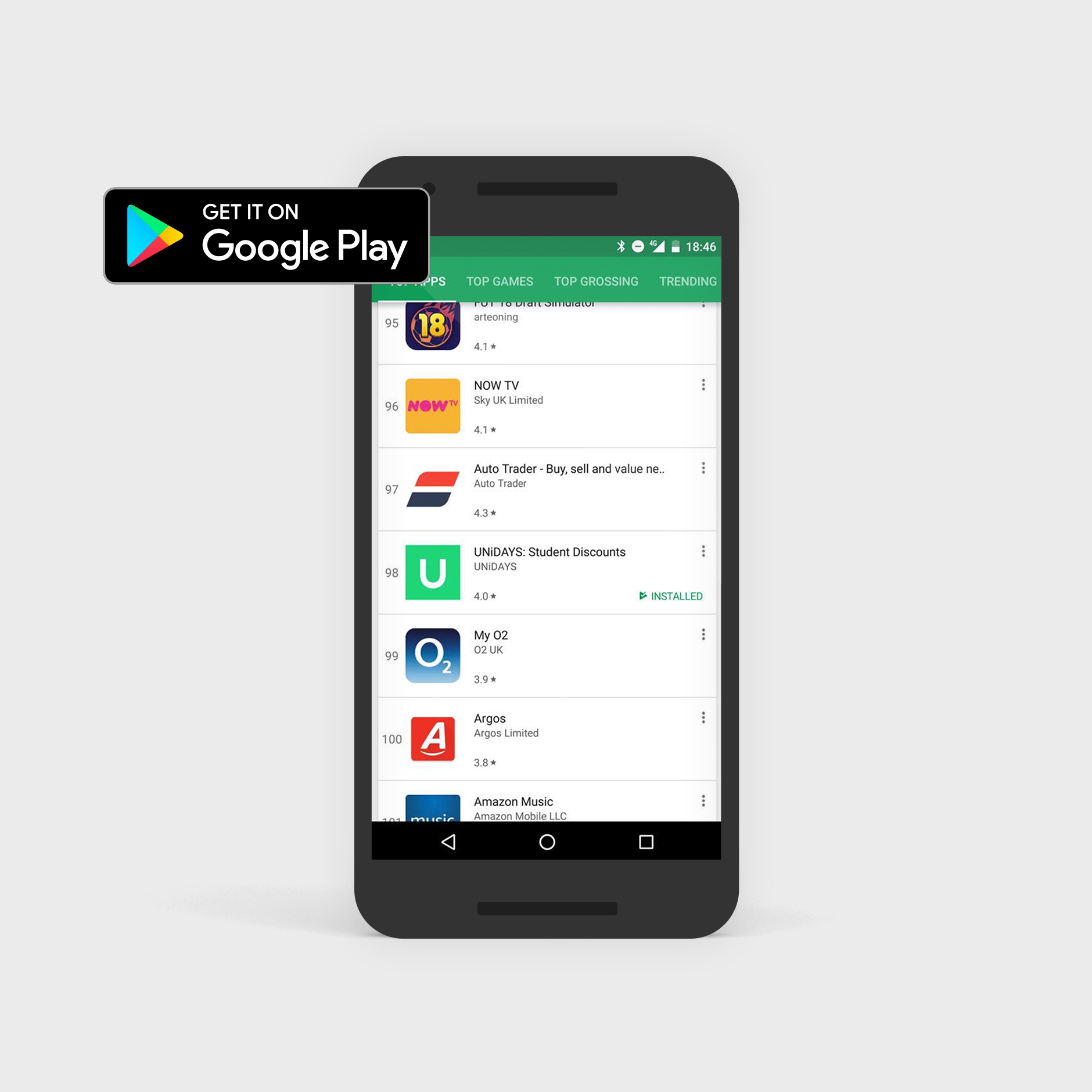
Android used tabbing (swiping) to navigate through the categories of perks, whilst iOS used a different tab style component and behaviour, along with a mixture of utilising the bottom navigation to help users explore perks.

I also looked at creating a ‘featured’ page which users landed on when opening up the app – this allowed us to keep our premium ecosystem.

Key challenges:

Inaccessible navigation banner

Challenge

A lot of work needed to be considered around the top banner of the site and hittable areas between buttons as these would fail WCAG standards.

They were small buttons with not a lot of room for error, users would often click one button, and realise that they’d accidentally pressed the other button directly next to it.

Solution

By researching extensively into behavioural patterns; Android and iOS both have methods in which can easily solve the inaccessible top banner problem we currently had.

I created multiple options to and got these reviewed by the team, we all agreed on a preferred approach that we thought felt familiar so we didn’t alienate our users.

Goals

Create a lean experience for users

Creating a lean experience can only be a good thing when making an app intuitive and easy to use. The less steps to potentially cause confusion then better.

Make the app familiar to what they would expect to see

If a user uses an Apple device and uses their device a specific way, they would expect the same behavioural patterns when using the iOS UNiDAYS app, the same for Android – we want to make the app feel familiar and not alienate users by adding functionality into the app that they might not recognise based on their opperating system.

Research:

Site map

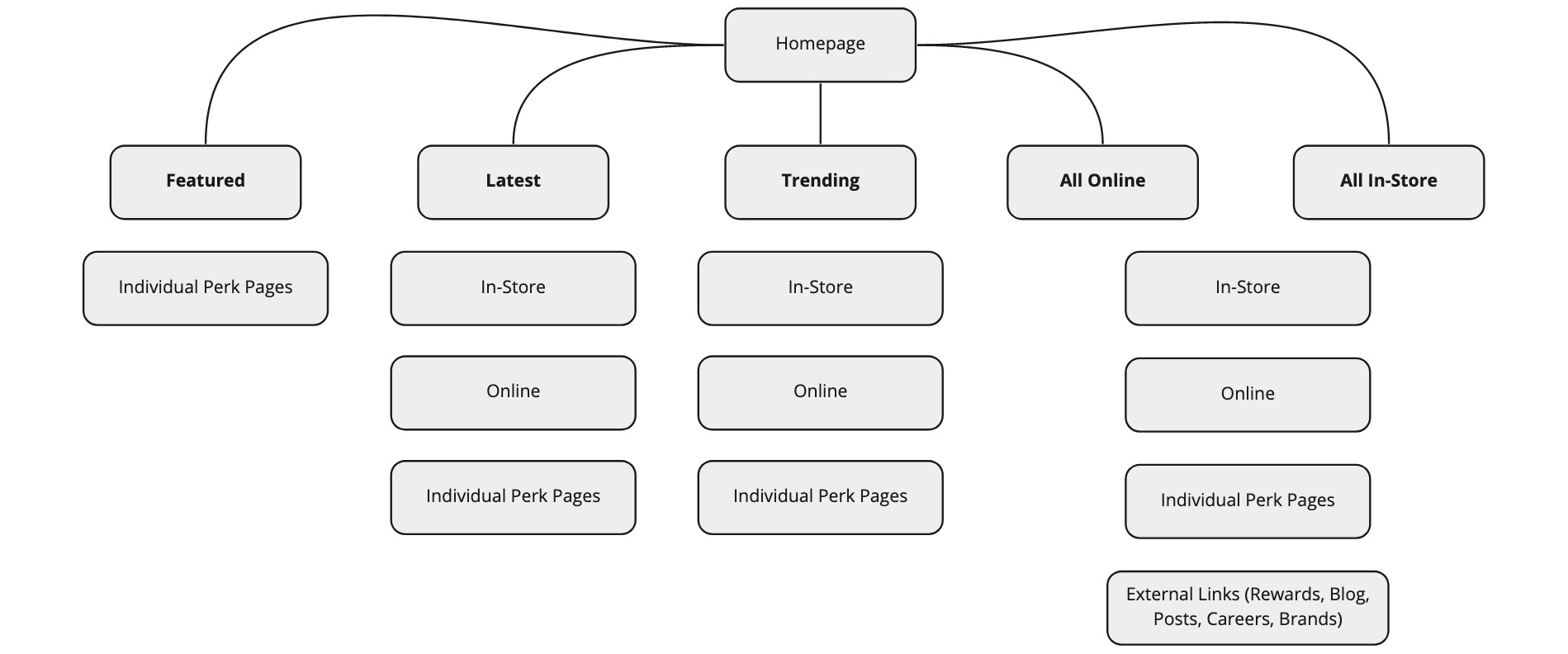
The very first area I worked on was the site map for the app, creating all the hit points and areas that users will be able to navigate to and use.

This covered the top navigation and the footer for the app.

Creating a site map helped me to get an overview of the key user routes that would need to be taken by the user whilst navigating the app.

Research:

Focus groups

We thought it would be a great idea to organise a focus group between staff across other departments of the company to try and get extra ideas that we could put towards the creation of the app, as well as to see if there was any consistent issues that we needed to avoid or improve with the current dynamic website that we had.

Having lots of people testing the app at the same time, allowed us to pin point any pain areas during the set tasks we set for the users.

Research:

A/B testing

This allowed us to test specific sections of the app and keep an eye on the behavioural patterns of our users when they landed on the relevant pages. 

Doing this gave clear results for which design we should use as one would work better than the other. If that was the case, we then phased out ‘Design B’ completely.

Wireframes:

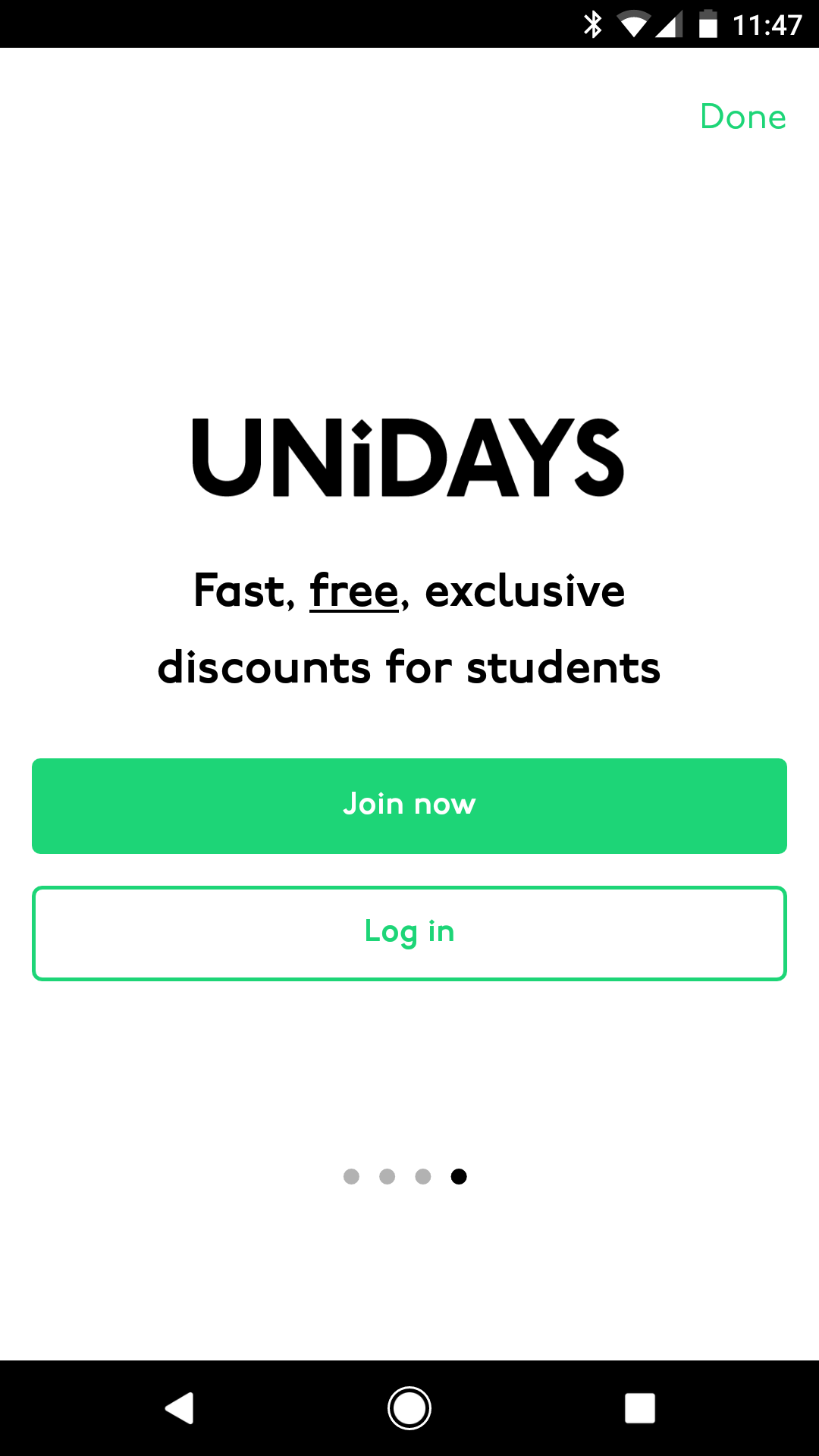
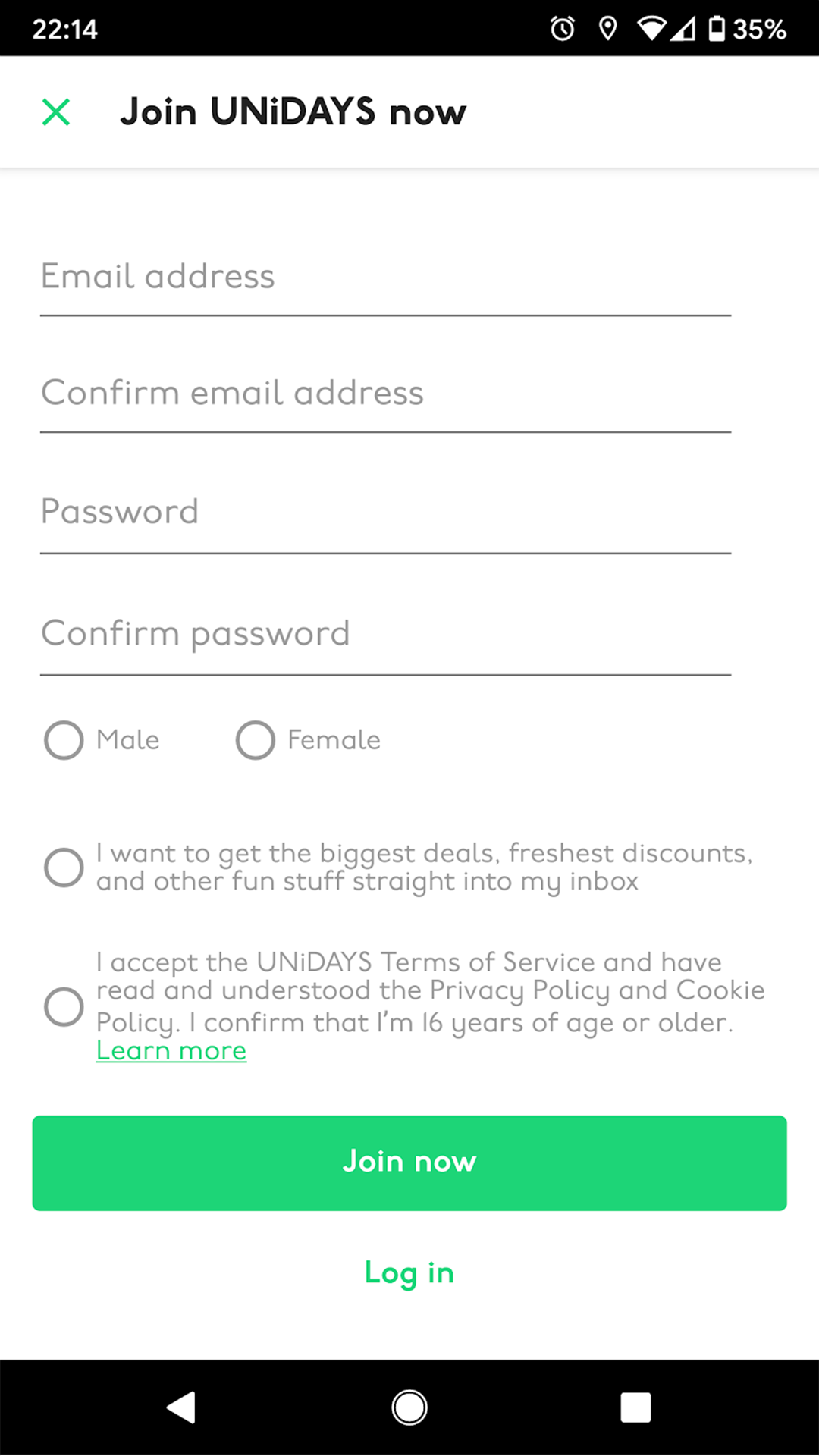
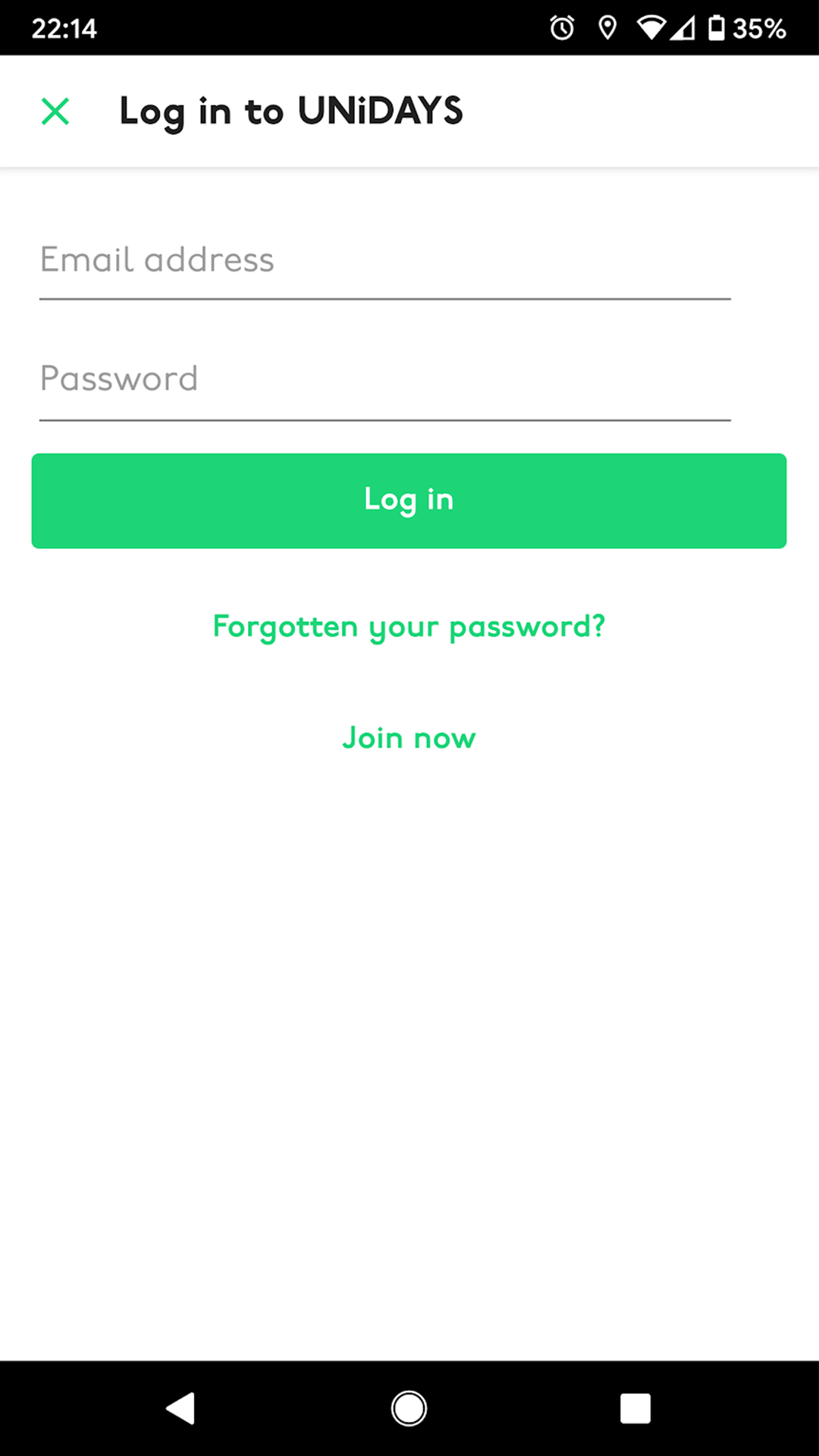
Login screen

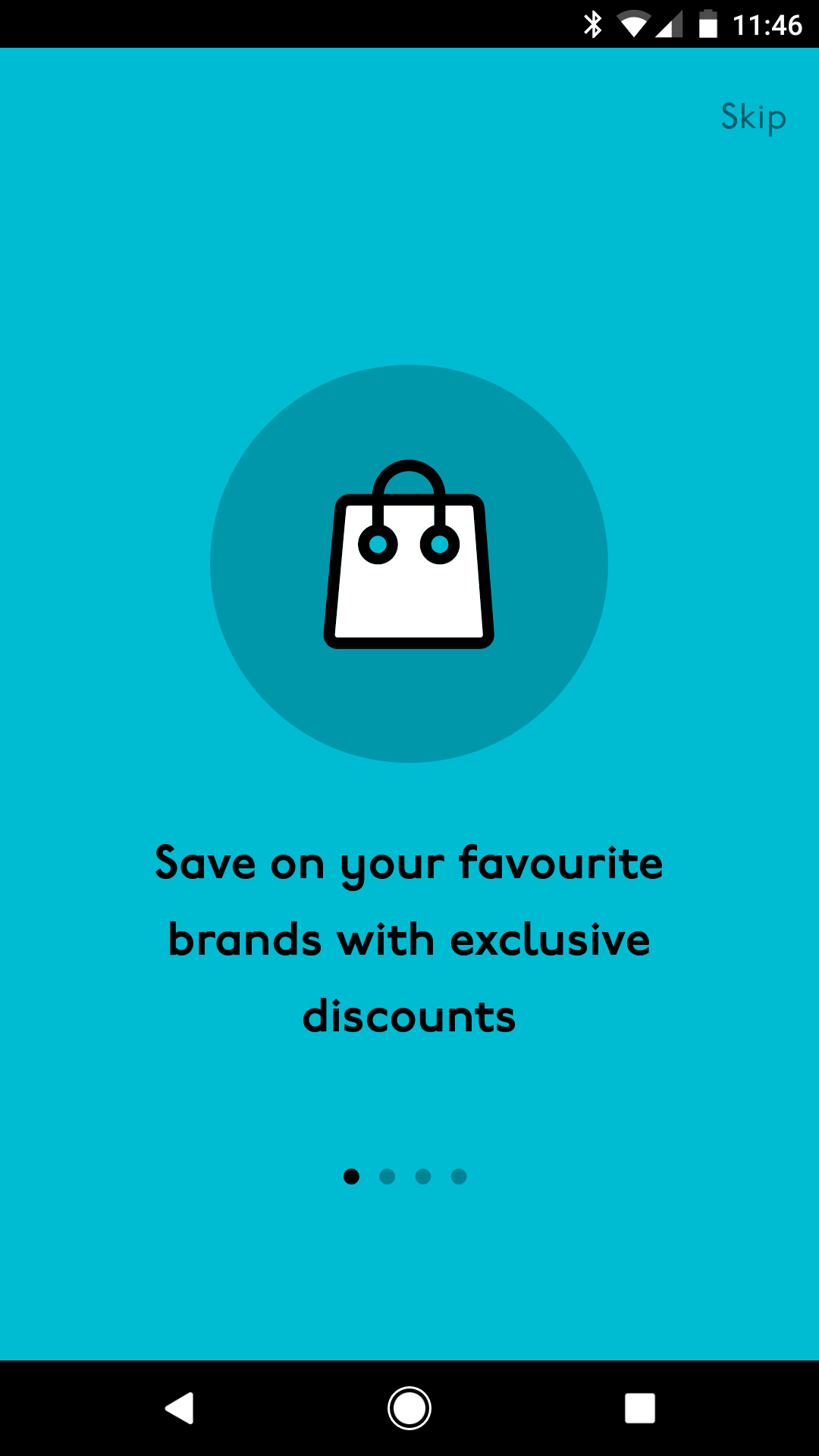
Upon logging in, users are taken to the homepage.

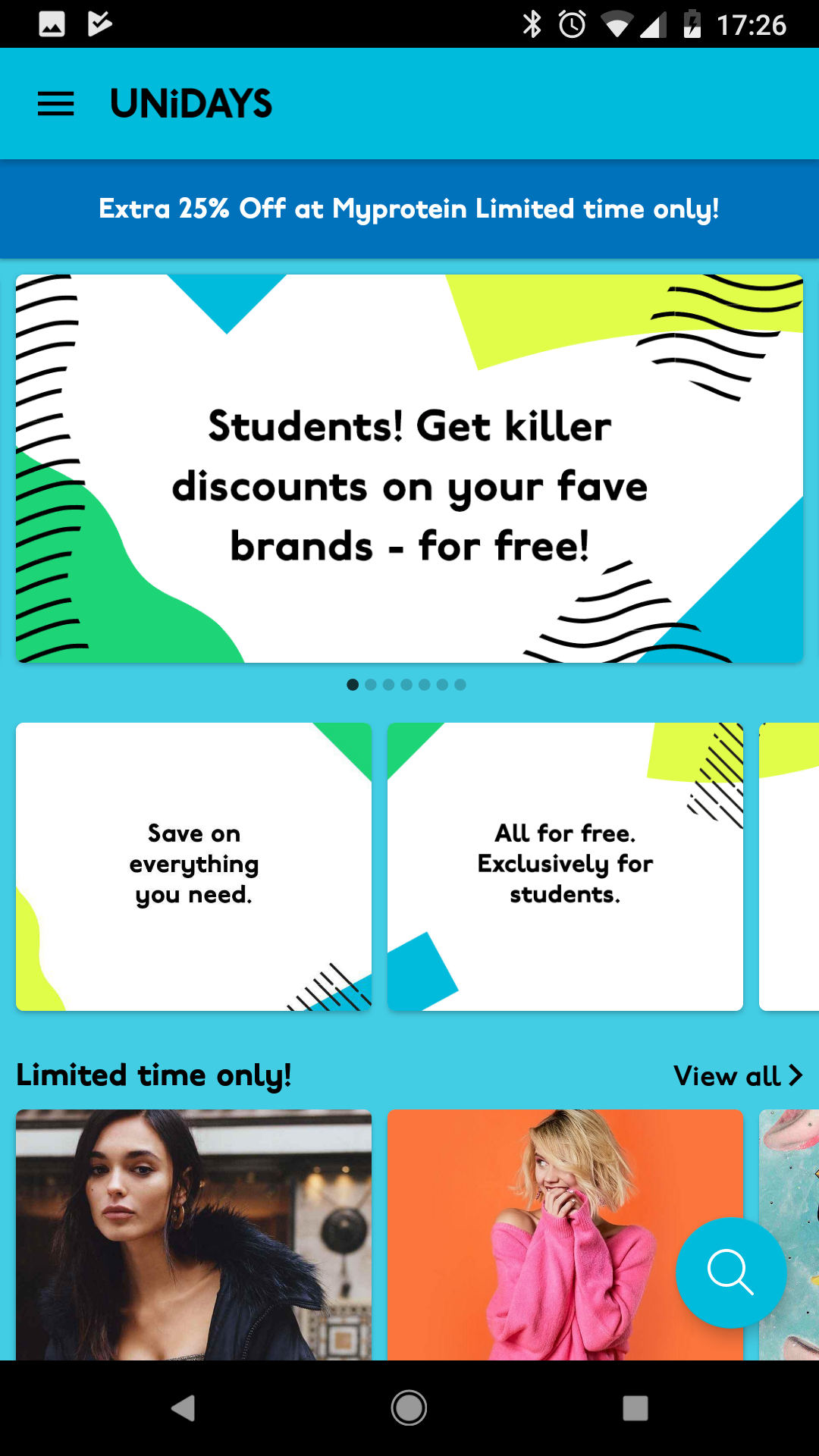
This is where the main brands pay for exposure, as well as limited-time offers

Wireframes:

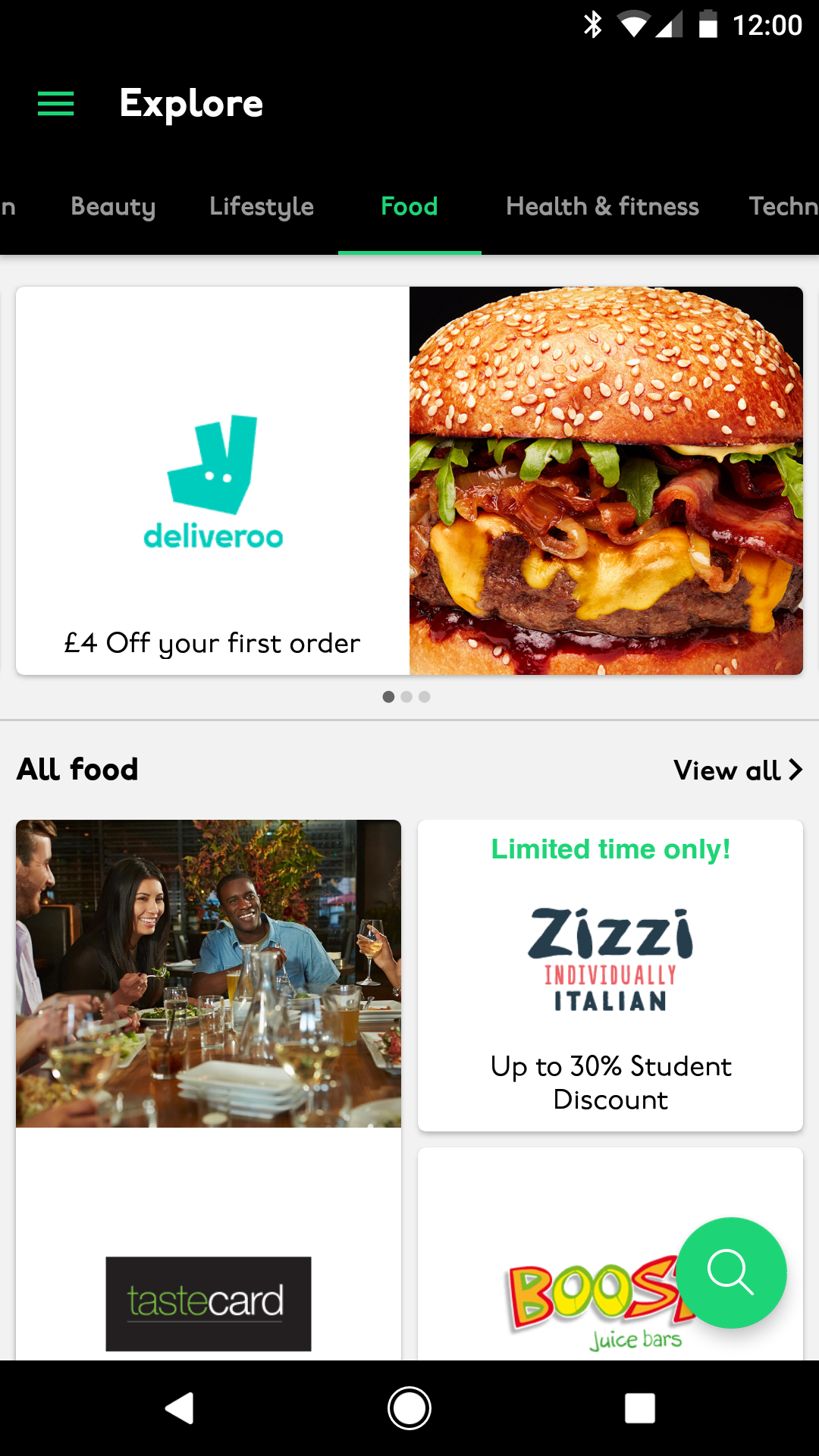
Explore

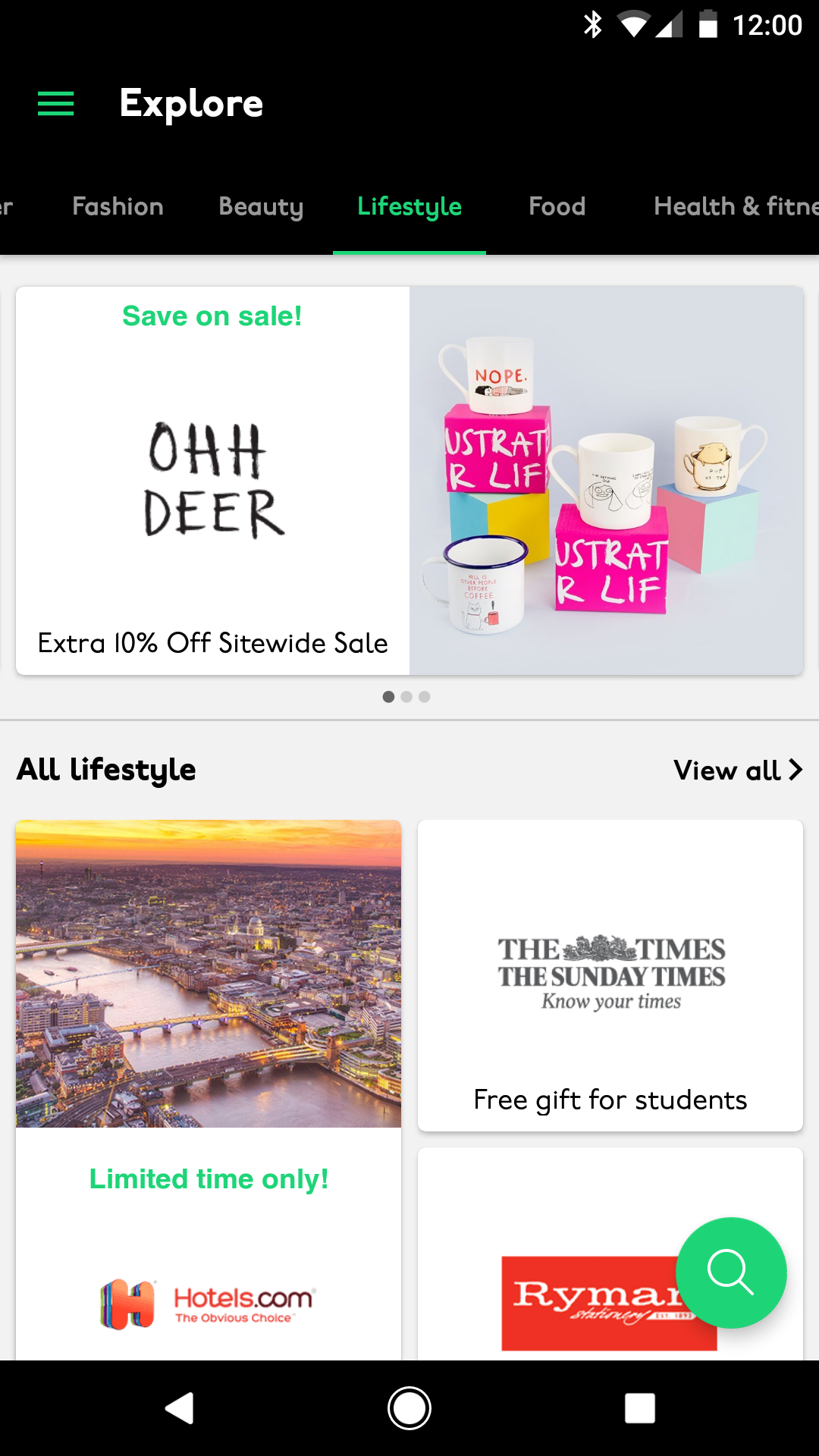
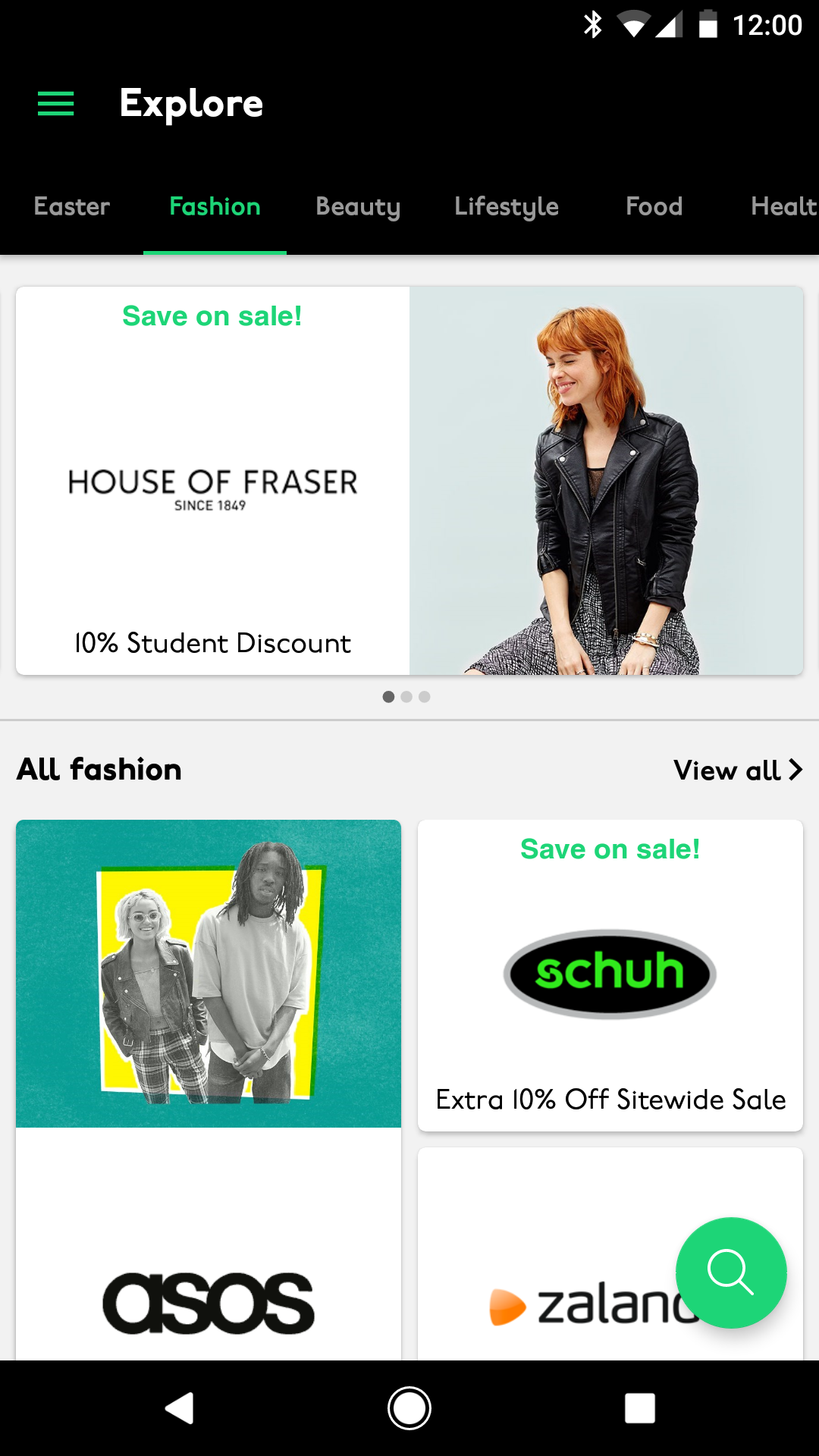
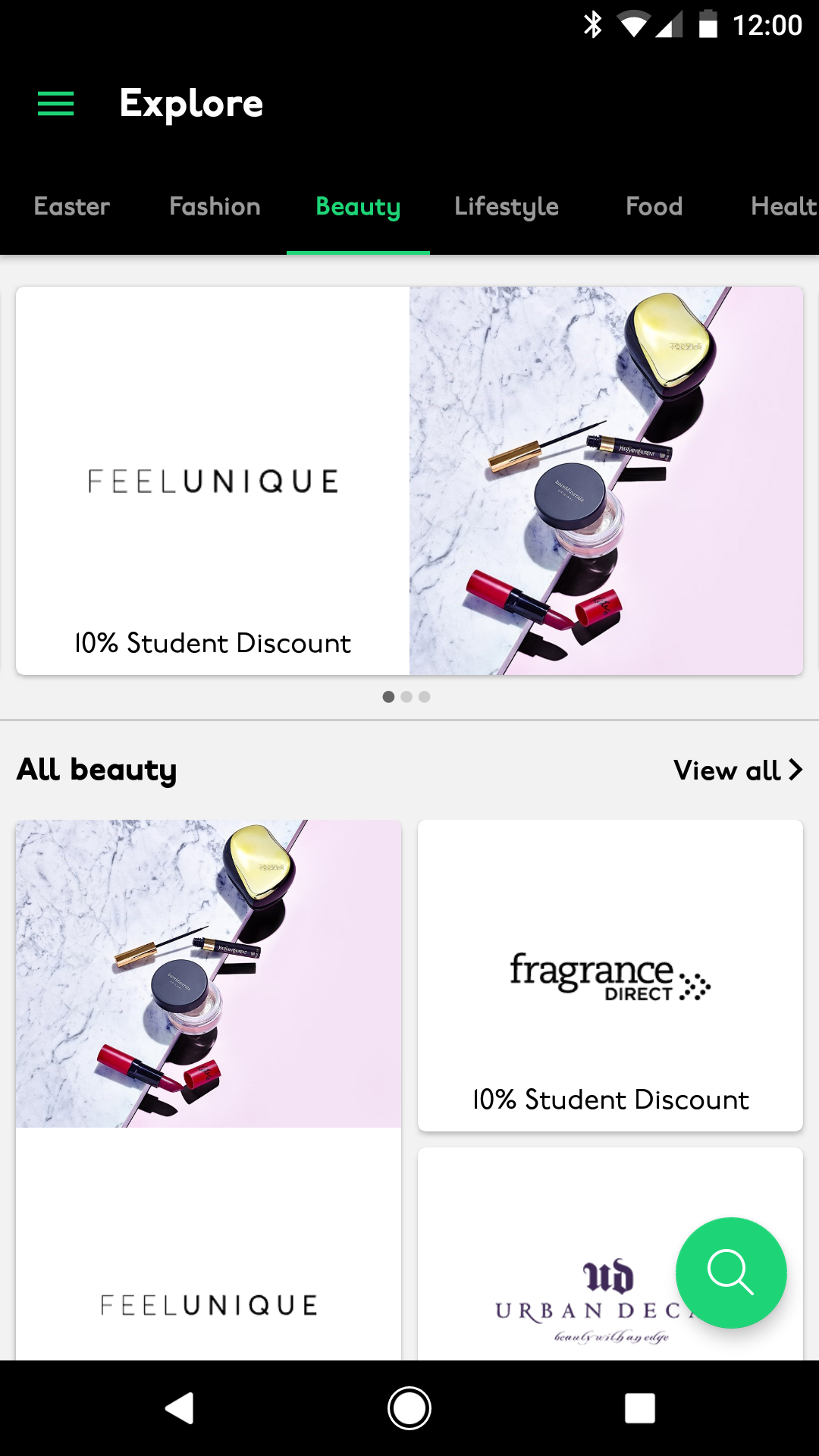
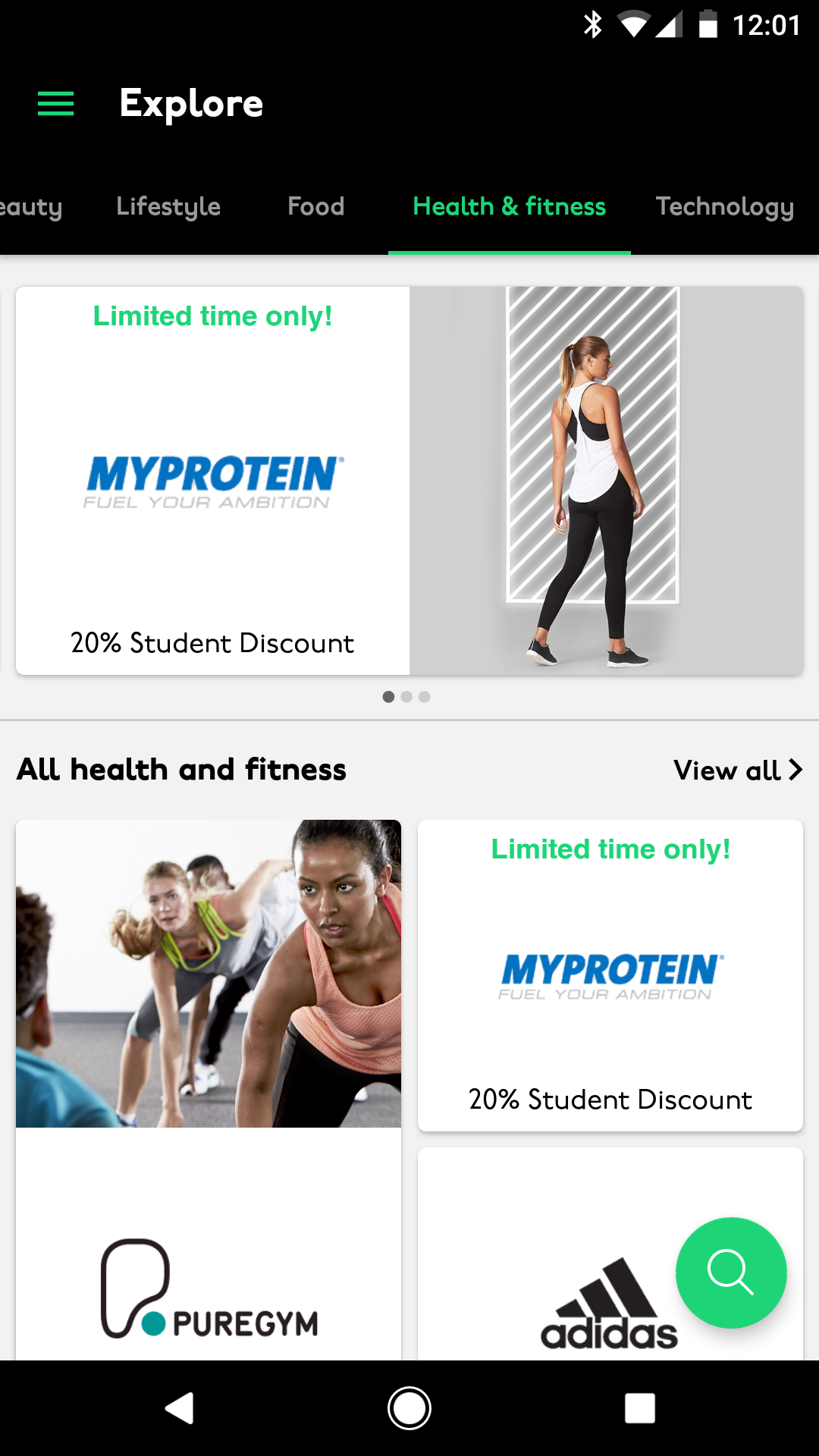
Perks were in groups of type, so users could swipe between the pages to see the other areas.

This area was one of the main differences in native UX between Android and iOS. Android interface uses swiping and the Hamburger navigation to get between pages, whereas the iOS interface uses main sections along the bottom navigation.

Wireframes:

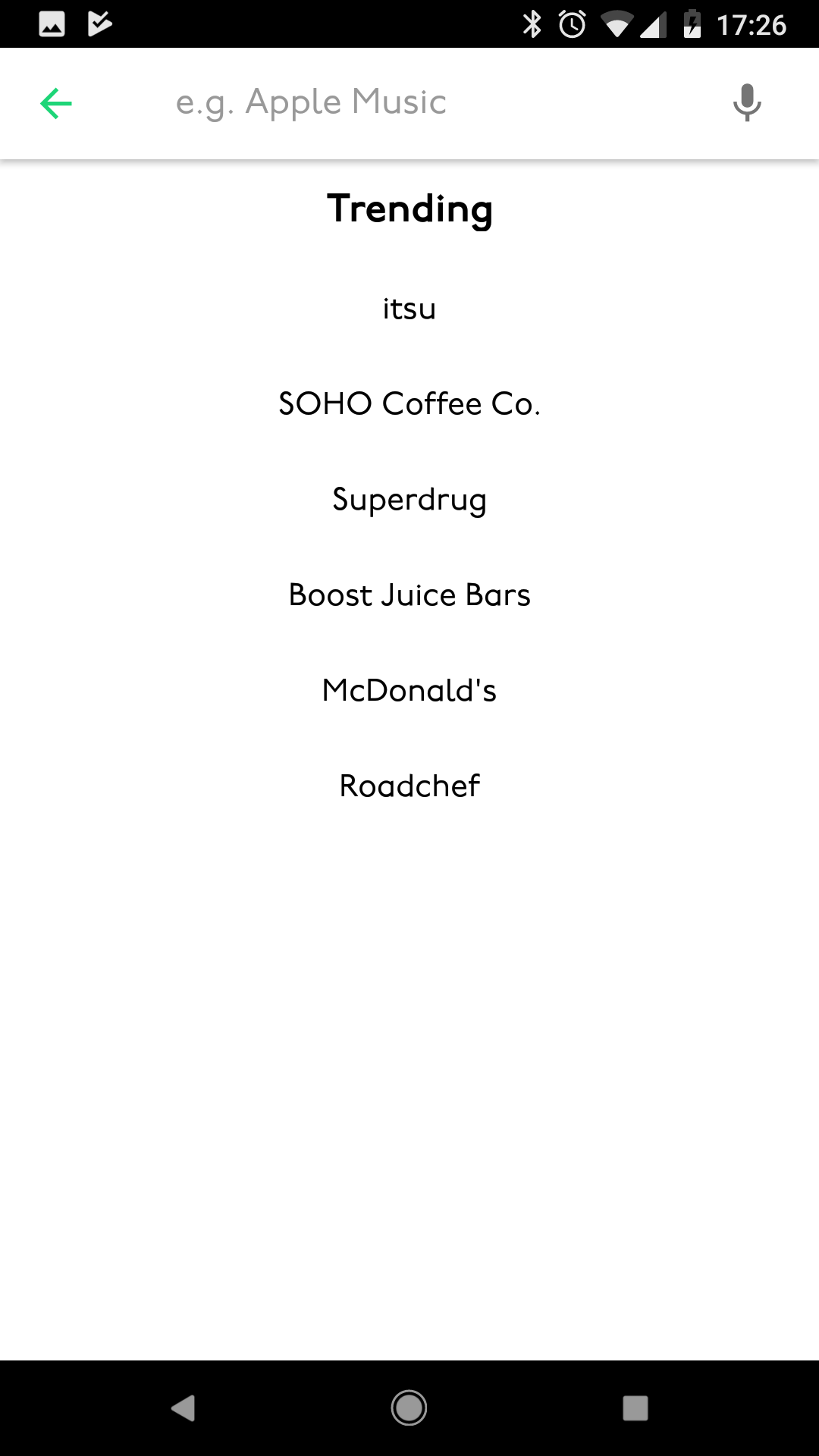
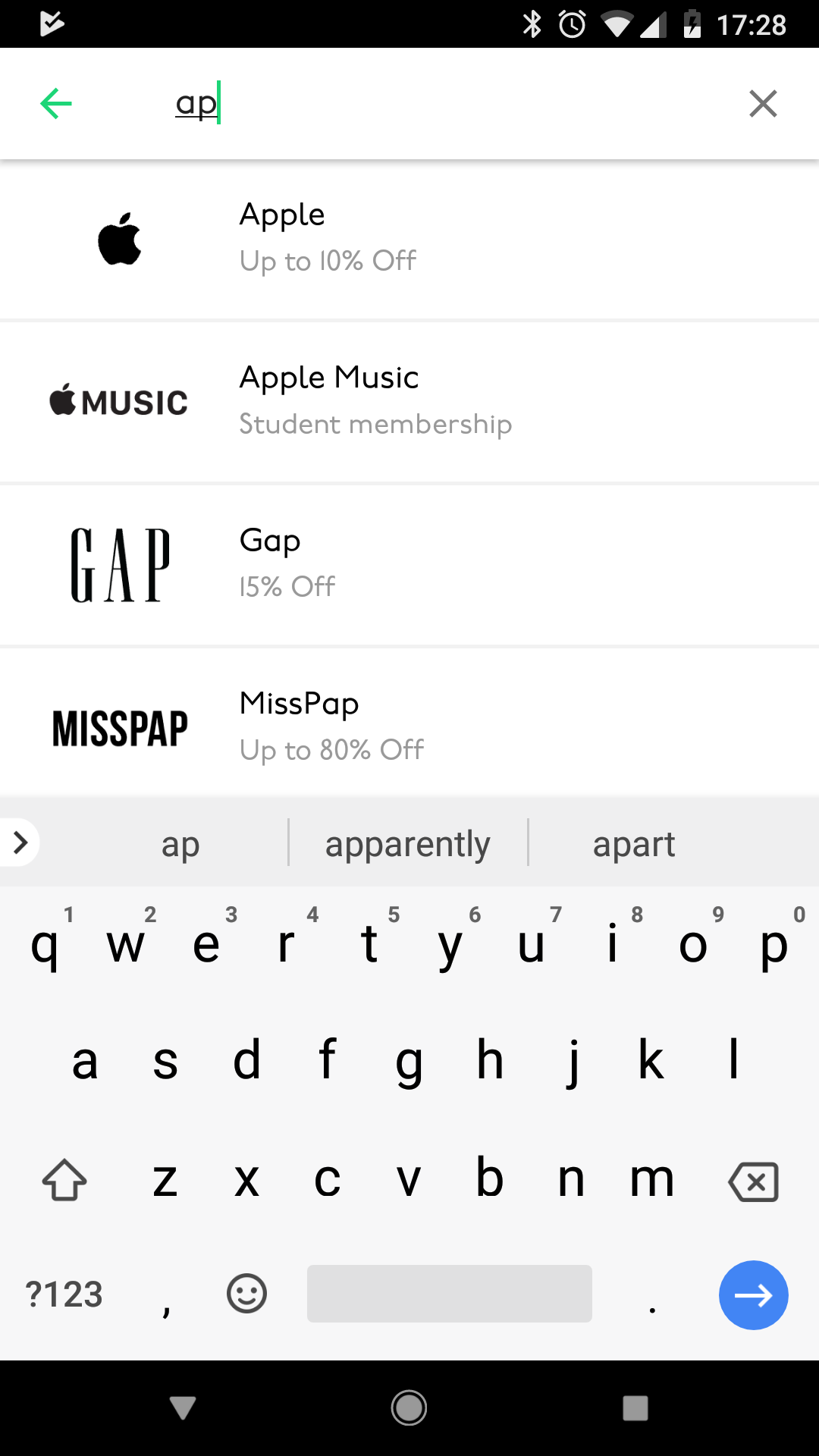
Search

Searching within the Android app was done by hitting the floating action button at the bottom right of the screen. Doing this opened up a new page where it showed previous search results.

User experience UNiDAYS: Native app designs

iOS and Android apps

UNiDAYS is a popular student discount platform with a native mobile app available on iOS and Android. The app’s design emphasises simplicity, speed, and accessibility, targeting Gen-Z and millennial students who need quick access to deals from brands like Apple, ASOS, and Levi’s.

My role

The challenge was to create a native iOS and Android application to replace the current dynamic website that was being used.

The outcome had to use the latest native UX best practices and expected user behavioural patterns as to not alienate users. As well as this, the app needed to be as lean as possible.

Focus groups Native patterns User flows Wireframes Prototyping A/B testing Site maps

Key challenges:

Slick functionality without compromising premium screen estate

Challenge

The way the UNiDAYS website worked was that businesses would pay a premium fee to have their card placed higher up the website than the other businesses. 

This new app, needed to feel familiar yet not compromise the current ecosystem that had been set up previously.

Solution

I researched fully into each opperating systems ‘style’ of how UNiDAYS could integrate the ecosystem that we have created.

Android used tabbing (swiping) to navigate through the categories of perks, whilst iOS used a different tab style component and behaviour, along with a mixture of utilising the bottom navigation to help users explore perks.

I also looked at creating a ‘featured’ page which users landed on when opening up the app – this allowed us to keep our premium ecosystem.

Key challenges:

Inaccessible navigation banner

Challenge

A lot of work needed to be considered around the top banner of the site and hittable areas between buttons as these would fail WCAG standards.

They were small buttons with not a lot of room for error, users would often click one button, and realise that they’d accidentally pressed the other button directly next to it.

Solution

By researching extensively into behavioural patterns; Android and iOS both have methods in which can easily solve the inaccessible top banner problem we currently had.

I created multiple options to and got these reviewed by the team, we all agreed on a preferred approach that we thought felt familiar so we didn’t alienate our users.

Goals

Create a lean experience for users

Creating a lean experience can only be a good thing when making an app intuitive and easy to use. The less steps to potentially cause confusion then better.

Make the app familiar to what they would expect to see

If a user uses an Apple device and uses their device a specific way, they would expect the same behavioural patterns when using the iOS UNiDAYS app, the same for Android – we want to make the app feel familiar and not alienate users by adding functionality into the app that they might not recognise based on their opperating system.

Research:

Site map

The very first area I worked on was the site map for the app, creating all the hit points and areas that users will be able to navigate to and use.

This covered the top navigation and the footer for the app.

Creating a site map helped me to get an overview of the key user routes that would need to be taken by the user whilst navigating the app.

Research:

Focus groups

We thought it would be a great idea to organise a focus group between staff across other departments of the company to try and get extra ideas that we could put towards the creation of the app, as well as to see if there was any consistent issues that we needed to avoid or improve with the current dynamic website that we had.

Having lots of people testing the app at the same time, allowed us to pin point any pain areas during the set tasks we set for the users.

Research:

A/B testing

This allowed us to test specific sections of the app and keep an eye on the behavioural patterns of our users when they landed on the relevant pages. 

Doing this gave clear results for which design we should use as one would work better than the other. If that was the case, we then phased out ‘Design B’ completely.

Wireframes:

Login screen

Upon logging in, users are taken to the homepage.

This is where the main brands pay for exposure, as well as limited-time offers

Wireframes:

Explore

Perks were in groups of type, so users could swipe between the pages to see the other areas.

This area was one of the main differences in native UX between Android and iOS. Android interface uses swiping and the Hamburger navigation to get between pages, whereas the iOS interface uses main sections along the bottom navigation.

Wireframes:

Search

Searching within the Android app was done by hitting the floating action button at the bottom right of the screen. Doing this opened up a new page where it showed previous search results.