
Collect & deliver
One of the big projects that was on our road map for 2018 was to create a mobile app for EPOC / EPOD (Electronic Point of Collection / Electronic Point of Delivery).
My role
The plan for this project was to create a lean app-based solution to help porters in their daily job when collecting and delivering trolleys from a hospital facility to a cleaning warehouse, minimising any defects caused by human error in the process (roughly 80 defects per week!)
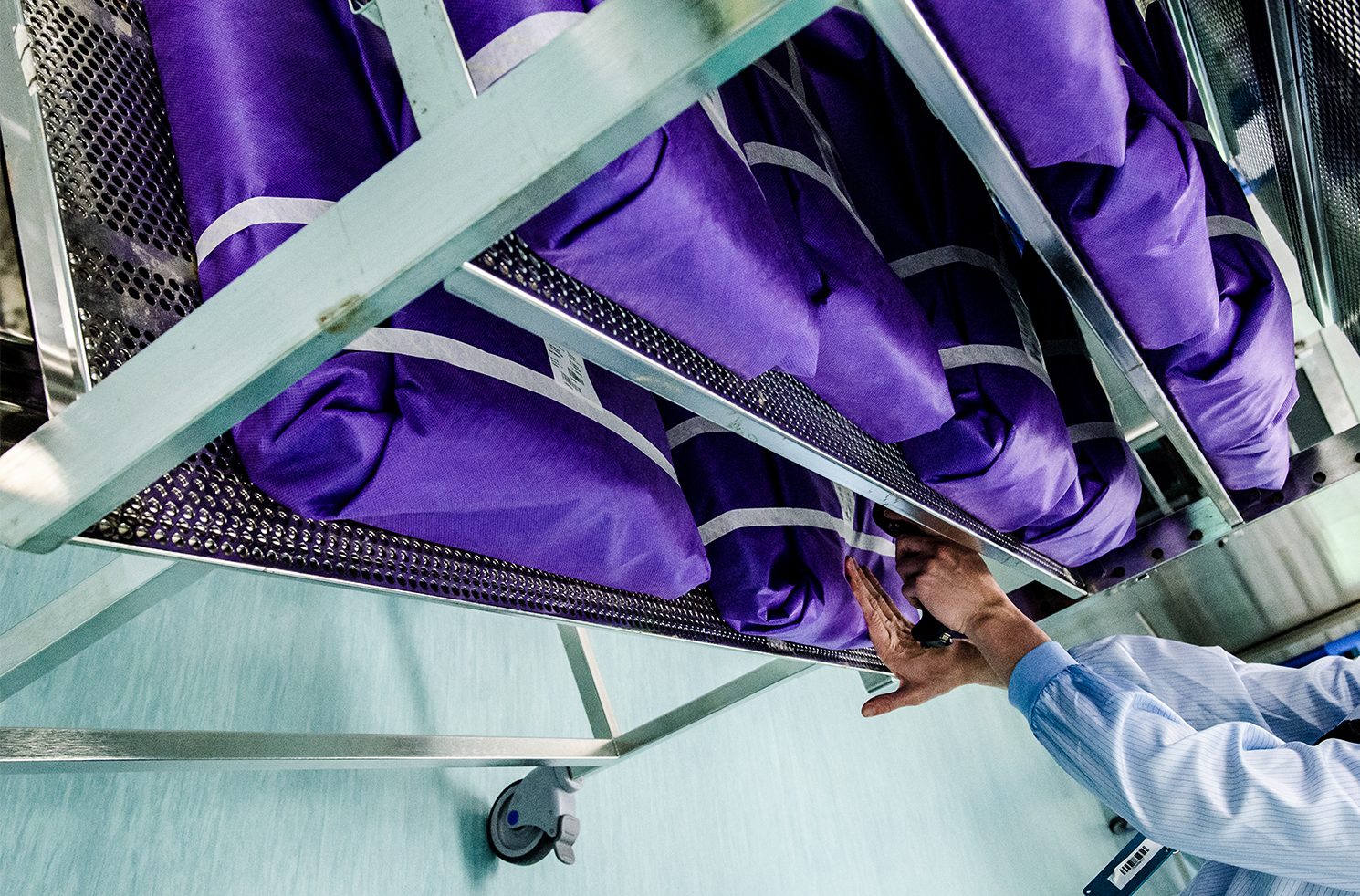
To do this, I looked at moving their current process of good ol’ pen and paper to a digital format. The porter would scan the clean trolleys they collected from the cleaning warehouse and drop them off at a hospital to be used, scanning their location on arrival, followed by any dirty trolleys they collected in that trip.
Collect and deliver:
User interface
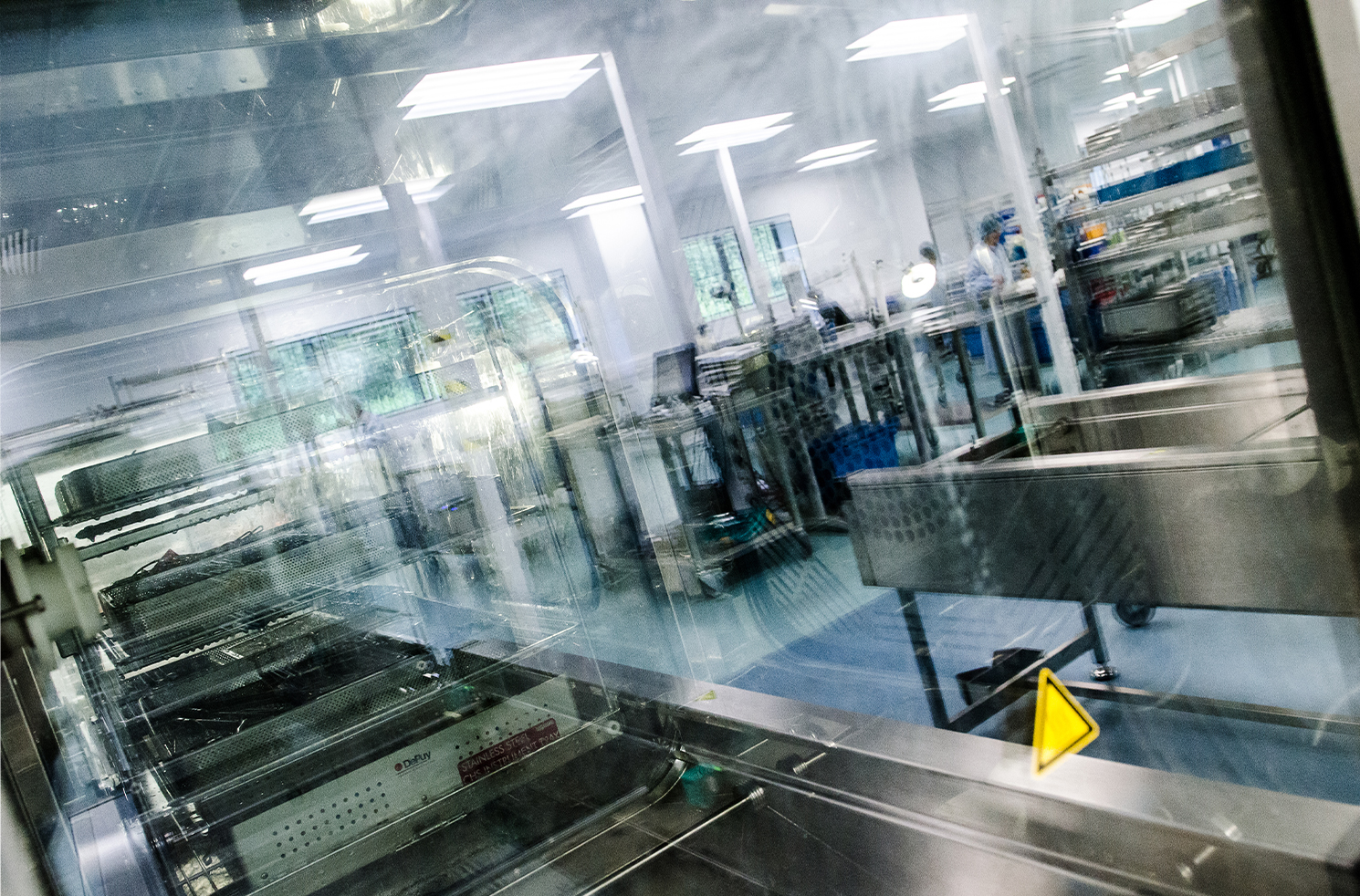
We already had the process, but it was done with pen and paper or word of mouth between members of staff collecting and delivering trolleys.
User interface:
Login
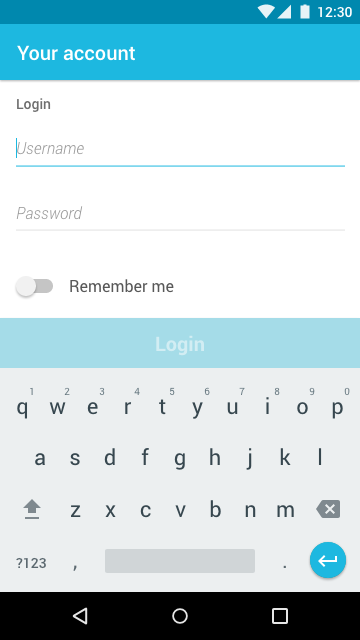
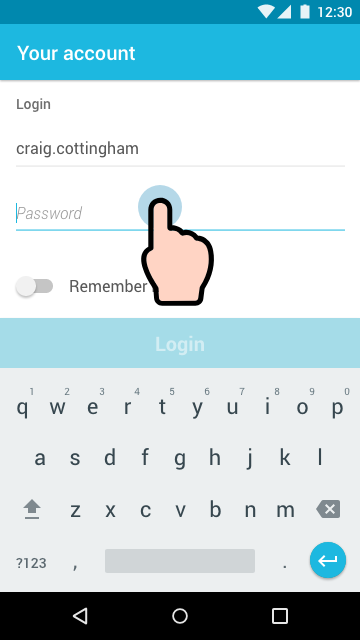
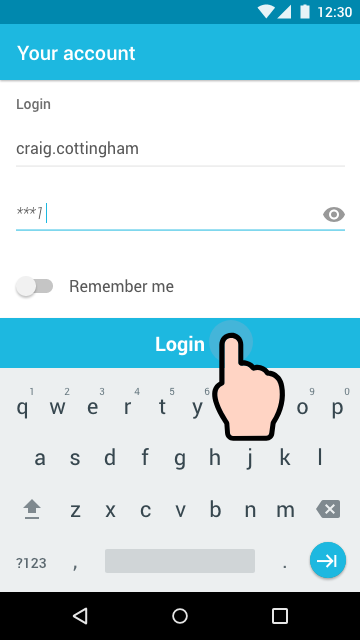
When the user opens the app, the first thing that they have to do is login with their credentials.
The app login had a 10minute inactivity period before it logged the user out of the app. If the user works for a longer time, the user can tap ‘Remember me’, and it will keep them signed in until they decide to log themselves out.
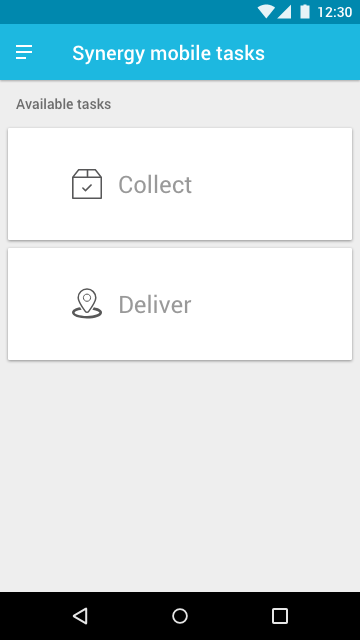
After logging in, the user is taken to their Task page, where they can set up, or do their daily jobs. – Phase 1, started with Collect and Deliver.
User interface:
Password expired
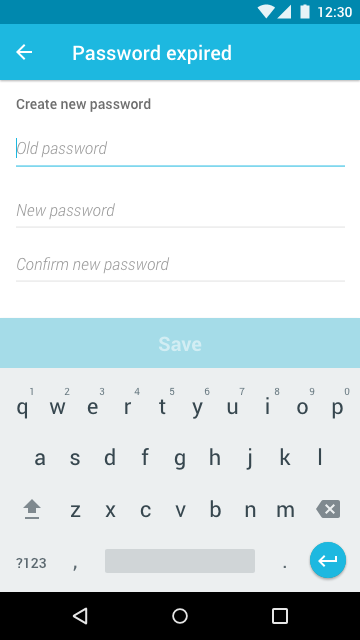
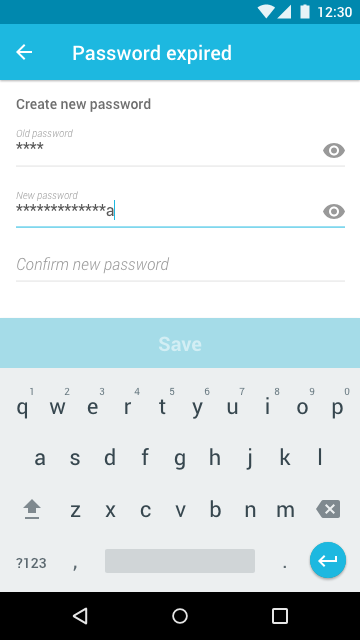
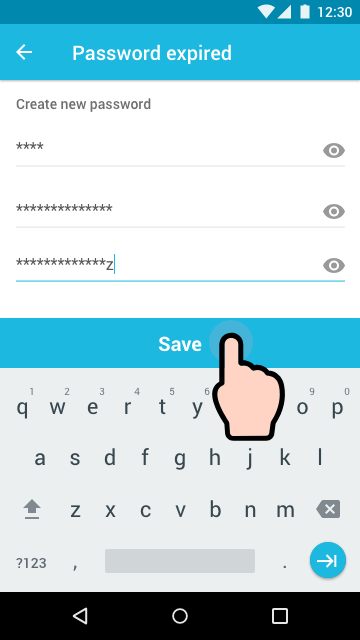
After some time, for security reasons, we made the user enter a new password.
User interface:
Collect
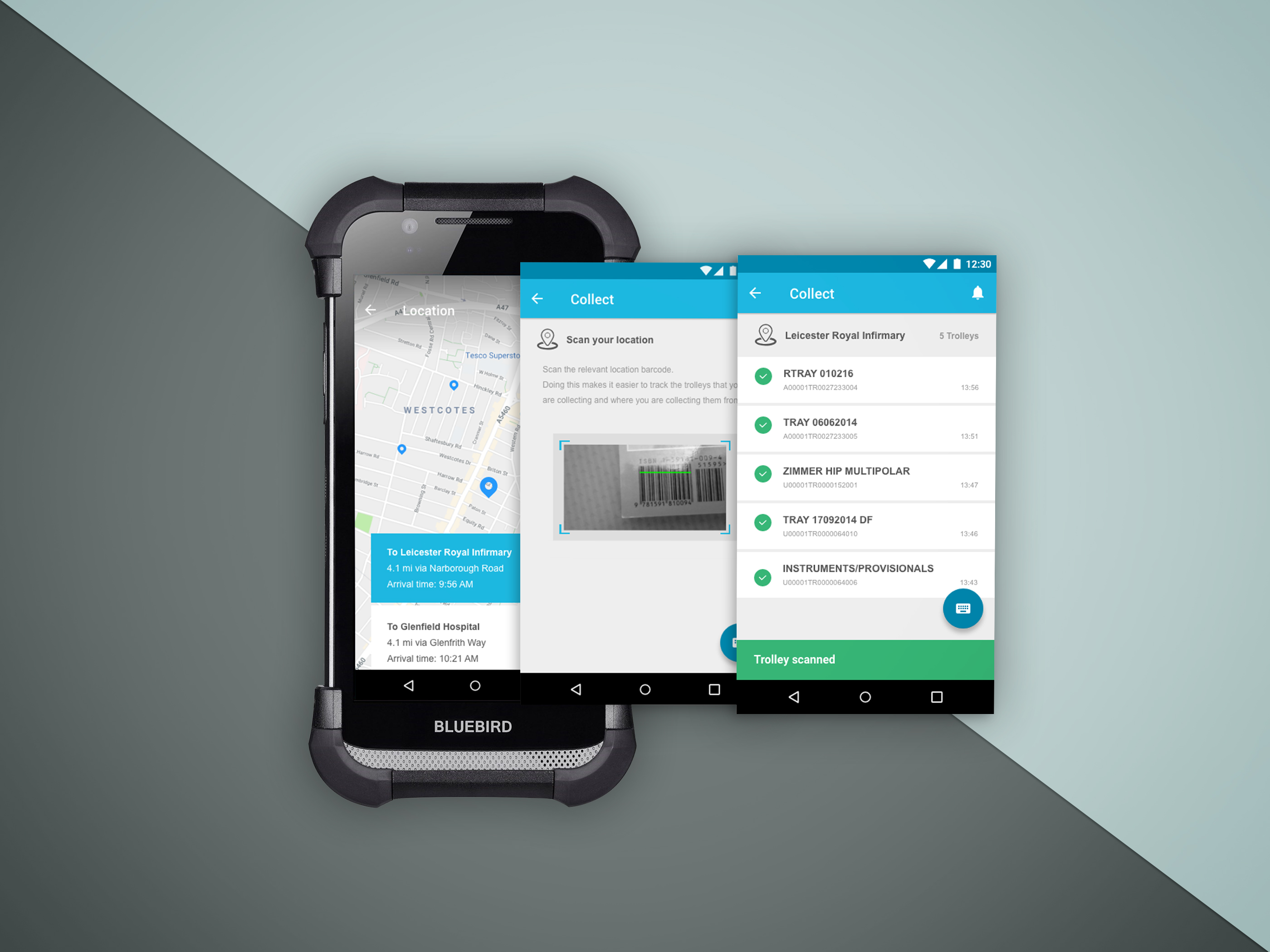
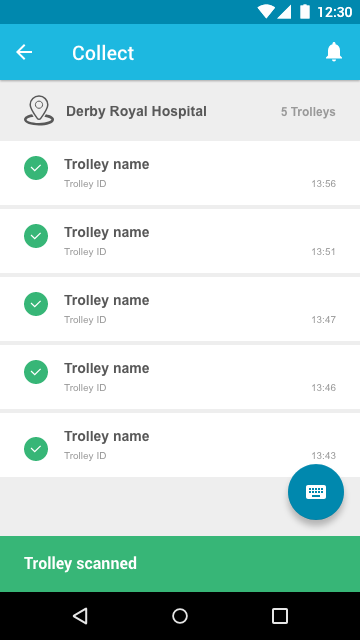
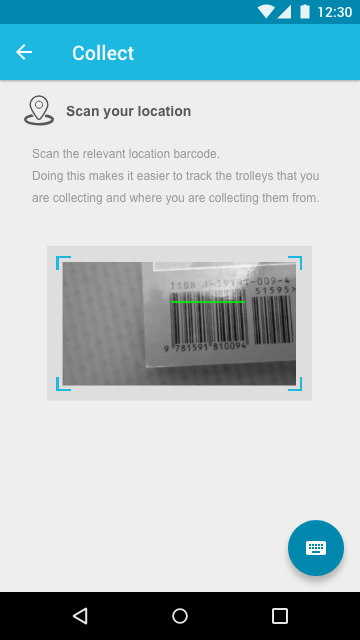
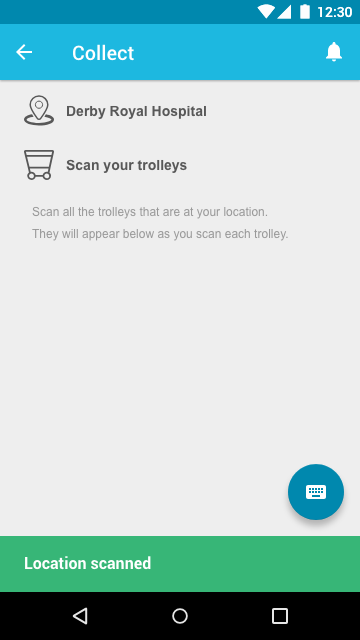
When drivers collect trolleys, they must scan the location that the trolleys are being collected. They then need to scan the trolley IDs for the waiting trolleys.
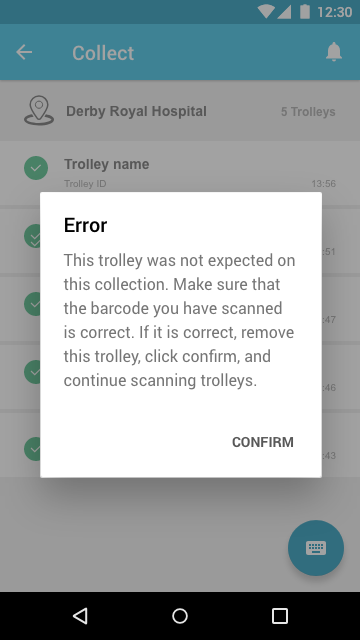
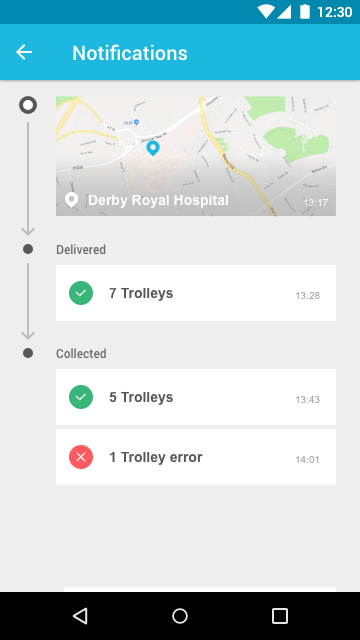
If a trolley is scanned that shouldn’t be collected, then the user will be notified to inform them of an error.
User interface:
Hospital contacts
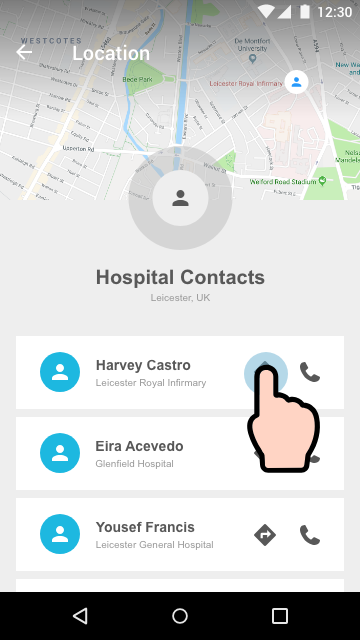
When the driver logs into a device, it populates the contacts page with the staff relevant to the collection and delivery points for that shift.
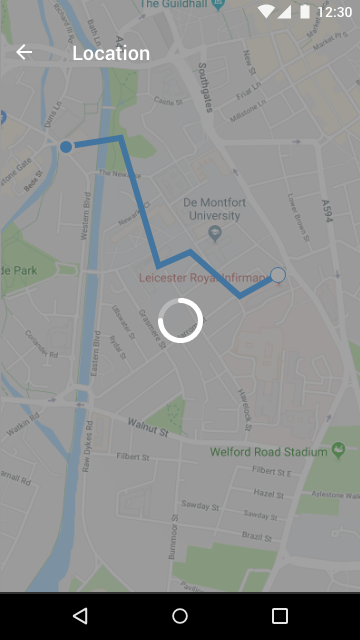
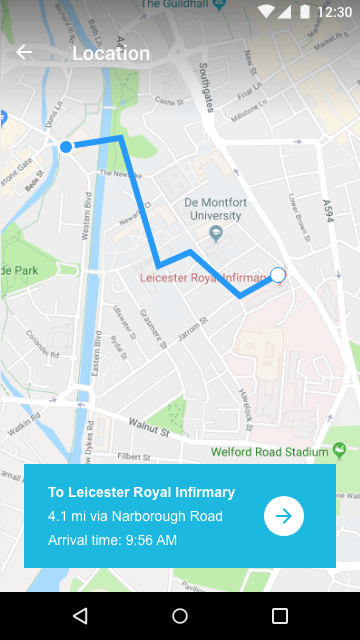
If something goes wrong during a journey; stuck in traffic, for example, drivers can call the on-site manager, or use the maps to navigate around the traffic to get to their destination quicker.
User interface:
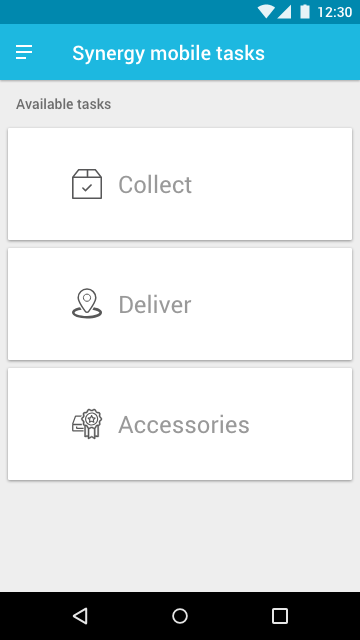
Favourite tasks
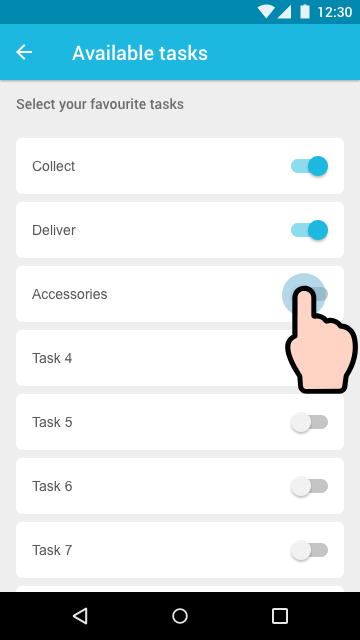
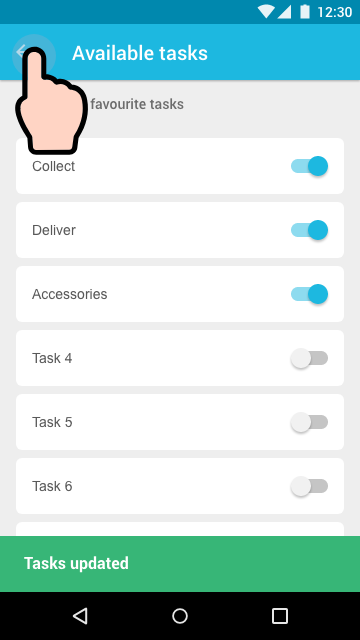
The user can edit their tasks depending on what jobs they are doing throughout their shift. This updates the Task page when the user toggles each job on or off.
User interface:
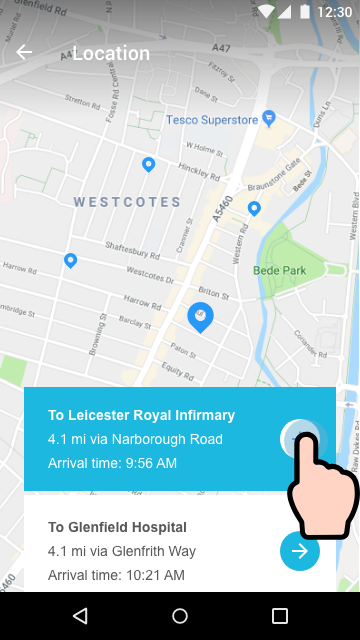
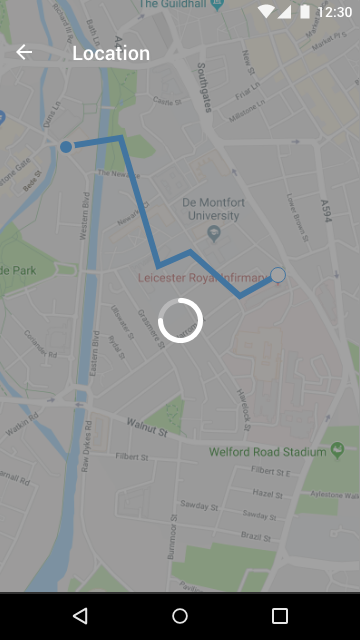
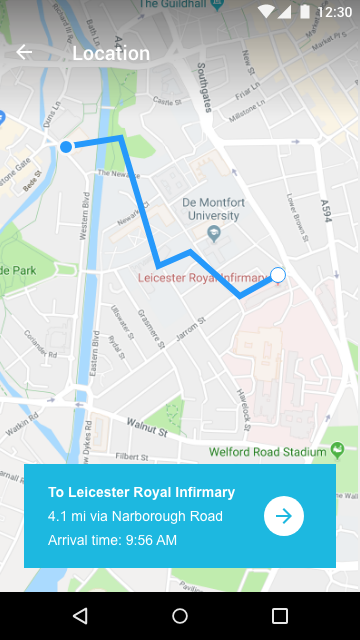
Locations
Most drivers have roughly 3 of 4 delivery points that they drive to throughout their shift. Sometimes there can be ad-hoc requests or Fast Track deliveries that are needed as soon as possible. These will notify the user and take them directly to that location as quickly as possible.
Settings:
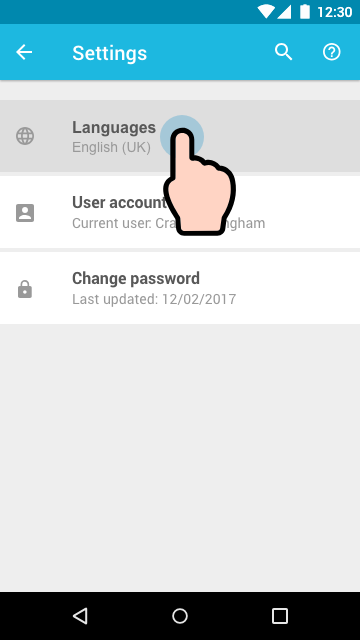
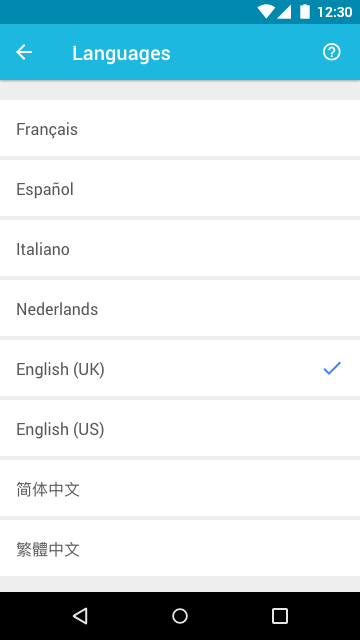
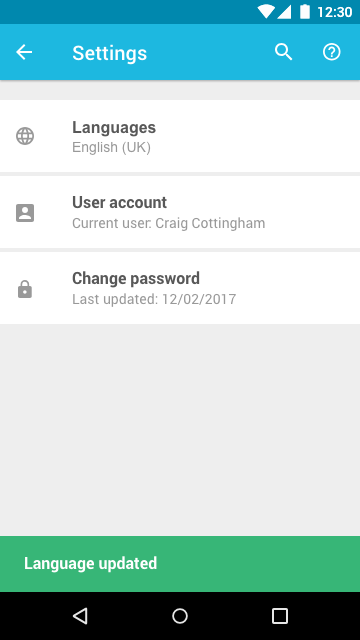
Change language
STERIS work over multiple countries, so the app needed the ability to allow users to change language settings.
To do this, users go into Settings, select the Languages area, followed by tapping on their language of choice. Once a selection is made, the app navigates back to the Settings page.
Settings:
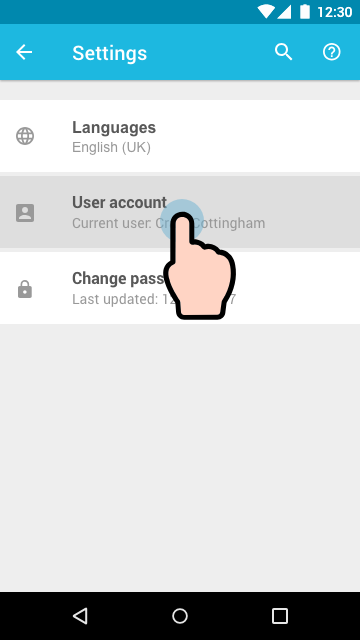
Change user
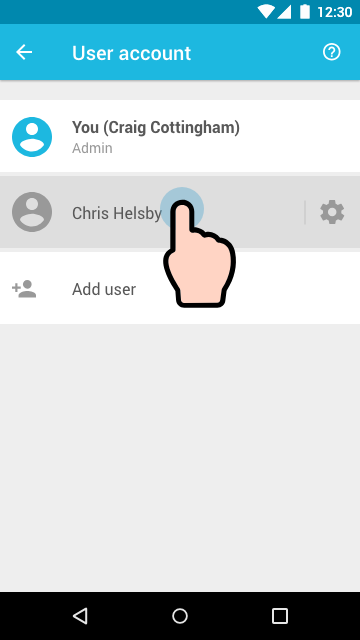
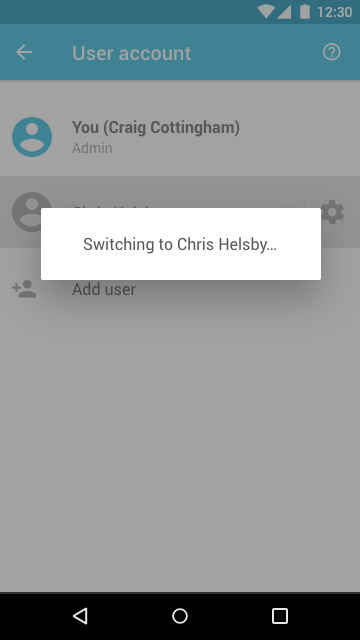
The device is used across multiple users, so we added the ability to switch between accounts quickly. Doing this allowed users to keep their preferred personalised Tasks the same without having to set their Tasks up again every time they logged into that device.
Settings:
Create new password
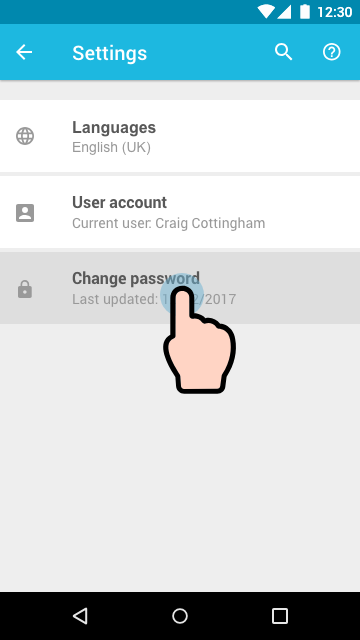
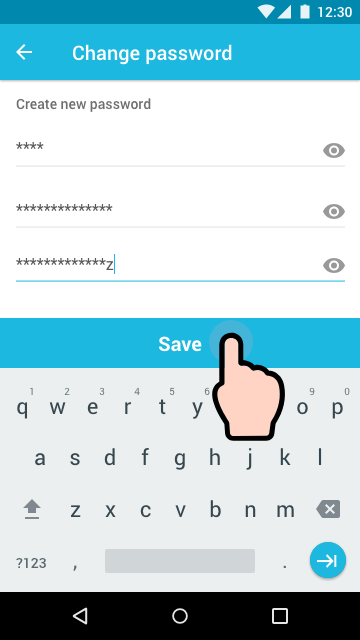
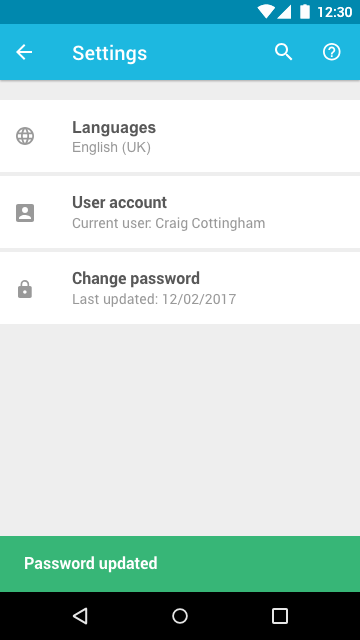
If the user wanted to change their password, all they have to do is enter their current password, followed by entering and confirming their new password. Once the user has tapped Save, the password will be updated.
Collect & deliver
One of the big projects that was on our road map for 2018 was to create a mobile app for EPOC / EPOD (Electronic Point of Collection / Electronic Point of Delivery).
My role
The plan for this project was to create a lean app-based solution to help porters in their daily job when collecting and delivering trolleys from a hospital facility to a cleaning warehouse, minimising any defects caused by human error in the process (roughly 80 defects per week!)
To do this, I looked at moving their current process of good ol’ pen and paper to a digital format. The porter would scan the clean trolleys they collected from the cleaning warehouse and drop them off at a hospital to be used, scanning their location on arrival, followed by any dirty trolleys they collected in that trip.
Collect & deliver:
User interface
We already had the process, but it was done with pen and paper or word of mouth between members of staff collecting and delivering trolleys.
User interface:
Login
When the user opens the app, the first thing that they have to do is login with their credentials.
The app login had a 10minute inactivity period before it logged the user out of the app. If the user works for a longer time, the user can tap ‘Remember me’, and it will keep them signed in until they decide to log themselves out.
After logging in, the user is taken to their Task page, where they can set up, or do their daily jobs. – Phase 1, started with Collect and Deliver.
User interface:
Password expired
After some time, for security reasons, we made the user enter a new password.
User interface:
Collect
When drivers collect trolleys, they must scan the location that the trolleys are being collected. They then need to scan the trolley IDs for the waiting trolleys.
If a trolley is scanned that shouldn’t be collected, then the user will be notified to inform them of an error.
User interface:
Hospital contacts
When the driver logs into a device, it populates the contacts page with the staff relevant to the collection and delivery points for that shift.
If something goes wrong during a journey; stuck in traffic, for example, drivers can call the on-site manager, or use the maps to navigate around the traffic to get to their destination quicker.
User interface:
Favourite tasks
The user can edit their tasks depending on what jobs they are doing throughout their shift. This updates the Task page when the user toggles each job on or off.
User interface:
Locations
Most drivers have roughly 3 of 4 delivery points that they drive to throughout their shift. Sometimes there can be ad-hoc requests or Fast Track deliveries that are needed as soon as possible. These will notify the user and take them directly to that location as quickly as possible.
Settings:
Change language
STERIS work over multiple countries, so the app needed the ability to allow users to change language settings.
To do this, users go into Settings, select the Languages area, followed by tapping on their language of choice. Once a selection is made, the app navigates back to the Settings page.
Settings:
Change user
The device is used across multiple users, so we added the ability to switch between accounts quickly. Doing this allowed users to keep their preferred personalised Tasks the same without having to set their Tasks up again every time they logged into that device.
Settings:
Create new password
If the user wanted to change their password, all they have to do is enter their current password, followed by entering and confirming their new password. Once the user has tapped Save, the password will be updated.