
Mobile site revamp
See Tickets, a major ticketing platform for events, concerts, and festivals, has undergone several updates to its mobile site and related apps, focusing on improving user experience, scalability, and functionality.
My role
At See Tickets, a major ticketing platform. I was the UX / UI designer of the project in redesigning their old site so it was fully dynamic and usable for mobile with a much better user experience to purchase tickets through.
The old version of the mobile site was literally their desktop site that rendered on a mobile.
Key challenges:
Making ticket purchases simple for mobile devices
Challenge
The previous ‘mobile’ site was just a webpage that had been reduced in size to fit on a mobile device.
This meant that users had to ‘pinch’ and zoom into detailed areas of the website as the touch target area of links were far too hard to tap with your fingers.
We wanted users to be able to easily place orders whilst on their communte, the current site did not work at all.
Solution
By giving the mobile site some serious UX love, it allowed me to consider all elements of every page.
Taking the whole journey into consideration, it allowed me to focus on simplifiying areas and linking different sections of the journey together, as well as removing any unessessary features.
Goal
Create a personalised experience using mobile phone geolocation
Users could view concerts around the world by using the search bar. I was tasked to personalise results based on the geolocation of a users mobile phone. This notified them and made them aware of any concerts going on within a set radius specified in the user’s profile settings.
By letting users create an account, I could streamline the user flow and reduce the click count to four clicks for the entire buying tickets and checkout process.
Improve UX of mobile site
The current mobile site had zero user experience. It literally loaded up the desktop site on your mobile when you landed on the page. This obviously had it’s own issues that needed solving, but in terms of improving the UX, I started making the ‘searchability’ of the site better and personalised for the user.
I worked on allowing the users to navigate and complete actions as simply as possible.
Research
I researched into user behaviour and current processing times. I timed it as soon as the user searched for events, and ended once the transaction completed. This gave me an average timescale for each sale made.
I studied Google Analytics to look for any pain points where users dropped off regularly in the user flow and worked on those areas specifically to improve the overall flow.
I produced wireframes for the mobile site, along with process flows to share with stakeholders and users within the customer service team to gather valuable feedback. This helped me collect crucial feedback at the development stages to help improve the user interface of the final design.
Wireframes:
Location screen
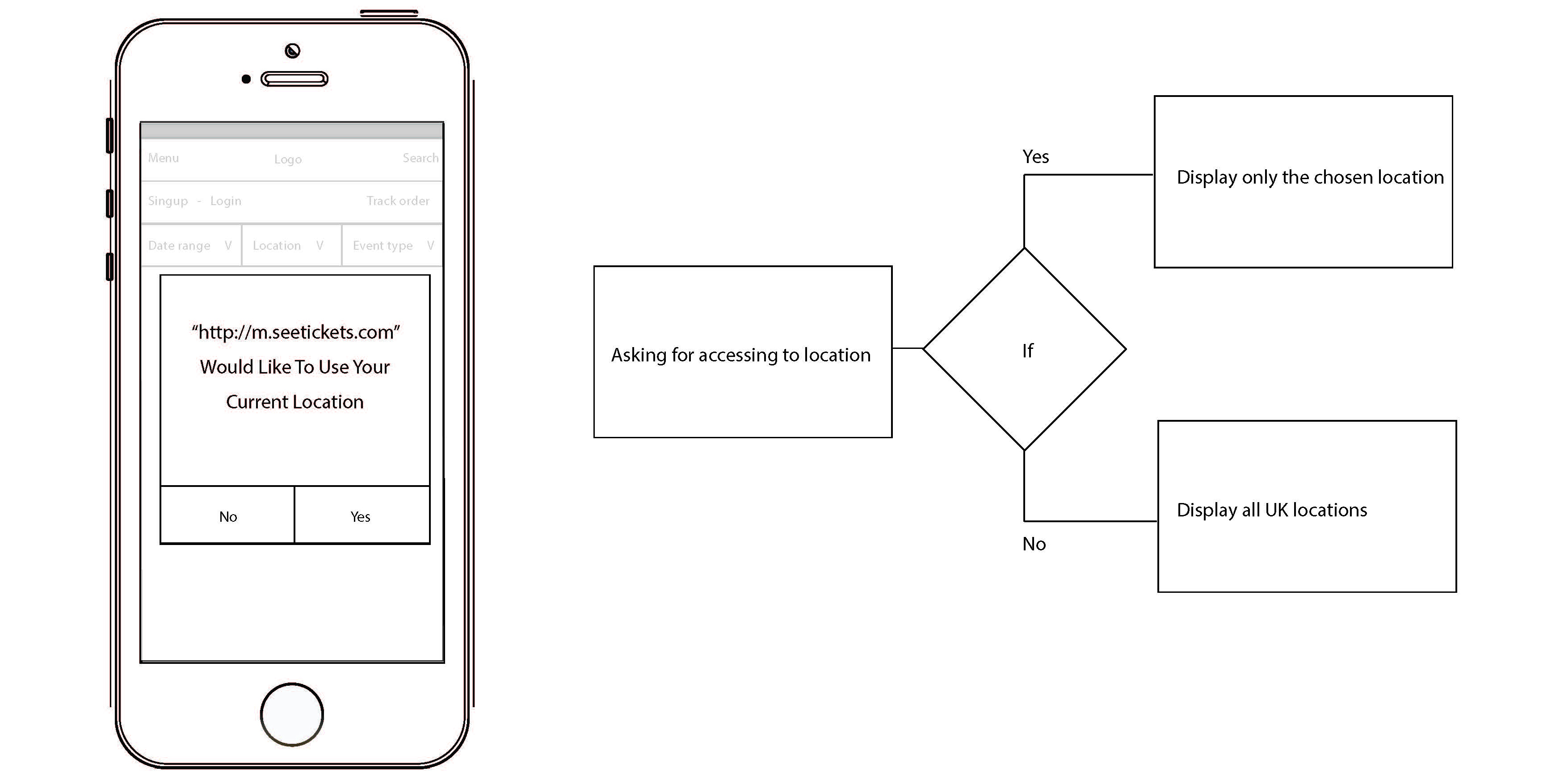
To start with, when a user enters the site, they are asked if the website could use their current location. This is to help keep events relevant to the user depending on where they are in the world.
You could also use the search bar to search for events within a specific city or area.
Wireframes:
Sign up and login
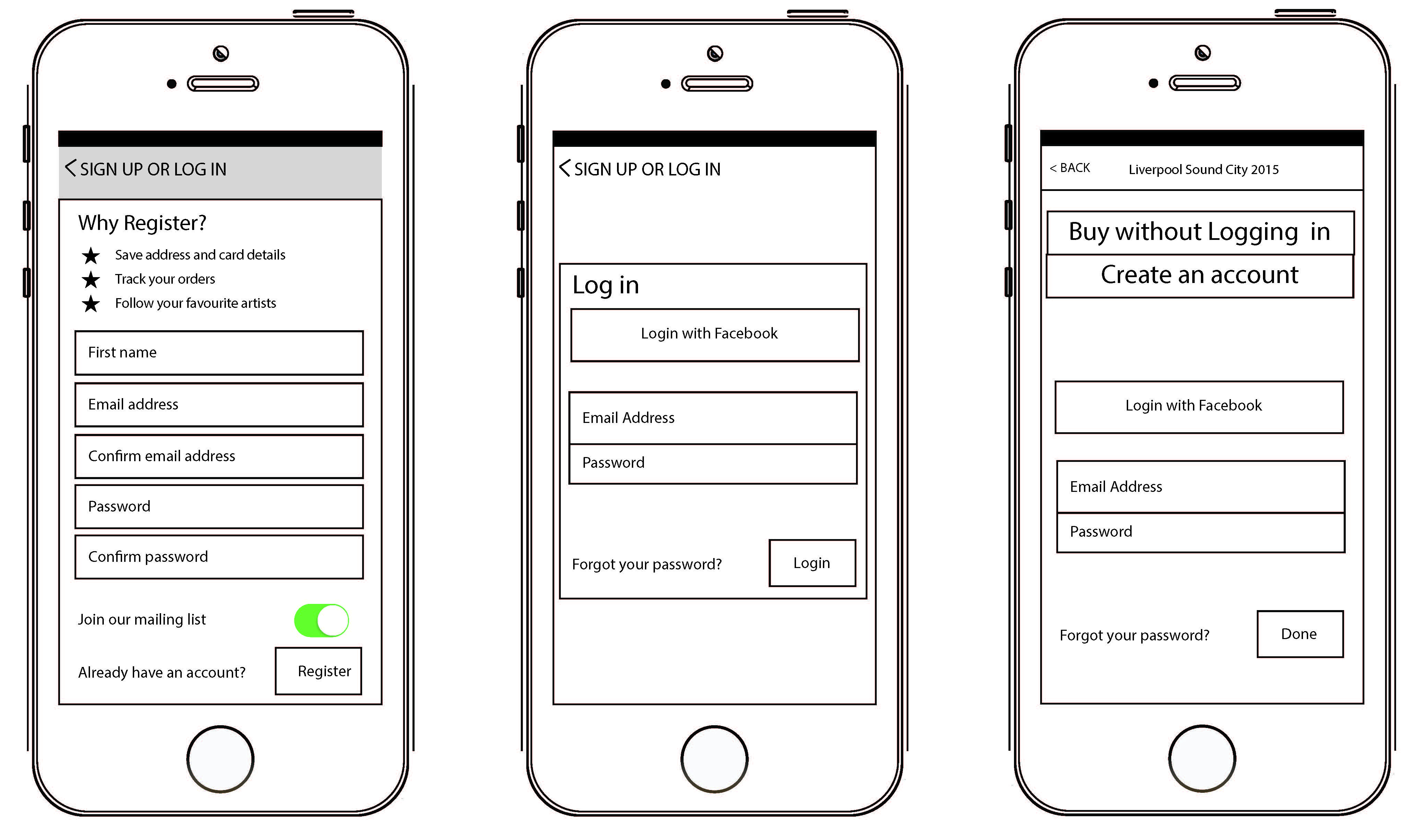
We gave users the ability to browse the website regardless of creating an account or not. However, when the time came to buy tickets, users would be required to Login or Sign Up.
Creating an account allowed users to ‘like’ and ‘follow’ events of their choice. Users could also save their details to speed up the checkout process when ordering tickets. As this is time-sensitive, the whole process a lot simpler and easier to complete.
Wireframes:
Homescreen
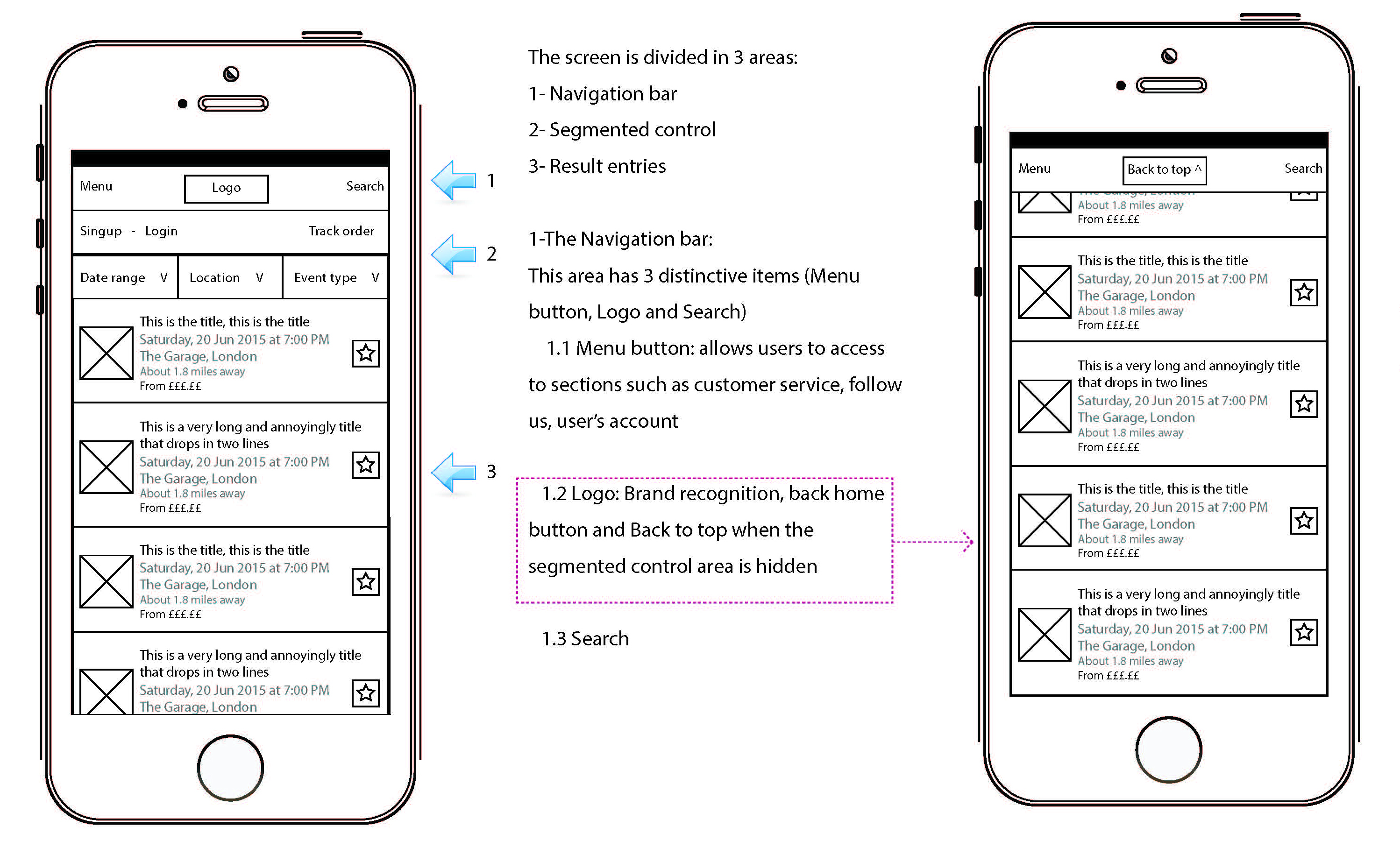
The home screen was designed into different sections to allow users to filter and easily search. You could search for a Date range, Location or Event type. Changing these filters updated the results on the homepage accordingly.
The home screen showed an infinite amount of events, with the ability to add individual events as your favourite. Adding a favourite event allowed users to navigate back quickly to that event at a later date.
When a user adds an event to their favourites, it gives the user the option to receive notifications announcing when tickets went on sale or if ticket allocation was running low. We didn’t want people missing out!
Wireframes:
Filtering and search results
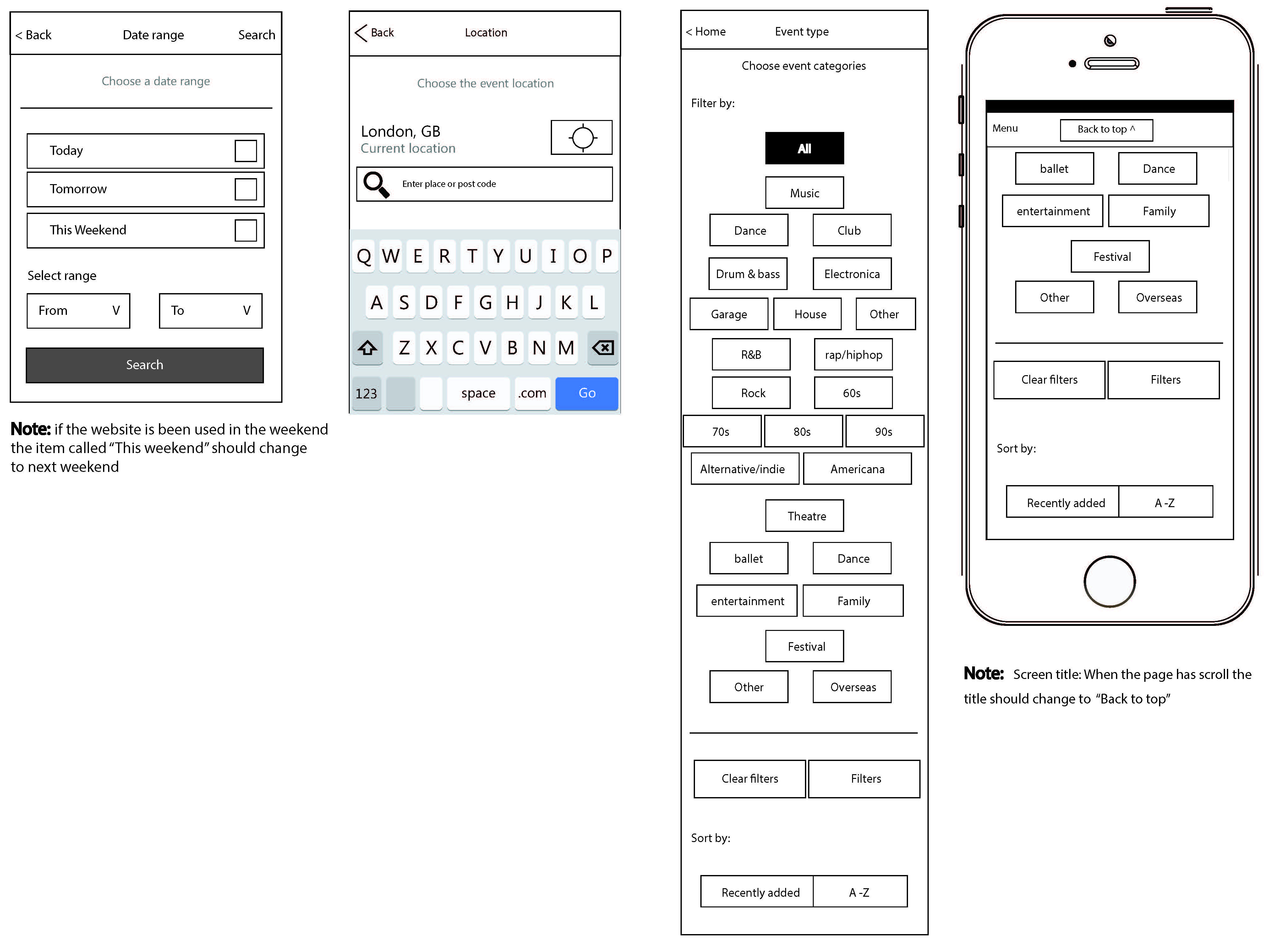
To help users narrow down their search results, we added the ability to search a specific date range, events happening on that day, the following day, or coming up at the weekend.
As well as this, we used geo-location to bring in all the events happening within a set radius of the phone’s location.
Finally, if the user had a favourite genre of music or festival, then they could favourite multiple artists – these would be remembered and filtered for the user on the homepage.
Wireframes:
Tracking and despatch
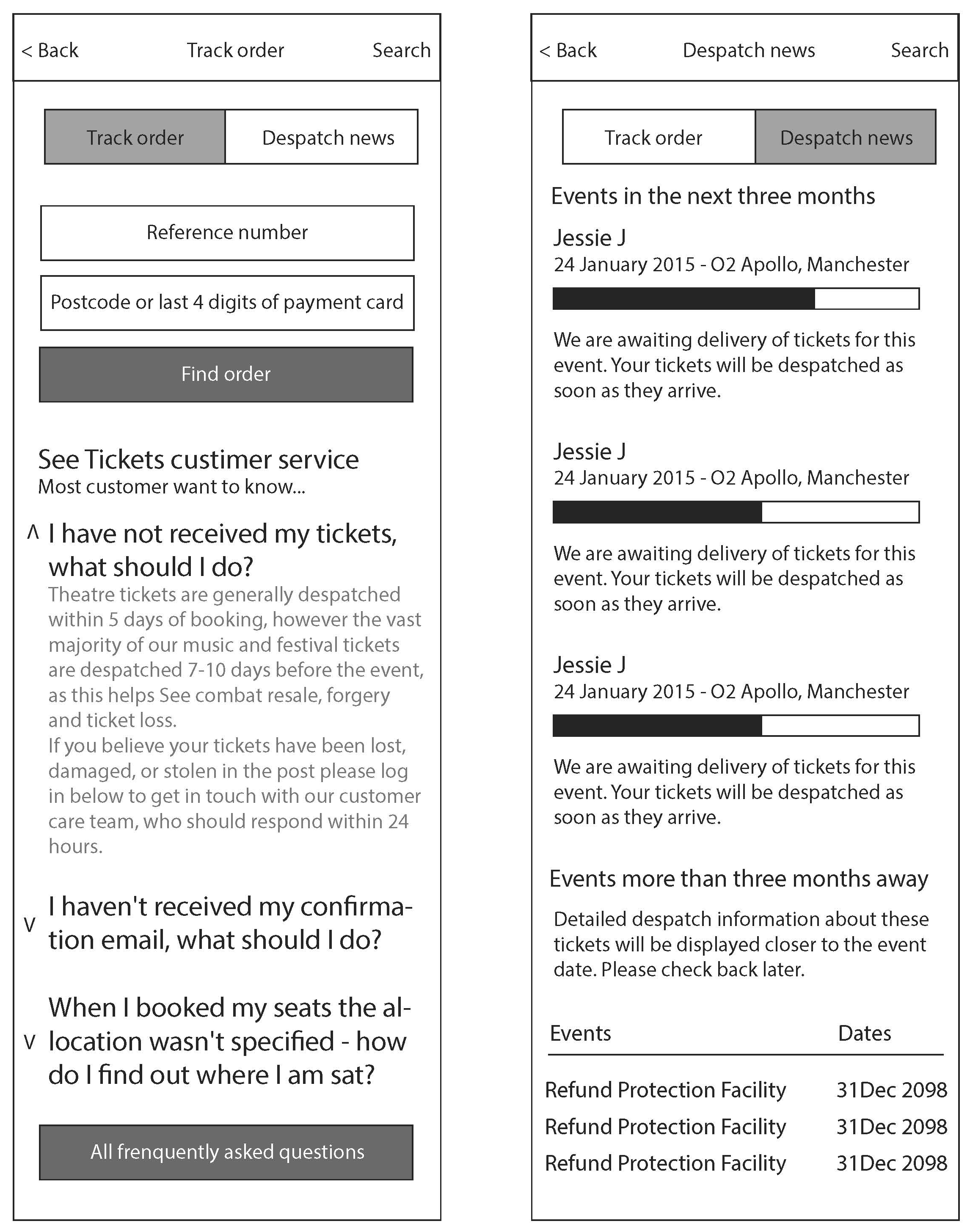
Sometimes tickets took longer to arrive than expected; users could check the state of their order. We created a Tracking and Despatch area, where we added various FAQ’s and outcomes to help the user out.
A progress bar showed users the state tickets were at, and when the tickets will get delivered.
Wireframes:
Tour page
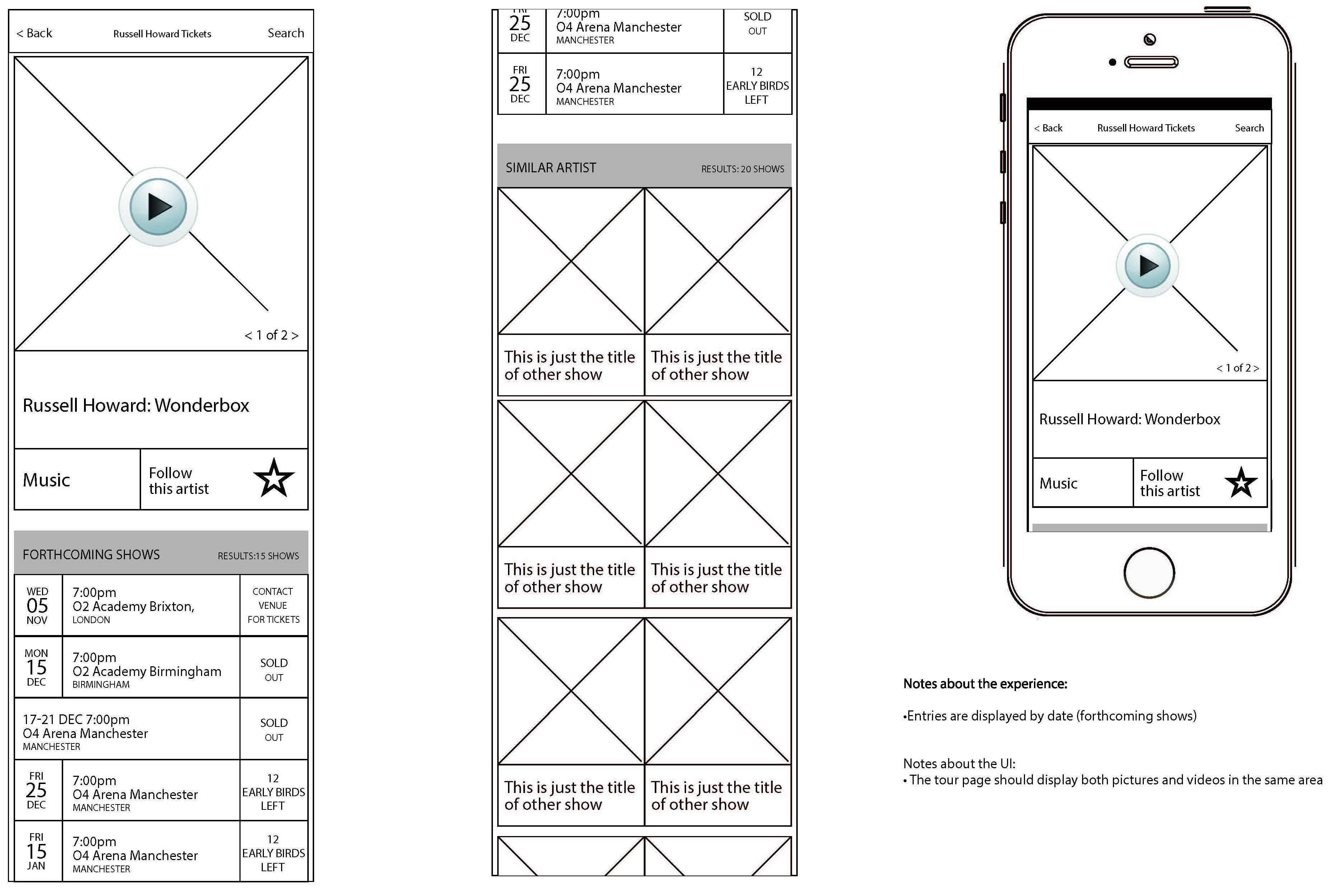
The tour page is where users select the date / location that they would like to see an event.
Certain events had promotional videos and pictures you could view by swiping through on the thumbnails. I also added a ‘Similar Artists’ area at the bottom of the page so the user could view other areas and events.
Wireframes:
Event page
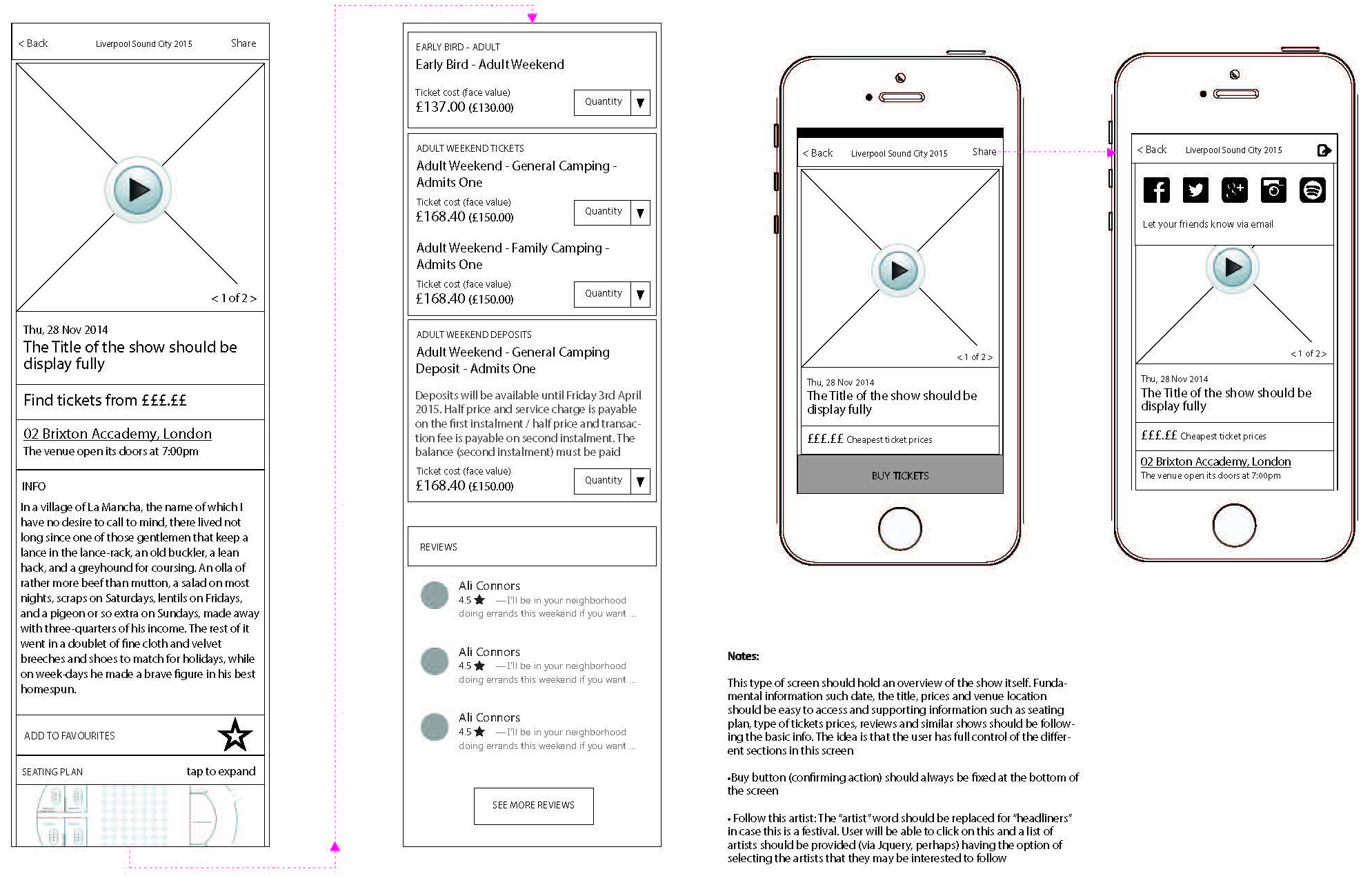
The event page lets users select the number of tickets they require to add to their basket.
It also has additional information like the Seating Plan, Venue location and the directions.
Wireframes:
Checkout
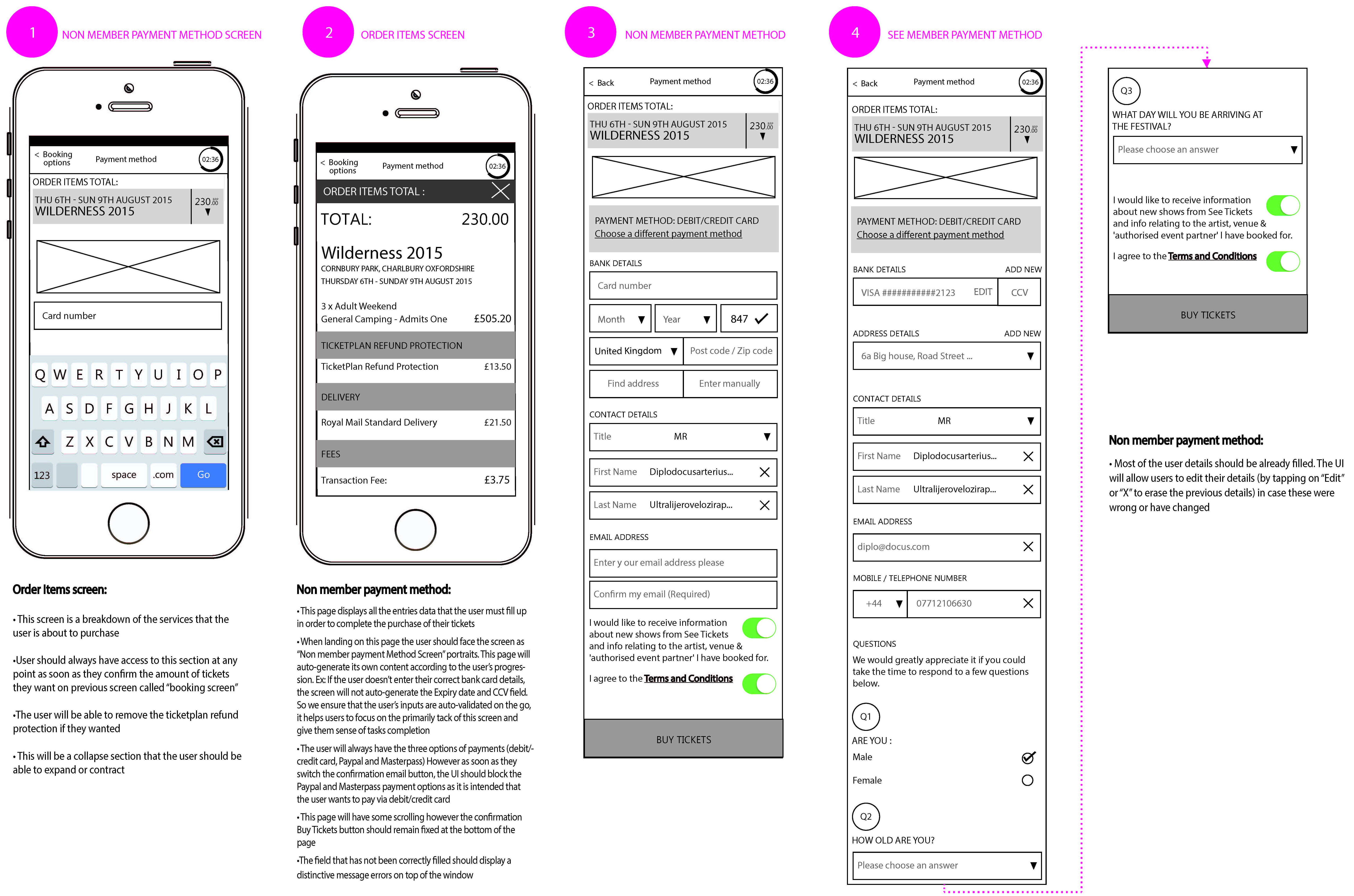
The checkout area needed to be straightforward and easy to use as it was time-sensitive.
If the user hadn’t purchased tickets after 5minutes, the tickets then get released, and the user would have to go back to repurchase the tickets. This prevented robots bulk buying tickets, or people adding tickets to their basket and forgetting to purchase them.
Within the Profile area, if a user allocates their bank card, they would only have to click the ‘Buy Tickets’ button – this helped save a lot of time at the Checkout stage.
If the user doesn’t fill these text fields, then they need to do so before being able to complete the purchase.
The numbers
%
In comparison to the previous processing times, it took users on average 10minutes to search for an event, purchase the tickets, and receive their confirmation correspondence.
After streamlining the user journey, and working on the areas where the most amount of drop-offs occurred, we managed to reduce the average processing time by over 7minutes. A whopping 76% improvement in processing time.
Mobile site revamp
See Tickets, a major ticketing platform for events, concerts, and festivals, has undergone several updates to its mobile site and related apps, focusing on improving user experience, scalability, and functionality.
My role
At See Tickets, a major ticketing platform. I was the UX / UI designer of the project in redesigning their old site so it was fully dynamic and usable for mobile with a much better user experience to purchase tickets through.
The old version of the mobile site was literally their desktop site that rendered on a mobile.
Key challenges:
Making ticket purchases simple for mobile devices
Challenge
The previous ‘mobile’ site was just a webpage that had been reduced in size to fit on a mobile device.
This meant that users had to ‘pinch’ and zoom into detailed areas of the website as the touch target area of links were far too hard to tap with your fingers.
We wanted users to be able to easily place orders whilst on their communte, the current site did not work at all.
Solution
By giving the mobile site some serious UX love, it allowed me to consider all elements of every page.
Taking the whole journey into consideration, it allowed me to focus on simplifiying areas and linking different sections of the journey together, as well as removing any unessessary features.
Goal
Create a personalised experience using mobile phone geolocation
Users could view concerts around the world by using the search bar. I was tasked to personalise results based on the geolocation of a users mobile phone. This notified them and made them aware of any concerts going on within a set radius specified in the user’s profile settings.
By letting users create an account, I could streamline the user flow and reduce the click count to four clicks for the entire buying tickets and checkout process.
Improve UX of mobile site
The current mobile site had zero user experience. It literally loaded up the desktop site on your mobile when you landed on the page. This obviously had it’s own issues that needed solving, but in terms of improving the UX, I started making the ‘searchability’ of the site better and personalised for the user.
I worked on allowing the users to navigate and complete actions as simply as possible.
Research
I researched into user behaviour and current processing times. I timed it as soon as the user searched for events, and ended once the transaction completed. This gave me an average timescale for each sale made.
I studied Google Analytics to look for any pain points where users dropped off regularly in the user flow and worked on those areas specifically to improve the overall flow.
I produced wireframes for the mobile site, along with process flows to share with stakeholders and users within the customer service team to gather valuable feedback. This helped me collect crucial feedback at the development stages to help improve the user interface of the final design.
Wireframes:
Location screen
To start with, when a user enters the site, they are asked if the website could use their current location. This is to help keep events relevant to the user depending on where they are in the world.
You could also use the search bar to search for events within a specific city or area.
Wireframes:
Sign up and login
We gave users the ability to browse the website regardless of creating an account or not. However, when the time came to buy tickets, users would be required to Login or Sign Up.
Creating an account allowed users to ‘like’ and ‘follow’ events of their choice. Users could also save their details to speed up the checkout process when ordering tickets. As this is time-sensitive, the whole process a lot simpler and easier to complete.
Wireframes:
Homescreen
The home screen was designed into different sections to allow users to filter and easily search. You could search for a Date range, Location or Event type. Changing these filters updated the results on the homepage accordingly.
The home screen showed an infinite amount of events, with the ability to add individual events as your favourite. Adding a favourite event allowed users to navigate back quickly to that event at a later date.
When a user adds an event to their favourites, it gives the user the option to receive notifications announcing when tickets went on sale or if ticket allocation was running low. We didn’t want people missing out!
Wireframes:
Filtering and search results
To help users narrow down their search results, we added the ability to search a specific date range, events happening on that day, the following day, or coming up at the weekend.
As well as this, we used geo-location to bring in all the events happening within a set radius of the phone’s location.
Finally, if the user had a favourite genre of music or festival, then they could favourite multiple artists – these would be remembered and filtered for the user on the homepage.
Wireframes:
Tracking and despatch
Sometimes tickets took longer to arrive than expected; users could check the state of their order. We created a Tracking and Despatch area, where we added various FAQ’s and outcomes to help the user out.
A progress bar showed users the state tickets were at, and when the tickets will get delivered.
Wireframes:
Tour page
The tour page is where users select the date / location that they would like to see an event.
Certain events had promotional videos and pictures you could view by swiping through on the thumbnails. I also added a ‘Similar Artists’ area at the bottom of the page so the user could view other areas and events.
Wireframes:
Event page
The event page lets users select the number of tickets they require to add to their basket.
It also has additional information like the Seating Plan, Venue location and the directions.
Wireframes:
Checkout
The checkout area needed to be straightforward and easy to use as it was time-sensitive.
If the user hadn’t purchased tickets after 5minutes, the tickets then get released, and the user would have to go back to repurchase the tickets. This prevented robots bulk buying tickets, or people adding tickets to their basket and forgetting to purchase them.
Within the Profile area, if a user allocates their bank card, they would only have to click the ‘Buy Tickets’ button – this helped save a lot of time at the Checkout stage.
If the user doesn’t fill these text fields, then they need to do so before being able to complete the purchase.
The numbers
%
In comparison to the previous processing times, it took users on average 10minutes to search for an event, purchase the tickets, and receive their confirmation correspondence.
After streamlining the user journey, and working on the areas where the most amount of drop-offs occurred, we managed to reduce the average processing time by over 7minutes. A whopping 76% improvement in processing time.