
Insights
Experian is a global leader in credit reporting and marketing services. I spent nearly two years designing software to help protect consumers and businesses from fraud and identity theft, working across two key products – PowerCurve Insights and Experian One.
The primary project was transforming BI Reporting, an outdated internal analytics tool, into a modern, intuitive platform – eventually rebranded as Insights.
The challenge was significant: a tool buried in clunky navigation, static reports and no customisation, used daily by strategy designers, analysts and data scientists who needed fast access to complex data.
My role
I was the UX/UI designer on the project for the full duration of my time at Experian – nearly two years. I conducted user research and studies to understand what users needed, turning findings into personas, user journeys and design solutions.
I worked closely with Product Management and Engineering teams throughout, sharing research findings and iterating on designs to ensure the solutions were both technically viable and genuinely useful.
The scope covered navigation redesign, report library, dashboard customisation, landing page, open report experience and design system contribution.
Research:
User testing and Tree jack task
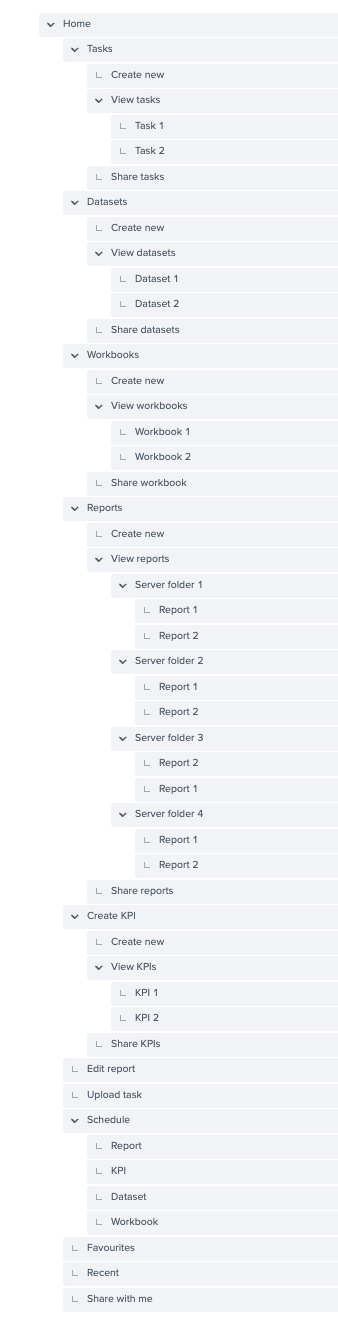
As the initial design evolved and a navigation menu became necessary, I ran a tree jack exercise with users – asking them to organise and group navigation links based on what they found most useful for their daily workflows. This helped identify common patterns and priorities, and directly informed the navigation structure.
A critical finding emerged early: given that some users had over 50 folders with more than 100 reports each, nesting everything within the navigation would overwhelm it entirely. The better solution was to guide users to a dedicated area where they could search for what they needed.
Research:
User testing
After designs were approved I built interactive prototypes and put them in front of users – asking targeted questions about specific areas of the interface and gathering feedback on what worked and what they’d change.
Key findings from testing the existing BI Reporting tool included:
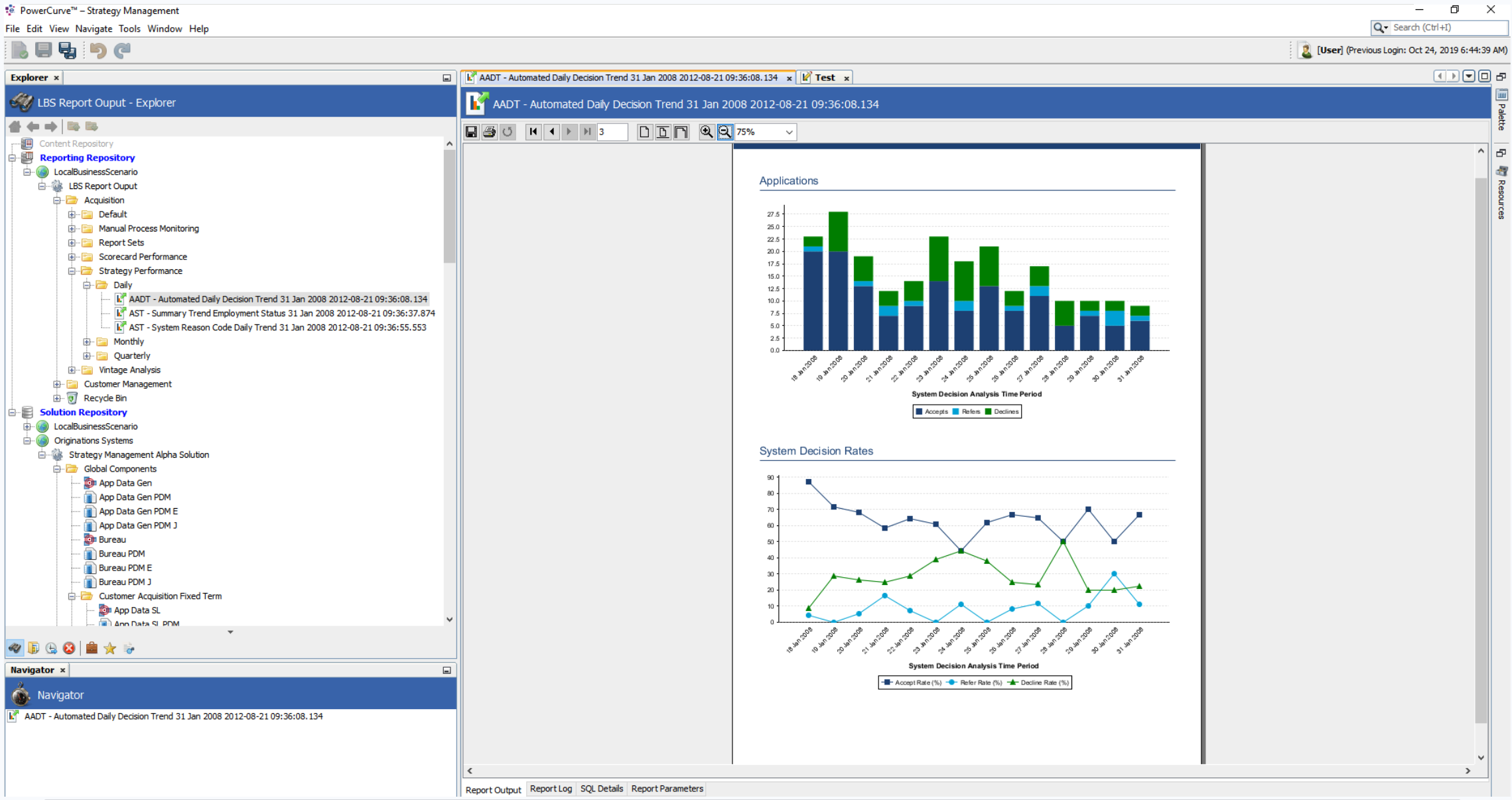
Empty folders with no visual indication
The lack of a dynamic folder structure meant folders appeared full even when empty.
Users would click into a folder, wait for it to load, and be greeted with a “This folder is empty” message – then have to navigate back and start over. With no way of knowing which folders contained reports, users found themselves stuck in a loop.
No search functionality
Users had no way to search for reports. They relied entirely on memory to remember where a report was stored and navigate to it manually through the tree structure – slow and frustrating, particularly for those managing large numbers of reports.
Many users requested a favourites feature for quick access to reports they used regularly.
Static, non-interactive reports
Reports were static PDF visuals that couldn’t be edited or interacted with.
Users couldn’t hover over data points, filter by specific criteria or view exact figures within graphs – limiting their usefulness significantly.
Research:
Journey flows
To frame the scale of the problem I mapped out the current navigation journey against a proposed new one.
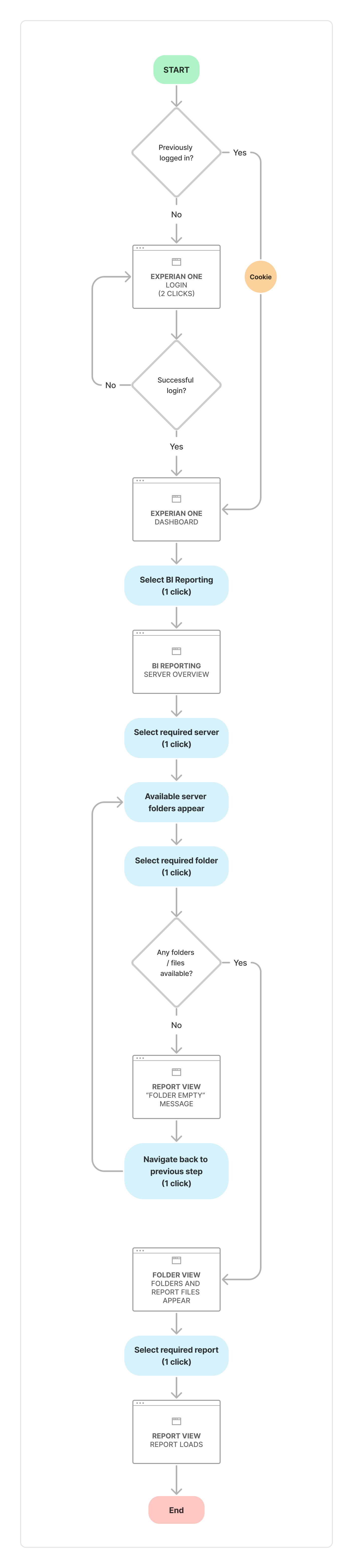
Current flow
Click count:
Between 6-8+ clicks
Users sign into Experian One, land on the dashboard, select Insights and are presented with a folder structure that gives no indication of which folders contain reports.
They click a folder, wait for it to load, potentially hit an empty folder message, navigate back and start again.
If they find a report, they open it, close it and repeat the whole process to find the next one.
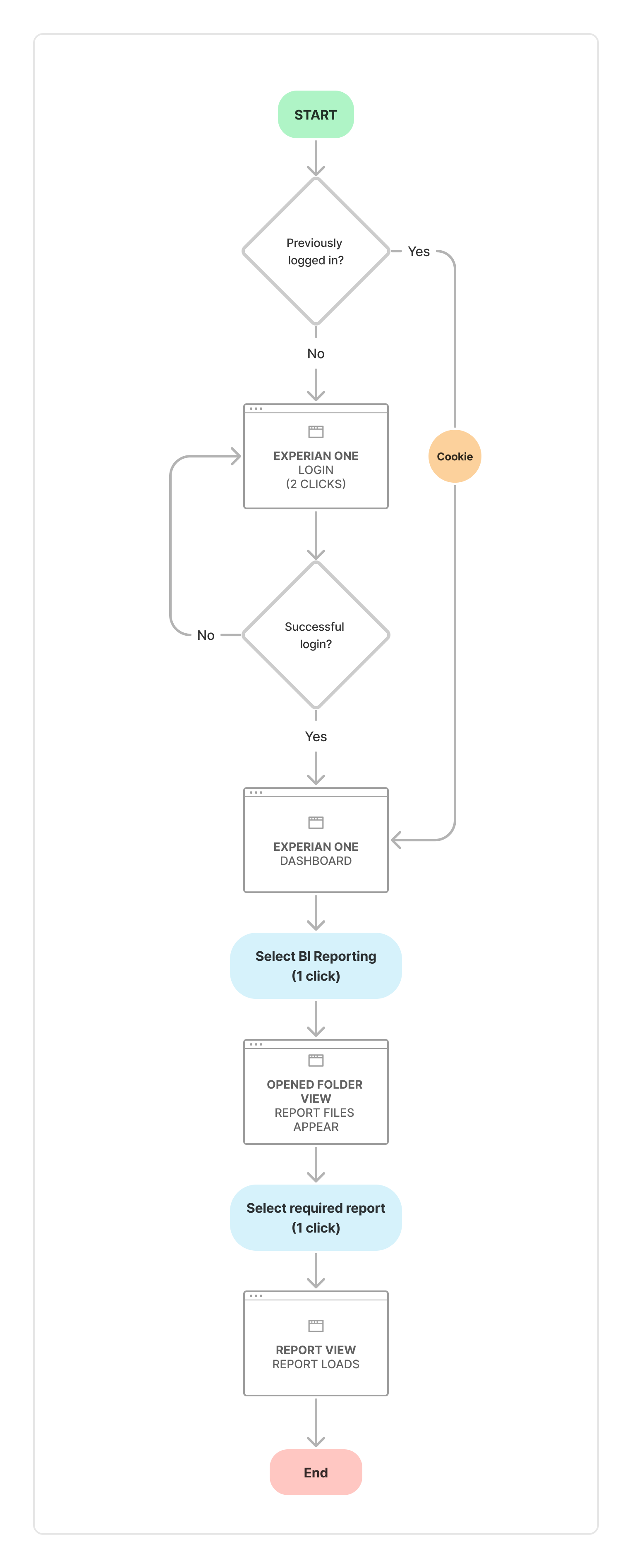
Proposed flow
Click count:
4 clicks
Users sign into Experian One, land on the dashboard, select Insights and are immediately presented with a homepage showing report groupings with reports visible underneath – no folders to click into, no empty dead ends.
The concept of hidden folders was removed entirely.
While the reduction from 6-8 clicks to 4 may not sound dramatic, the real gain was eliminating the frustration of cycling through empty folders entirely.
Users now had a clear picture of where everything lived from the moment they landed.
Key challenges:
Clunky, inefficient report navigation
Challenge
Reports were buried within a tree-structured folder list.
The process was slow, cumbersome and made it nearly impossible to switch between reports quickly.
Empty folders added confusion and wasted time.
Solution
I designed a new navigation system that removed the folder concept entirely, surfacing reports directly within their groupings.
Users could seamlessly switch between reports in the same section and easily explore other sections without navigating back to a separate library screen.
Thumbnails were introduced to give users a visual preview of each report for quicker identification.
Key challenges:
No customisation or personalisation
Challenge
Reports were static and fixed.
Users couldn’t build their own dashboards, filter data to their needs or save reports they used regularly.
Solution
I designed a fully customisable dashboard experience allowing users to build and organise their own reports based on how they actually worked.
Favouriting and saving reports gave users quick access to what they needed daily.
Experian’s adoption of Tableau (a separate technology decision) transformed the reports from static PDFs into interactive tools, allowing users to hover over data points and view exact figures.
Key challenges:
Insights needed to feel part of Experian One
Challenge
The original BI Reporting tool felt disconnected from the wider Experian One platform.
With the potential for up to 100 categories, there was also a real risk of overwhelming the Experian One dashboard.
Solution
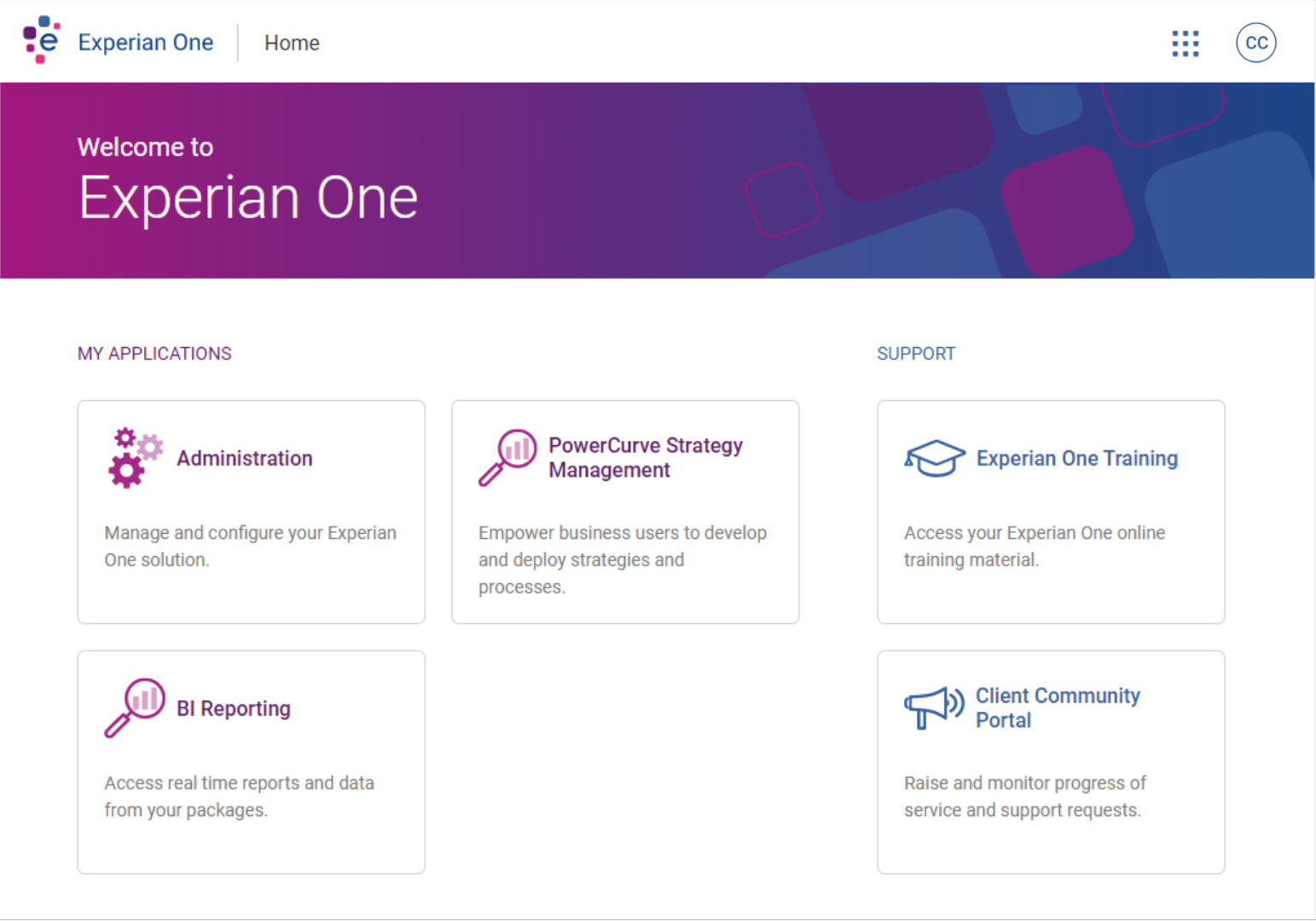
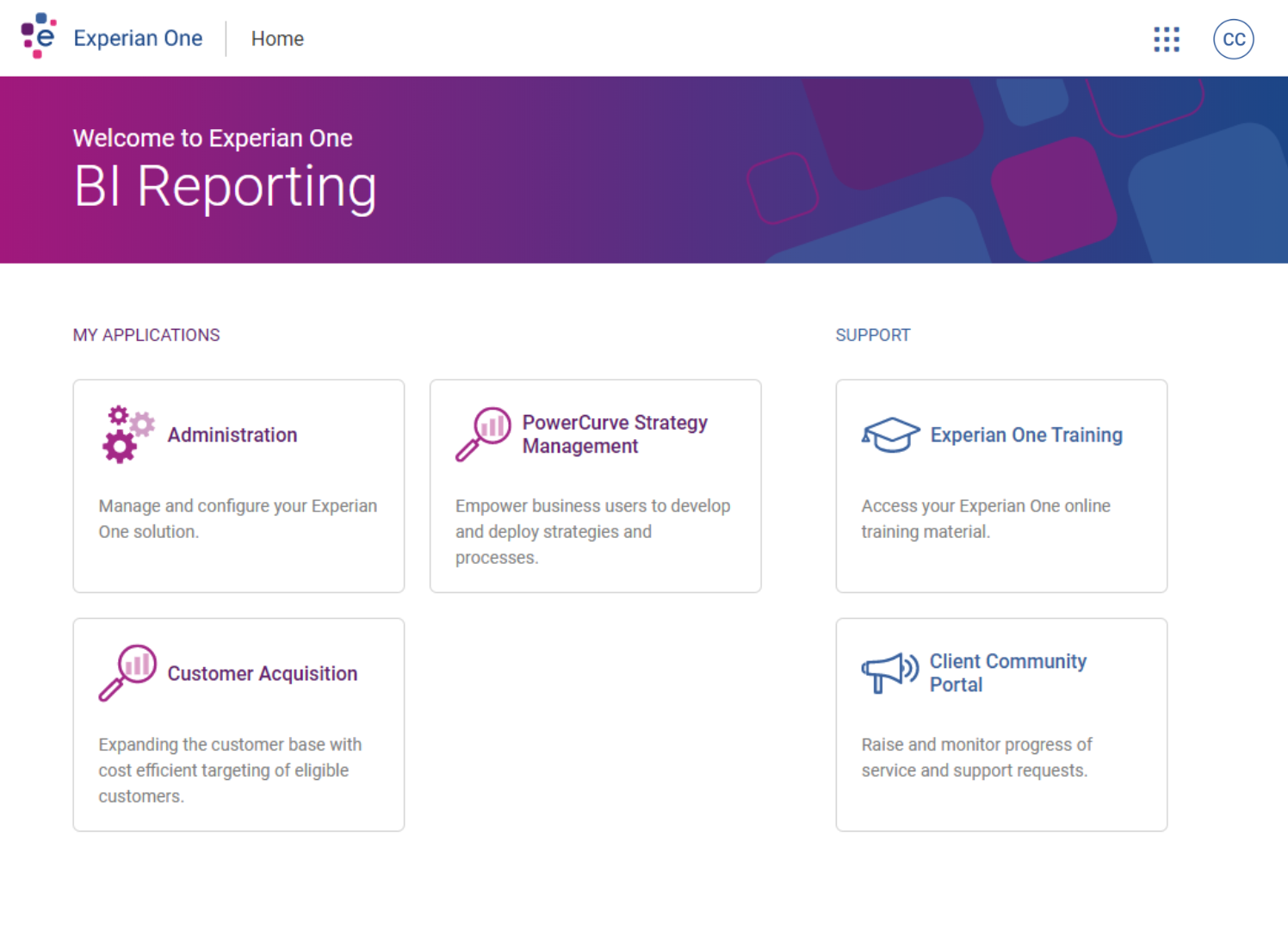
I explored two options for integrating Insights into the Experian One dashboard.
Option 1 created a dedicated section on the dashboard to centralise all reports and categories.
Option 2 used additional paging after the application was selected. After discovering users could have up to 100 categories (which would have made Option 2 completely unusable) Option 1 was the clear choice, keeping the dashboard clean and manageable.
Option 1
Option 2
Phase 1 – Wireframes:
Report library
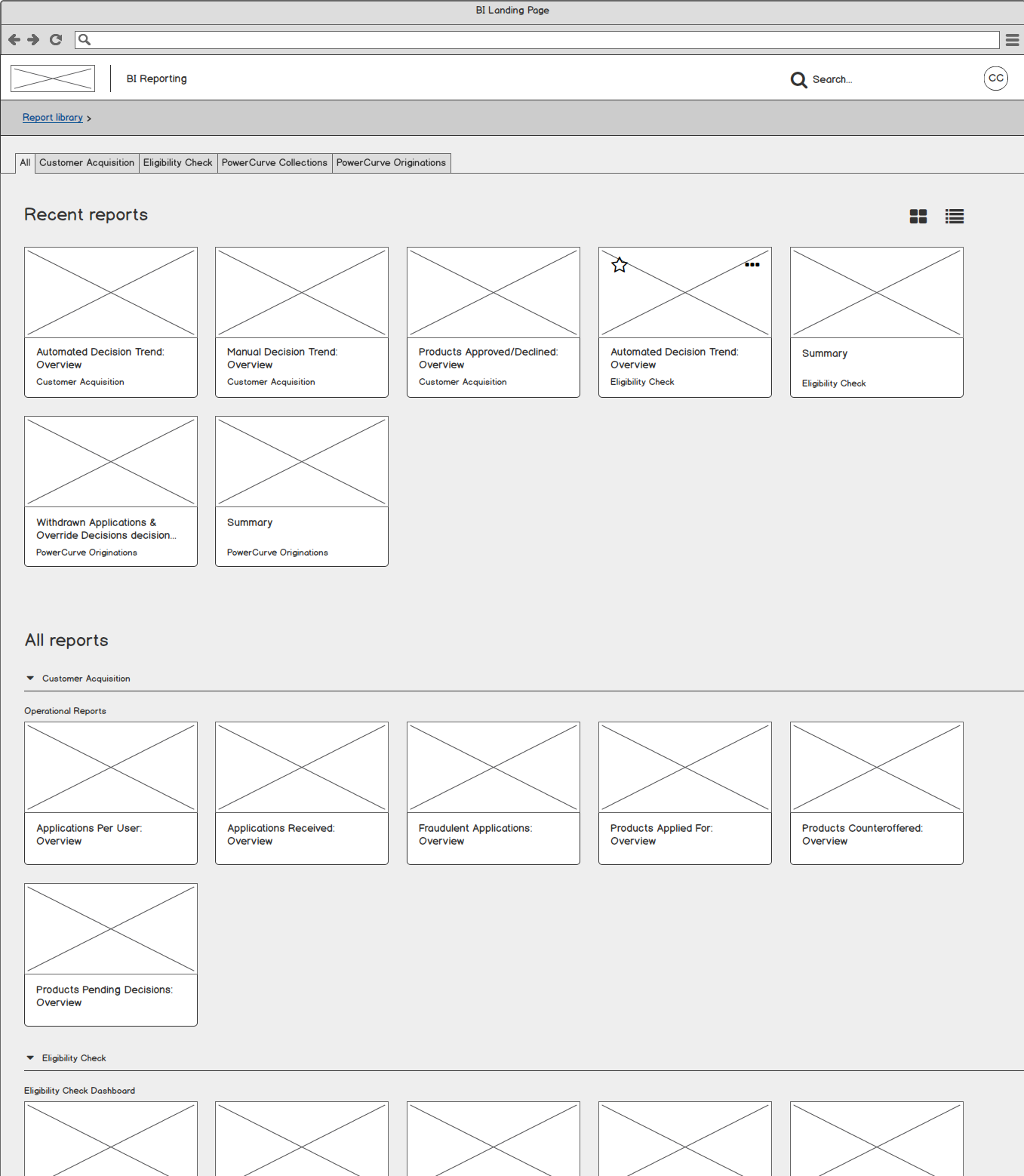
Rather than refining the existing tree navigation, I replaced it entirely with an accordion-style component that displayed all reports openly within their groupings.
This made it immediately clear which sections contained reports without requiring any clicking. A tab at the top of the page allowed users to filter down to specific sections quickly.
Phase 1 – Wireframes:
Open report
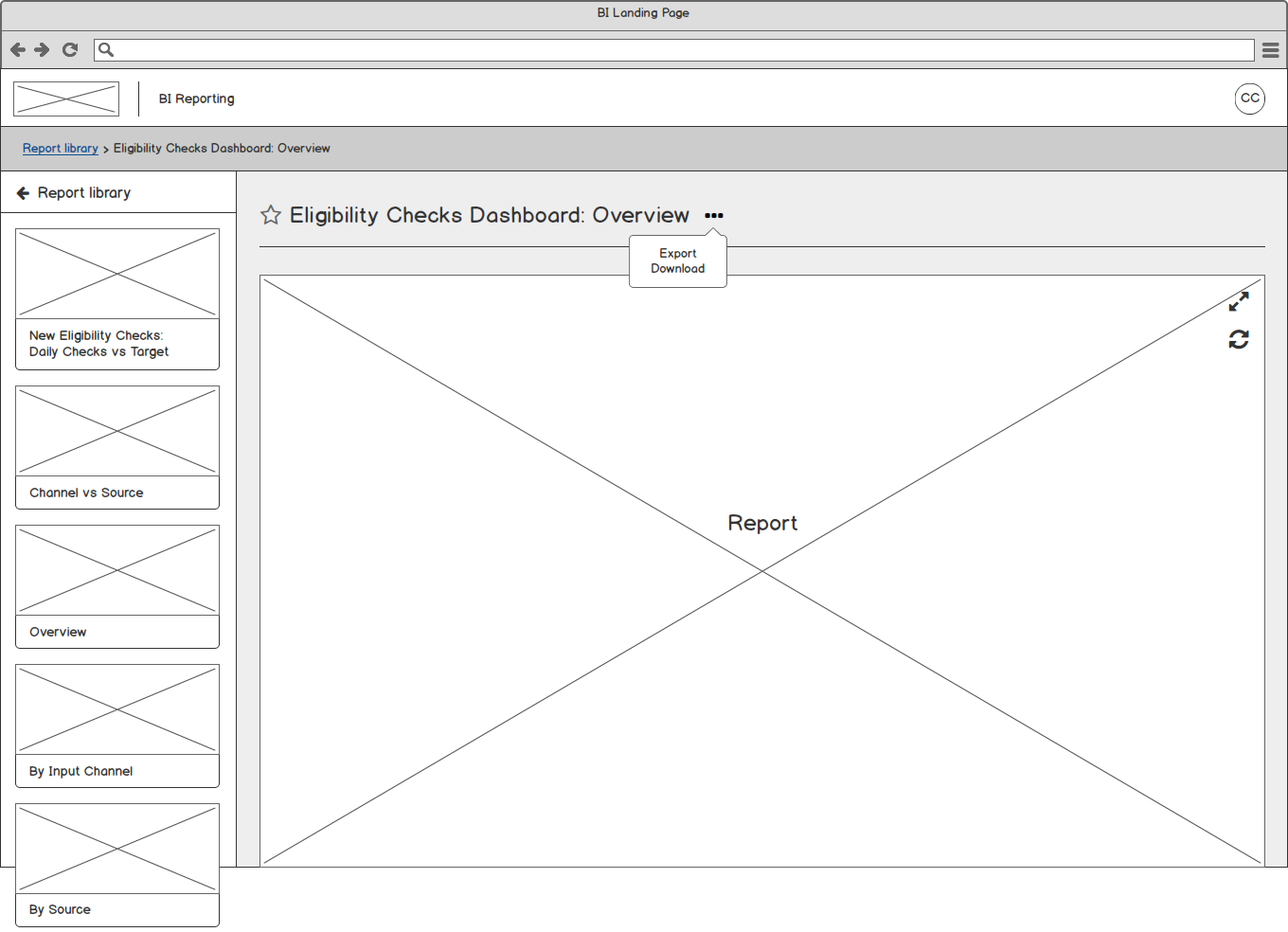
When a report was selected from the library it opened directly, with related reports in the same grouping displayed in a scrollable panel on the left.
Users could switch between reports in the same section in one or two clicks – no need to navigate back to the library and reload the entire page. The accordion panel opened to reveal available reports within each section.
Final design:
Navigation
After reviewing all tree jack findings, the navigation was divided into two clear sections:
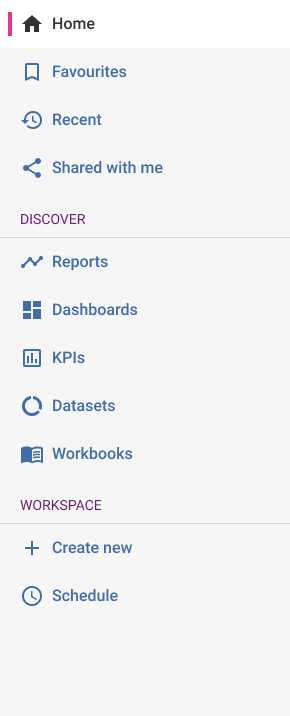
Discover for viewing and exploring content, and Workspace for creating and scheduling.
Initially I placed Workspace at the top, but testing revealed that users’ primary use case was viewing rather than creating, so Discover was moved to the top to better reflect real usage patterns.
Final design:
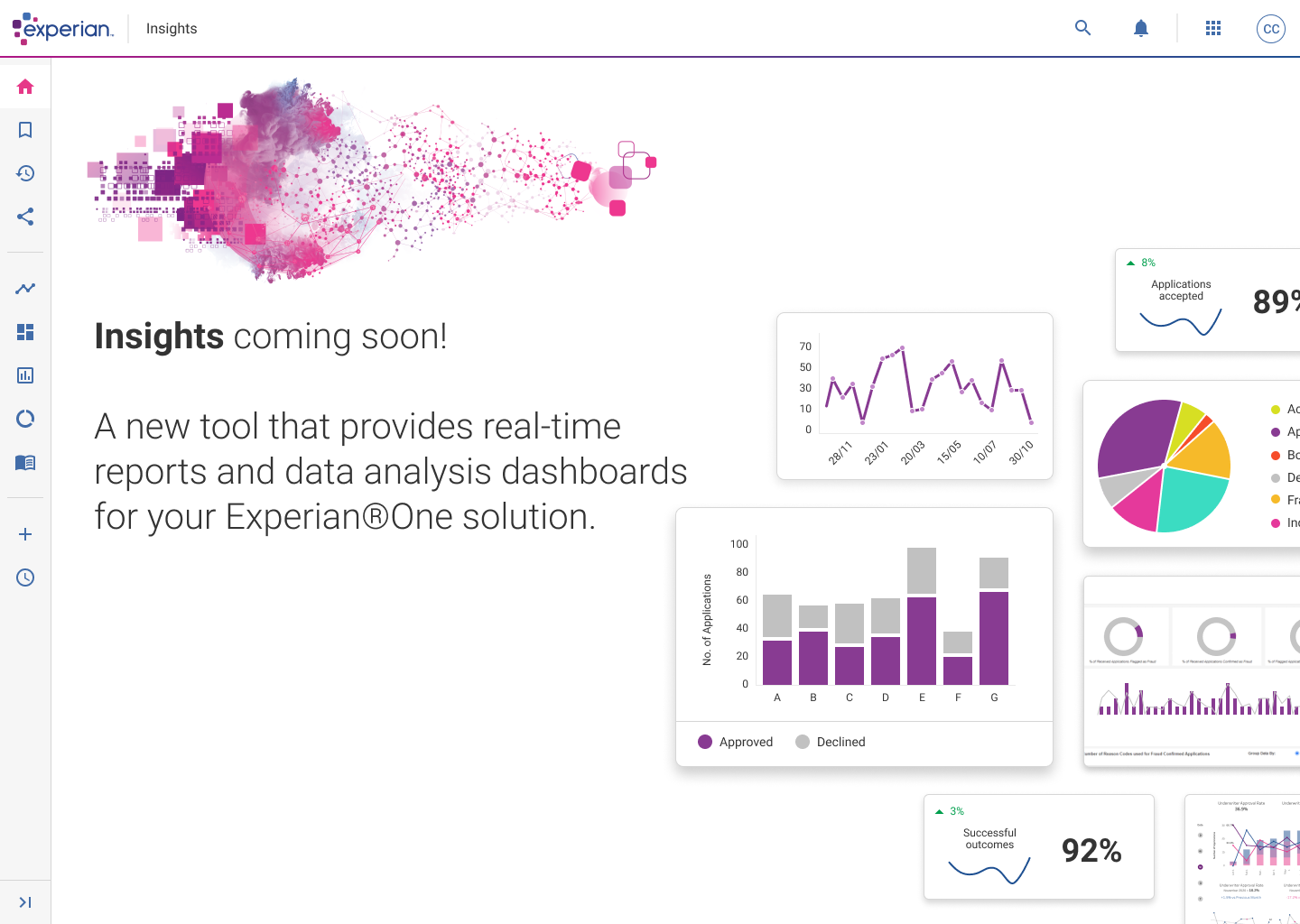
Landing page
As the product gained traction internally, BI Reporting was renamed Insights – a name that better reflected its purpose of surfacing valuable, actionable data.
A dedicated landing page was designed for users to arrive at after logging in, giving the product its own identity within the Experian One ecosystem.
Early feedback on the new direction was encouraging – users found it intuitive and easy to set up, far easier to navigate than the old platform, and they responded positively to the ability to save and favourite reports.
Phase 1 – Final design:
Report library
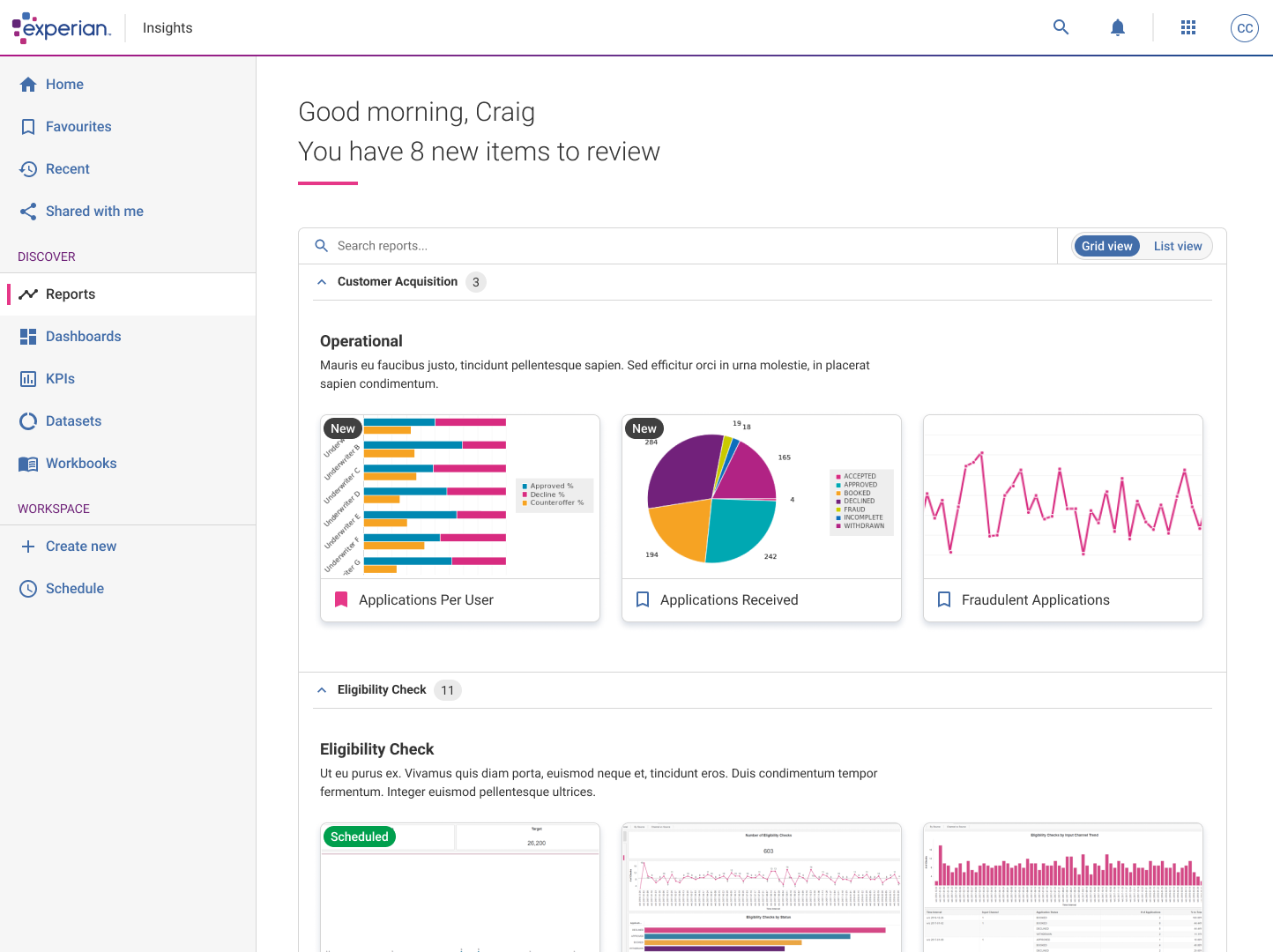
With Tableau now powering the reports, the library design took full advantage of the shift from static PDFs to interactive tools.
Thumbnails gave users an instant visual preview of each report. Tabs, filtering and favouriting gave users control over how they navigated and organised their content.
Phase 1 results:
User testing
The users
After completing the Phase 1 designs I ran another round of user testing with interactive prototypes. The feedback was overwhelmingly positive:
Users also highlighted areas for future development – filtering and sorting by date, customer type and date ranges; the ability to remove reports from their own dashboards; and more personalisation options for the report library.
These fed directly into the Phase 2 roadmap.
Phase 1 – Final design:
Open report
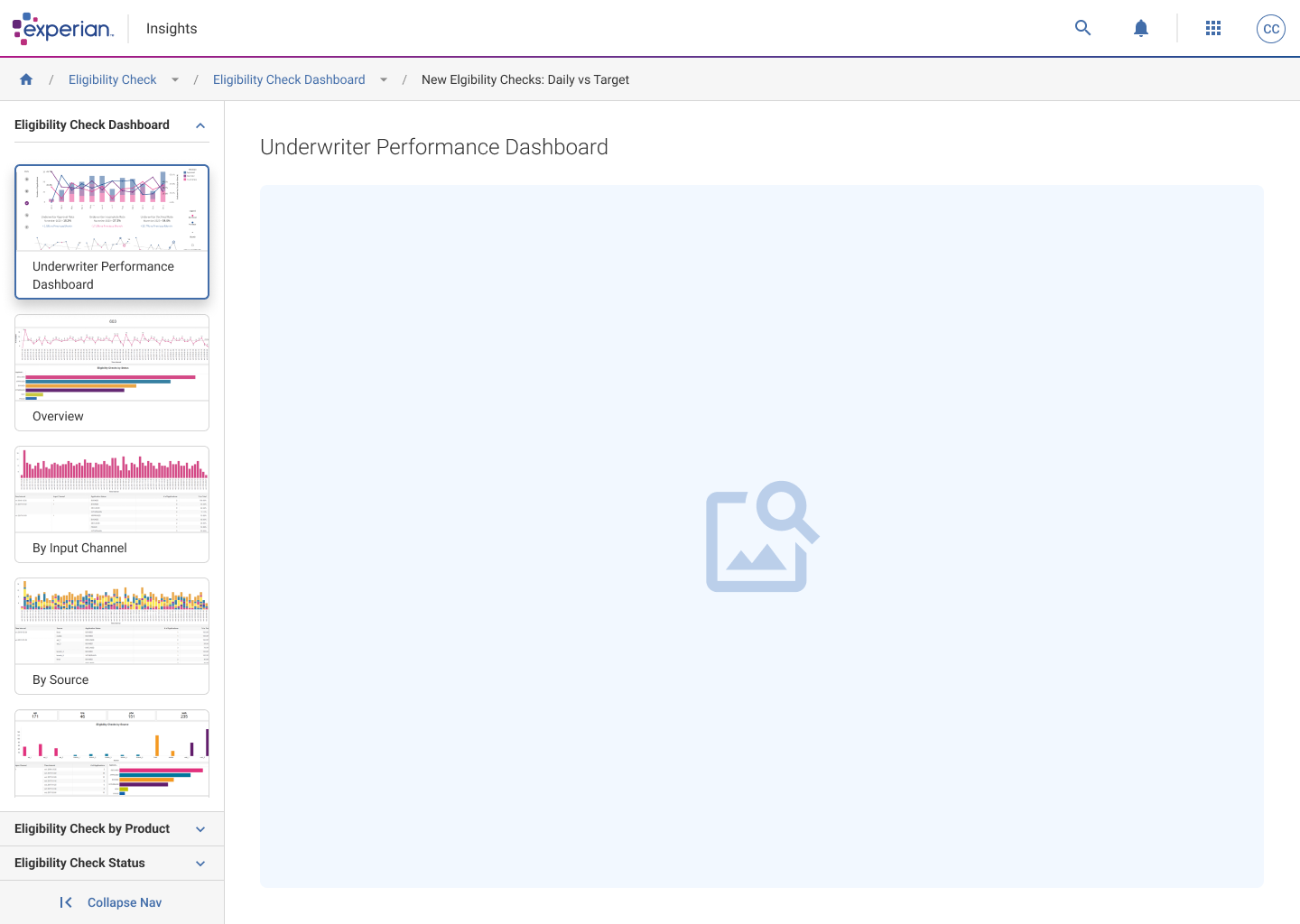
The open report experience reduced the need to constantly navigate back and forth between the report library.
A scrollable panel housed reports within their sections, with the accordion opening to reveal available reports.
Selecting a report loaded it in the main area immediately – switching to another report in the same section took one or two clicks.
Phase 2:
Coming soon
Phase 2 built on the Phase 1 foundations, introducing further customisation, personalisation and community features including permission-based profiles – Superuser, Edit and View-only – and a community area for commenting, sharing and scheduling within the report view.
Insights
Experian’s Insights platform provides businesses with real-time data analysis, customisable dashboards, and actionable insights. It leverages cutting-edge technologies, including AI and machine learning, to streamline decision-making, enhance customer understanding, and optimise operations.
My role
At Experian, a global leader in credit reporting and marketing services, I designed software to help protect consumers and businesses from fraud and identity theft. My focus was on creating user-friendly designs for key products like PowerCurve Insights and Experian One.
I conducted research and user studies to understand what users needed, turning these insights into tools like personas and user journeys. I shared these findings with Product Management and Engineering teams to ensure we created effective solutions. By combining research, problem-solving, and design skills, I developed adaptable designs that met current needs and remained useful over time.
Key challenges:
Customisable real-time dashboards
Challenge
I was tasked to create a data tool that provided real-time reports that allowed customers to create their own unique dashboards and reports based on the users needs and requirements.
Solution
I developed a solution that enabled users to create fully customisable dashboards and reports tailored to their specific requirements.
The solution also provided cross-platform functionality, allowing users to view their dashboards and receive updates seamlessly, even while on the go.
Key challenges:
Clunky, inefficient report navigation
Challenge
The data reports were buried within a tree-structured list, which was functional to an extent but had significant drawbacks. The process was slow, cumbersome, and difficult to navigate, making it challenging to open and switch between reports. This inefficiency made it nearly impossible for users to view multiple reports quickly and effortlessly.
Solution
I designed a new navigation system to help users seamlessly switch between and access reports within the same folder, as well as easily explore reports in other folders.
Additionally, I introduced thumbnails, providing users with a clear visual preview of each report for quicker identification and access.
Goals
Create a fully customisable experience across web and mobile
Enable users to design personalised dashboards and reports that cater to their unique needs and preferences. This includes providing flexible options for selecting, organising, and displaying data in a way that aligns with their workflows.
Ensure the experience is consistent and seamless across both web and mobile platforms, allowing users to access and manage their reports anytime, anywhere.
Make Insights intuitive so users can easily navigate and find reports
Develop a user-friendly navigation that simplifies the process of locating and accessing reports. This includes clear categorisation, search functionality, and filtering options to help users quickly find what they need.
The design should reduce unnecessary clicks and eliminate frustration, ensuring users can focus on their tasks without being hindered by the interface.
Insights needs to feels part of the Experian One platform
Replace the outdated tree structure with a modern, efficient interface that aligns with the overall design language of Experian One. The new interface should allow users to seamlessly view, compare, and interact with multiple reports without unnecessary delays.
By integrating Insights more cohesively into the platform, users will experience a unified and professional product ecosystem.
Research:
Tree jack task
After phase 1, the initial design evolved, and a navigation menu became necessary to accommodate the various links users needed for their daily tasks.
To ensure the navigation was user-friendly, I conducted a tree jack exercise, asking users to organise and group the links based on what they found most beneficial for their workflows. This approach helped me identify common themes and patterns, providing valuable insights into what users prioritised and needed from the design.
Research:
User testing
After the design was approved, I developed interactive prototypes of the screens, allowing users to navigate through them as if they were using a real application. This approach made the product feel more realistic and helped me gather valuable user feedback.
I asked users targeted questions about specific areas of the interface, including the new navigation menu informed by the tree jack exercise. Additionally, we sought their opinions on what they liked and what improvements they would make if given the opportunity.
Research:
Journey flows
I created several user journey flows to compare the current design with the new design I proposed.
My approach focused on making user flows as streamlined as possible. If a step can be removed without impacting the user’s ability to complete their main tasks, I aim to eliminate that friction. Fewer clicks typically result in less friction, leading to faster task completion and an overall smoother user experience.
Key findings:
Tree jack task
Navigation design
Given the way users could structure their folders and files, I recommended avoiding the nesting of multiple tasks, datasets, reports, and workbooks directly within the navigation.
While this approach might seem easier for users, as they could see and click on what they needed, it posed significant challenges. For instance, one user mentioned having over 50 folders, with some containing more than 100 reports. This level of nesting could overwhelm and potentially break the navigation.
Instead, it was more effective to guide users to a dedicated area where they could search for the specific file they needed, ensuring a more manageable and efficient experience.
Key findings:
User testing
PowerCurve: Strategy Management
The lack of a dynamic file or folder structure meant that folders appeared full of reports, even when they were empty. Since the folders couldn’t update to show whether they contained files or not, users were often faced with numerous empty folders scattered throughout the tree structure.
This caused significant confusion, as users assumed they could access a specific category, only to find the folder empty. This led to frustration, wasted time, and annoyance as users had to search elsewhere for a suitable report—without any guarantee that other folders contained the needed files.
Users pointed out the absence of a search function for locating specific reports, which forced them to rely on memory to remember where a report was stored and navigate to it manually through the tree structure. This process was inefficient and frustrating, particularly for those managing a large number of reports.
Many users suggested adding a “favourite” feature, allowing them to easily access key reports they used regularly, which would significantly improve efficiency and usability.
Users expressed a desire to customise reports to display only the information they found useful. Currently, the reports were static PDF visuals that cannot be edited or interacted with to view specific figures, data points, or details within graphs. This limitation made the reports less flexible and less effective for their individual needs.
Experian One:
Dashboard
The users
Originally known as “BI Reporting,” Insights was designed specifically for strategy designers, analysts, and data scientists.
The tool enabled users to monitor strategy performance across various businesses and compare outcomes against benchmark data, providing actionable insights.
Since this was a brand-new product with the potential for multiple links and additional categories, there was a risk of quickly overcrowding the Experian One dashboard. As a result, one of the initial priorities was to streamline navigation for accessing Insights.
Option 1
Since the link to the application would be nested within the Experian One dashboard, it would make sense to create a dedicated section on the dashboard to organise all reports and categories. This approach would provide a centralised location for users to easily access and manage their reports, ensuring a more streamlined and user-friendly experience.
By grouping all reports and categories in a specific section, it would also help prevent clutter on the dashboard and make navigation more intuitive, especially as the number of reports and categories grows over time.
Option 2
Allowing additional paging after the application has been clicked would be a practical solution. This approach would enable users to navigate deeper into specific Insights (BI Reporting) pages without overwhelming the main dashboard or the initial application interface.
For example, users could see the high-level categories, and upon selecting a category, they would be directed to a more detailed page with subcategories or individual reports. This would prevent the page from becoming cluttered with too many categories or reports at once, ensuring a cleaner and more user-friendly experience.
After doing a bit of digging around, I found out that users could have upto 100 categories, so this could make the dashboard page overcrowded and unusable.
Because of this outcome, I decided Option 1 was the best solution, helping keep the Experian One dashboard as simple as possible.
Journey mapping
Simplify the folder structure
It became evident that I needed to design a more streamlined navigation flow to eliminate the frustration users experienced when navigating through folders, only to find no reports at the end of their journey.
Taking all feedback into account, I created mockups of a few user flows. One of these illustrated the current journey a user would take to open a single report. For security reasons, this flow included logging into the Experian One product, which automatically added a minimum of two additional clicks to the process.
Current flow
Click count:
Between 6-8+ clicks
To access Insights, users must first sign into Experian One. For first-time users, a login is required, but a cookie is stored to prevent the need for repeated logins in the future.
After logging in, users land on the Experian One dashboard, where they can view and access other applications available to them. From here, they can select Insights.
Once the application loads, users are presented with a view of all the folders (servers) and reports they have access to. However, a major issue with this flow is that it’s not clear which folders contain reports. Users may click on a folder, wait for the page to load, and then be met with a “This folder is empty” message. This forces them to navigate back and essentially start over, creating a frustrating and time-consuming experience.
If users do manage to find a report, they can click on it to open the file. After viewing the report, they must close it and return to the folder structure to search for another file, repeating the process.
Suggested flow
Click count:
4 clicks
Similar to the current flow, users still need to go through the Experian One login process unless they have already logged in previously.
Once logged in, users land on the Experian One dashboard, where they can view and access other applications available to them. From here, they can select Insights.
When the application loads, users are now greeted with a homepage displaying groupings that represent the folder titles, with the reports directly visible underneath. I chose to remove the concept of “folders” entirely, as hiding reports within them created unnecessary frustration and complexity for users.
This change removed the need for users to click into folders only to discover they were empty—a common pain point. While this issue might have been less frustrating with better navigation to return to the previous view, the current navigation was so poor that users often resorted to closing the window and starting over.
Although the reduction from six clicks to four may not seem significant, this new approach greatly simplifies the overall navigation. By removing the frustration of endlessly cycling through folders and encountering “This folder is empty” messages, users now have a clearer understanding of where reports are located. The process is far more intuitive, efficient, and user-friendly.
Wireframes:
Report library
Phase 1 design
Previously, the reports were hidden within a tree-structured list. While functional, the navigation process was slow, clunky, and difficult to use efficiently.
For phase one, instead of refining the tree navigation, I opted to display all reports within an open “accordion-style” component. This made it immediately clear which “folders” contained reports, eliminating the need for users to click through multiple layers to find what they needed.
Additionally, I introduced a tab at the top of the page, allowing users to quickly filter down to specific sections, further simplifying navigation and improving usability.
Wireframes:
Open report
Phase 1 design
In phase 1 of the Open Report page design, users could select a report from the Report Library page, and the report would open directly.
If multiple reports were grouped within the same “folder,” these reports were displayed and accessible on the left-hand side of the screen. This approach eliminated the need for users to constantly navigate back and forth to the Report Library to open different reports within the same group. It also reduced load times, as there was no need to reload the entire library when switching between reports in the same folder.
While accessing reports from a different section still required navigating back to the library, I observed that users often preferred to explore the group of reports within the same folder before moving to a different section. This design streamlined the process for users who frequently worked within grouped reports, improving efficiency and usability.
Final design:
Navigation design
The outcome
After reviewing all the feedback I received from the tree jack exercise, it became clear that the navigation could be divided into two main sections: one for viewing and exploring content, and another for creating and scheduling tasks.
I named the sections Discover and Workspace. Clicking on a link in the Discover section, such as ‘Reports’ would take users to their personalised Report Library page (as shown in the previous wireframes). This same structure applied to viewing dashboards, KPIs, and similar items.
The Workspace section, on the other hand, allowed users to create all the items listed under the Discover section. Initially, I placed Workspace at the top of the navigation, but after testing, I realised that users’ primary use case was to view and explore content rather than create it. As a result, I moved Discover to the top to better align with user priorities and improve the overall experience.
Final design:
Landing page
Phase 1 design
As the product began gaining traction and generating excitement within the business, the next step was to give BI Reporting a more engaging and memorable name, along with creating a dedicated landing page for users to navigate to after logging in.
After considering various options, the final decision was to name the product Insights. This name reflects the product’s purpose of providing users with valuable, actionable data in an intuitive and accessible way.
Final design:
Report library
Phase 1 design
Experian’s adoption of Tableau for their reports was a significant improvement, as it transformed the reports from static visuals into interactive tools. This change allowed users to engage with the data more effectively, such as hovering over specific data points to view exact figures. This interactivity enhanced the user experience, making the reports more dynamic, insightful, and user-friendly.
User testing
After the design was approved, I created prototypes of the screens, allowing users to navigate through the visuals as if they were interacting with a real application. This approach helped make the product feel more tangible and provided an opportunity to gather valuable feedback as users explored the interface.
We asked users a range of questions, focusing on specific areas of the interface. We also sought their opinions on what they liked about the design and, if given the ‘power’, what changes they would make. Key feedback and suggestions included:
Filtering and sorting options
Users requested the ability to filter and sort reports based on specific criteria, such as dates, customer types, and daily date ranges. This would make it easier to locate relevant reports quickly and efficiently.
Report removal functionality
Users highlighted the need to remove reports from their dashboards. Currently, reports are created and managed by admin staff, who also handle their removal. Providing users with the ability to manage their own reports would improve flexibility and control.
Personalisation of Report Library
Some users asked how reports would be added and created to appear on the Report Library page. This feedback emphasised the need for personalisation features, allowing users to define and manage their own reports rather than relying solely on Admin or Superusers to configure everything.
These insights will help guide the next steps in refining the product, ensuring it meets user needs and expectations while enhancing usability and personalisation.
Final design:
Open report
Phase 1 design
To help save the loading time and constantly having to click back and forth between a report, the Report library and back into another report again, I added the ability to navigate with ease between the different areas by designing a scrollable panel that housed the different reports in their folders.
When clicking the accordion, it would open and show the reports available in that section.
When a report was selected, it would appear in the main area, so you can view, and quickly view another report straight away in one or two clicks.
Things to consider
Add the ability to add different permission based profiles such as ‘Superuser’, ‘Edit’ and ‘View-only’.
Create a community area where members can comment, share between other members and create schedulling within the report view.